Account Setup Guide
This section guides new users through the account activation process after receiving an invitation email.
Invitation Email Overview
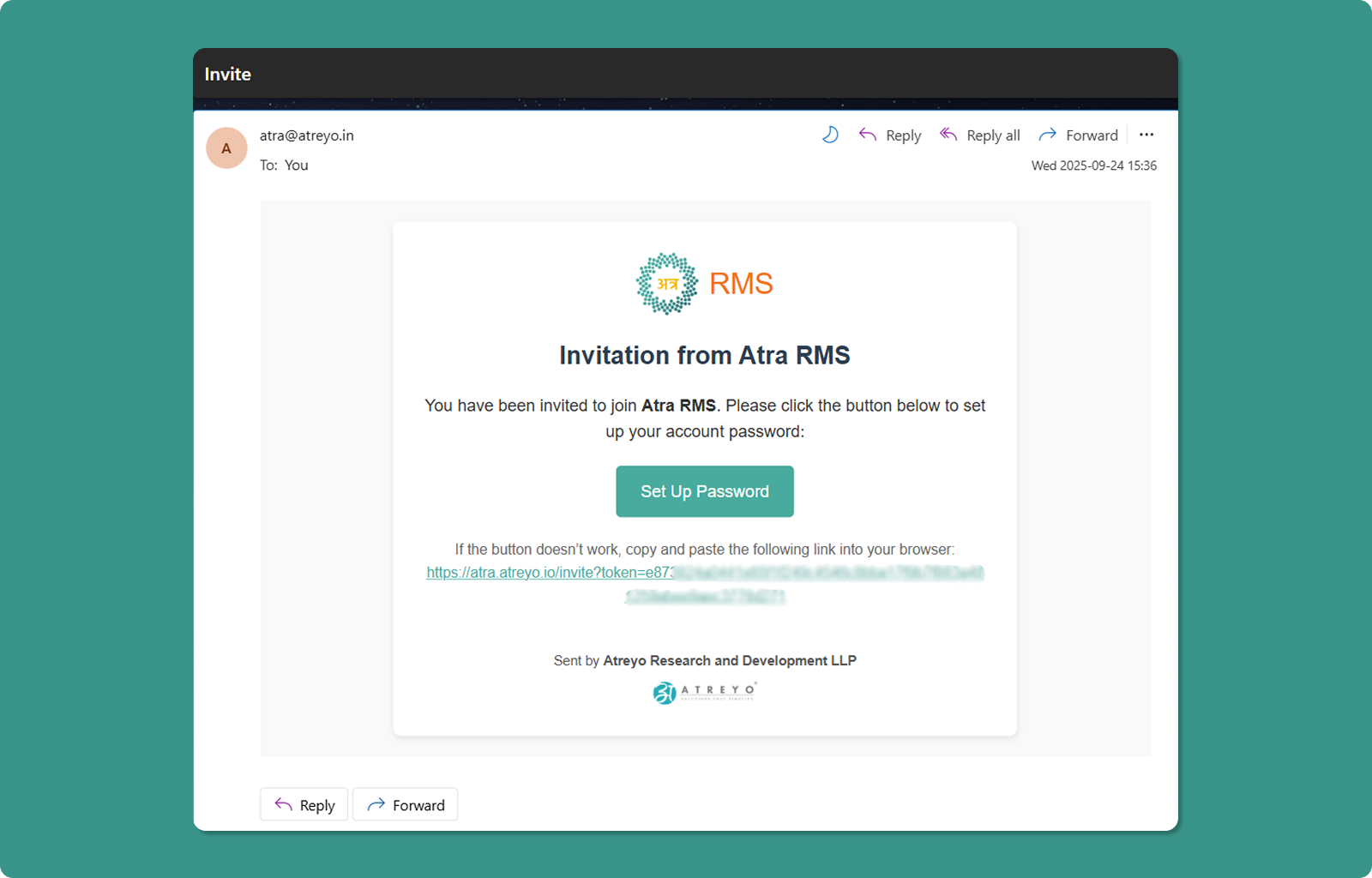
The invitation email contains:
Header:
-
Subject: "Invitation to Join Atra RMS"
-
Sender: Atra
Body:
-
Welcome message
Primary Action:
-
"Set Up Password" button (teal)
-
Clicking opens account setup page in browser
Alternative Access:
-
Full invitation URL provided below button
-
Format: https://atra.atreyo.io/invite?token=...
-
Use if button doesn't work (copy and paste into browser)
Expiration Notice:
-
Invitation valid for 24 hours from the time you are invited.
-
After 24 hours, link becomes invalid.
-
Must request new invitation from organization administrator or the person who invited you.
Account Setup Steps
Step 1: Click Setup Link
Method A: Click Button
-
Open invitation email
-
Click "Set Up Password" button
-
Browser opens account setup page
Method B: Copy/Paste URL
-
Locate full URL in email (below button)
-
Copy entire URL
-
Paste into browser address bar
-
Press Enter
Step 2: Account Setup Page
The Account Setup page allows you to create a password for your new Atra RMS account.
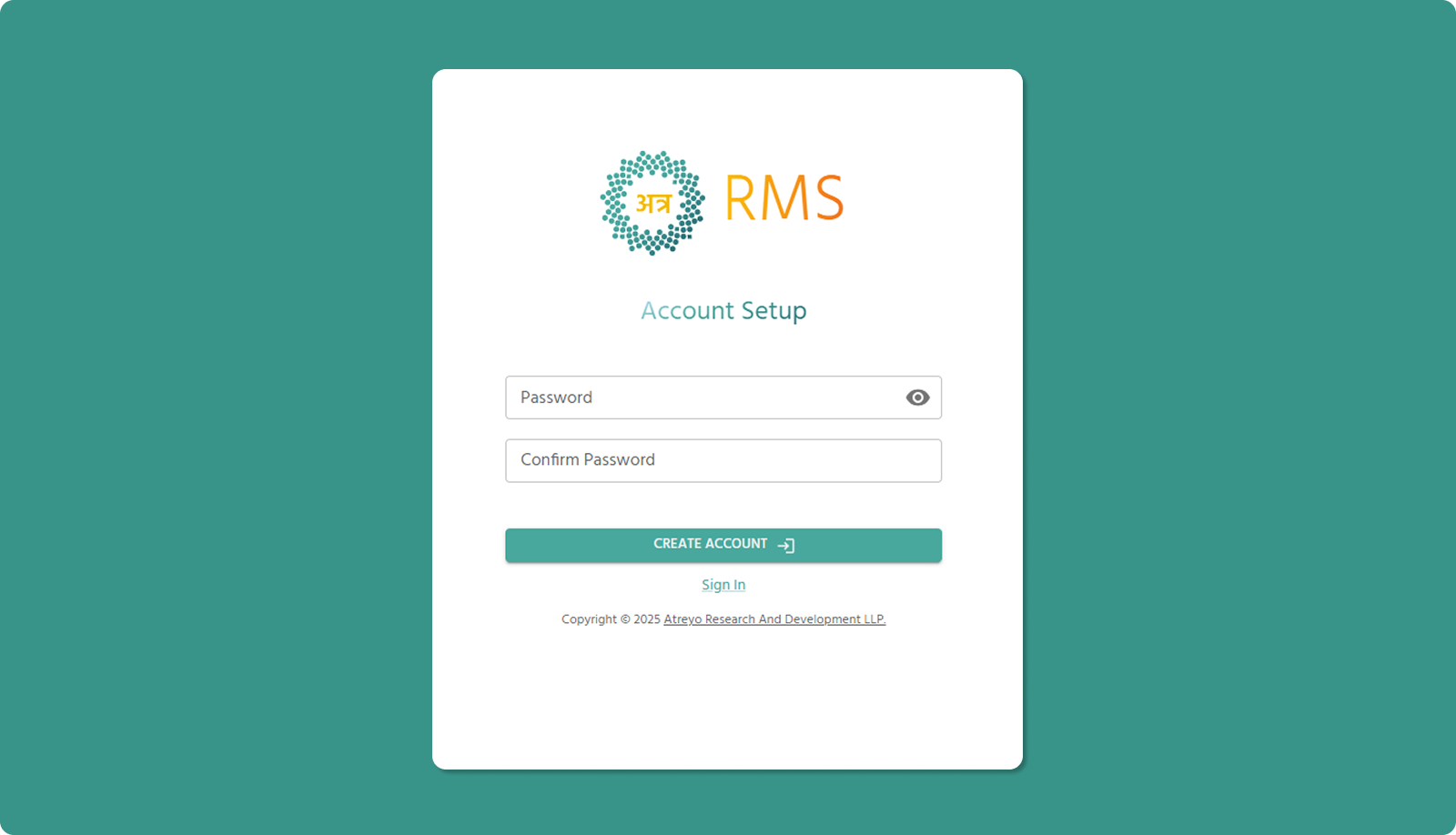
Step 3: Password Requirements
Your new password must meet all of the following security requirements:
Mandatory Requirements:
|
Requirement |
Description |
Example |
|
Length |
Minimum 8 characters |
MyP@ssw0rd (10 chars ✓) |
|
Lowercase |
At least one lowercase letter (a-z) |
myPassword1! ✓ |
|
Uppercase |
At least one uppercase letter (A-Z) |
MyPassword1! ✓ |
|
Numeric |
At least one number (0-9) |
MyPassword1! ✓ |
|
Special Character |
At least one symbol (!@#$%^&*) |
MyPassword1! ✓ |
Additional Restrictions:
❌ Cannot start with hyphen (-): -MyPassword1! is invalid
❌ Cannot contain parentheses ( ): MyPass(word)1! is invalid
Password Examples:
✅ Valid Passwords:
-
SecurePass123!
-
W0rk@Home2025
-
MyStr0ng#Pass
-
$ecure123Work
❌ Invalid Passwords:
-
password (no uppercase, number, or special char)
-
Password1 (no special character)
-
PASSWORD1! (no lowercase)
-
-Password1! (starts with hyphen)
-
Pass(word)1! (contains parentheses)
-
Pass1! (too short, only 6 characters)
Step 4: Enter Password and Confirm Password
Password Field:
-
Click in "Password" input field
-
Type your chosen password meeting all requirements
-
Click eye icon (👁️) to toggle visibility (optional)
Confirm Password Field:
-
Click in "Confirm Password" input field
-
Re-type the exact same password
-
System validates both passwords match
Step 5: Create Account
-
Verify all password requirements satisfied
-
Confirm both password fields match
-
Click "CREATE ACCOUNT →" button
System Processes:
-
Validates password meets all requirements
-
Validates passwords match
-
Creates account in Atra RMS
-
Expires invitation link
-
Sends confirmation email
Success:
-
Account created successfully
-
Confirmation email sent to your address
Error:
-
If validation fails, error message displays
-
Correct the issue and try again
Account Creation Success Email
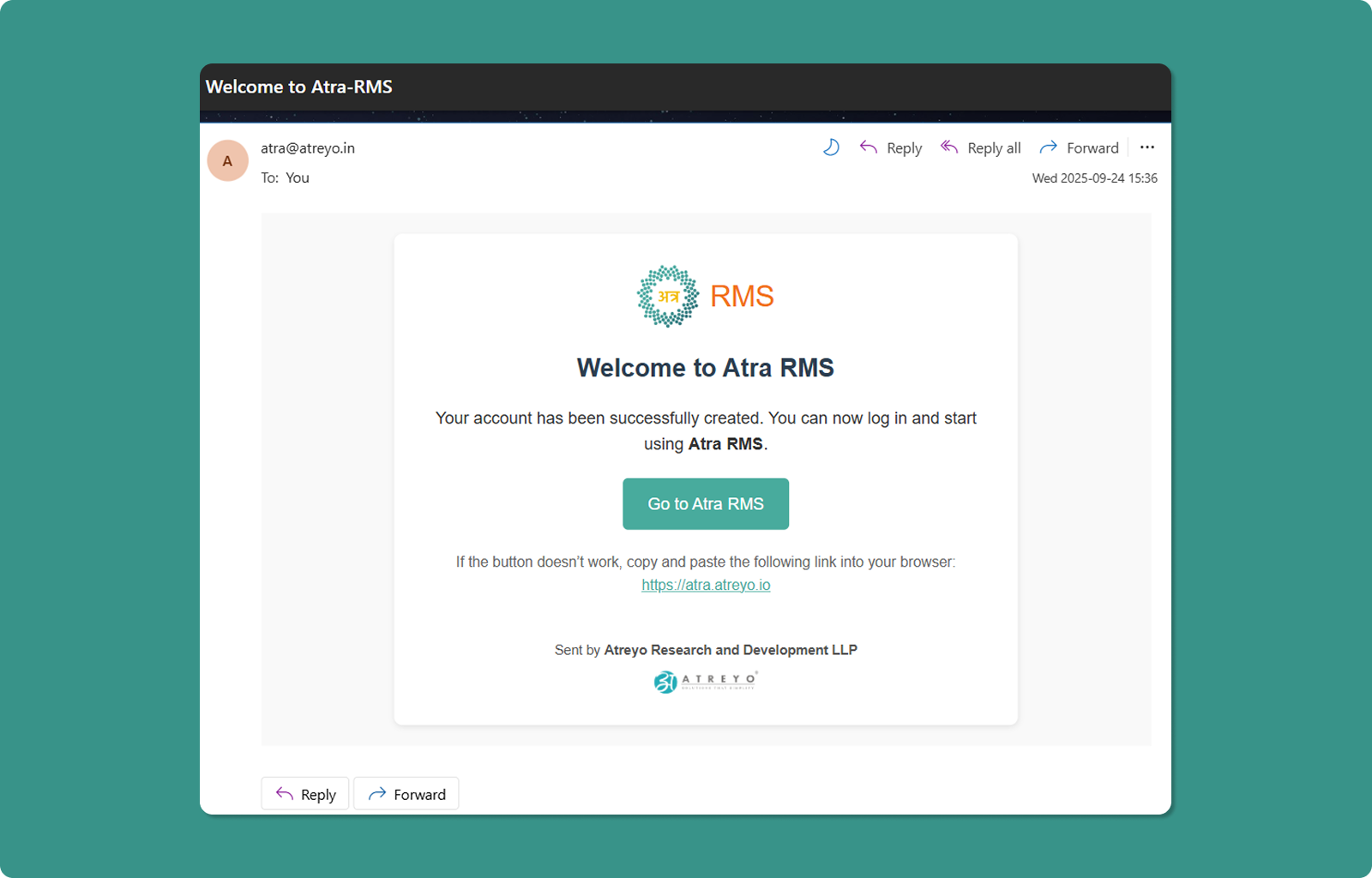
Shortly after account creation, you'll receive a confirmation email.
Email Contents:
-
Subject: "Atra RMS Account Creation Successful"
-
Confirmation message
-
"Go to Atra RMS" button linking to login page
-
Backup URL for login page
Purpose:
-
Confirms account is active and ready
-
Provides easy access to login page
-
Serves as confirmation record
Important Notes on Expiration
⏰ 24-Hour Validity:
The invitation link is valid for 24 hours from the time you are invited.
After 24 Hours:
-
Link expires automatically
-
"Invitation link has expired" page displays
-
Cannot complete account setup with expired link
✅ Post-Setup Expiration:
Once you successfully set up your password:
-
Invitation link expires immediately
-
This prevents reuse of the invitation
-
Security measure to protect your account
Invitation Expired
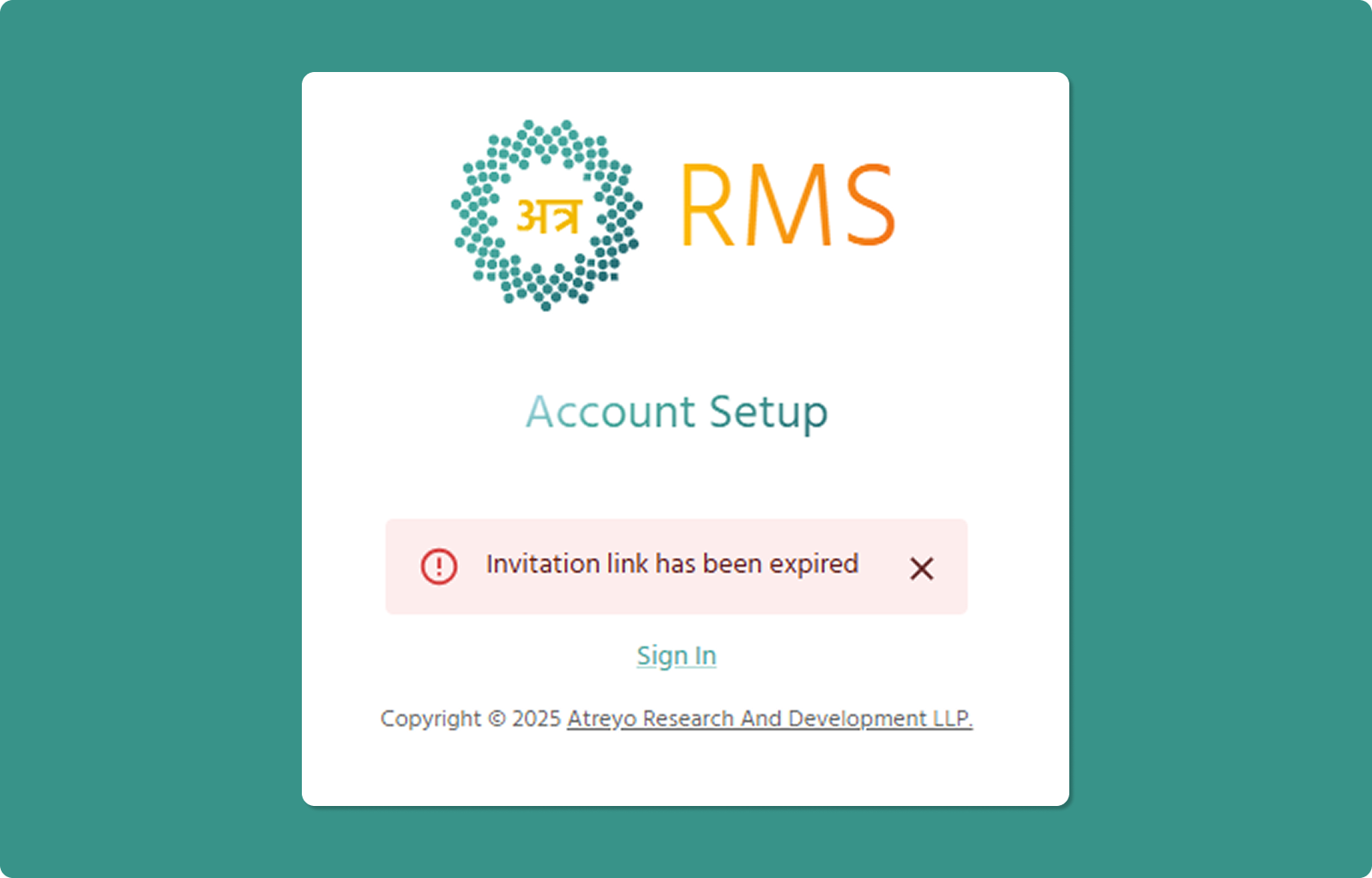
If you try to access an expired invitation link, you'll see:
Message:
"Invitation link has expired"
Common Reasons:
Time Limit: 24 hours passed since invitation was sent
Next Steps:
If Account Already Created:
-
Click "Sign In" link
-
Go to login page
-
Use your email and password
If Account Not Yet Created:
-
Contact the person who invited you
-
Request a new invitation email
-
Complete setup within 24 hours of new invitation
Login Page Guide
The login page is your entry point to the Atra RMS platform.
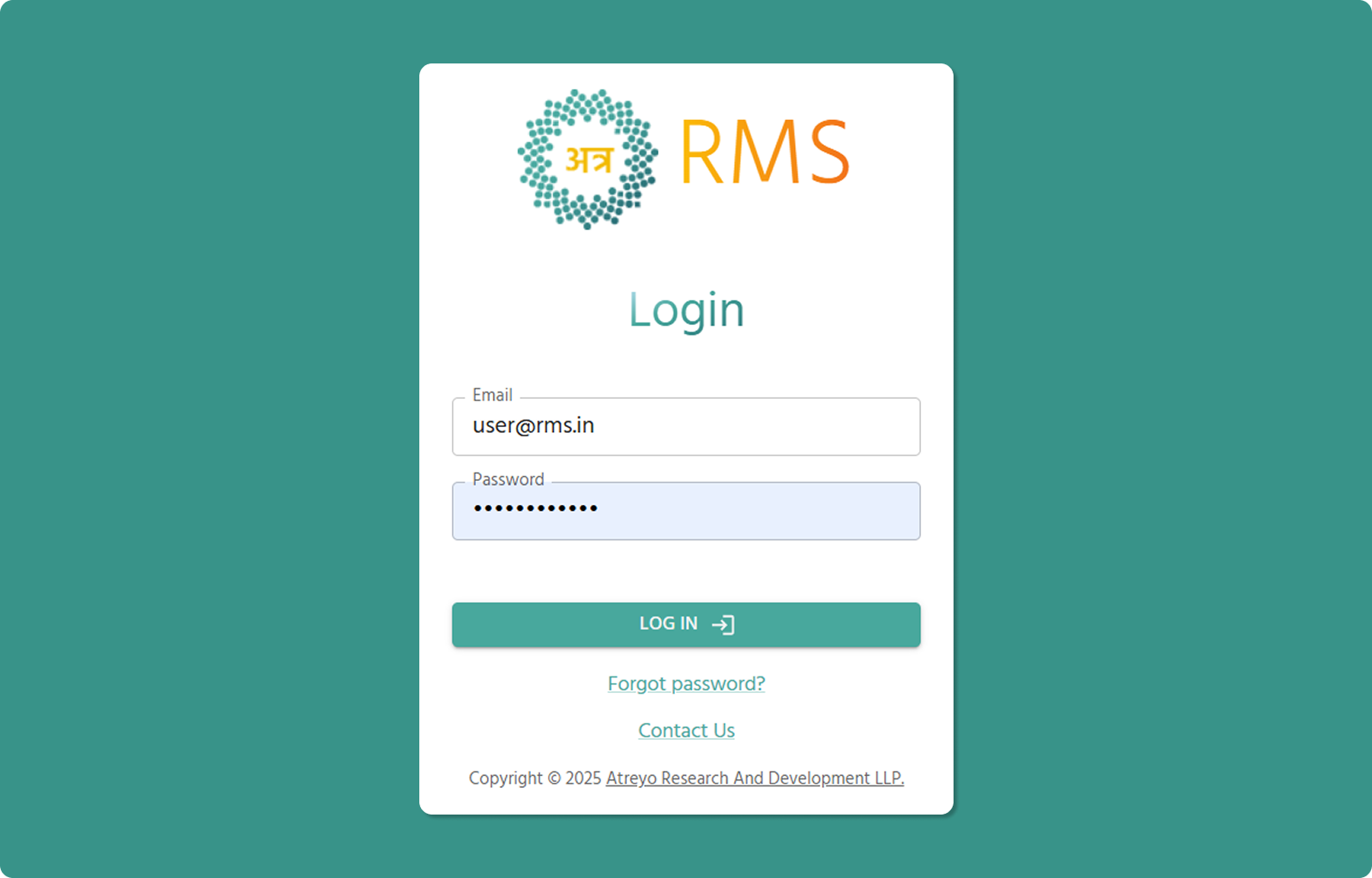
Accessing the Login Page
Direct URL:
https://atra.atreyo.io/login
From Emails:
-
Click "Go to Atra RMS" button in any system email
-
Backup URL provided in emails
How to Log In
[INSERT SCREENSHOT: Login_Form.png]
Step 1: Enter Email
-
Click in "Email" field (📧)
-
Type your registered email address
-
Example: user@rms.in
Step 2: Enter Password
-
Click in "Password" field (🔒)
-
Type the password you created during setup
-
Click eye icon (👁️) to toggle visibility (optional)
Step 3: Log In
-
Click "LOG IN →" button (teal)
-
System validates credentials
-
If valid, redirects to Atra RMS overview page
Troubleshooting Login Issues
Problem: "Invalid Password" Error
Solutions:
-
✅ Verify email is correct (check for typos)
-
✅ Ensure password is correct (check Caps Lock)
-
✅ Use "Forgot password?" if password unknown
Problem: "User Not Found"
Solutions:
-
✅ Verify account setup was completed
-
✅ Check if invitation expired before setup
-
✅ Contact administrator to verify invitation was sent
-
✅ Request new invitation if needed
Need Help?
Forgot Password?
-
Click "Forgot password?" link below login button
-
Initiates password recovery process
-
See Password Recovery Guide section
Contact Us:
-
Click "Contact Us" link at bottom
-
Opens Contact Us forml
-
Atreyo Research and Development LLP