Getting Started with Atra-RMS
The Overview page is your command center in Atra RMS, offering a birds-eye view of your fleet and activity. From the navigation panel on the left, you can manage your Devices, VPN, Organizations, Users, and Roles. The panel also includes quick-access buttons to download the Atra VPN Client, view the Docs, or switch between light and dark modes via the theme toggle. For a cleaner view, you can collapse the panel using the icon at its top-right corner.
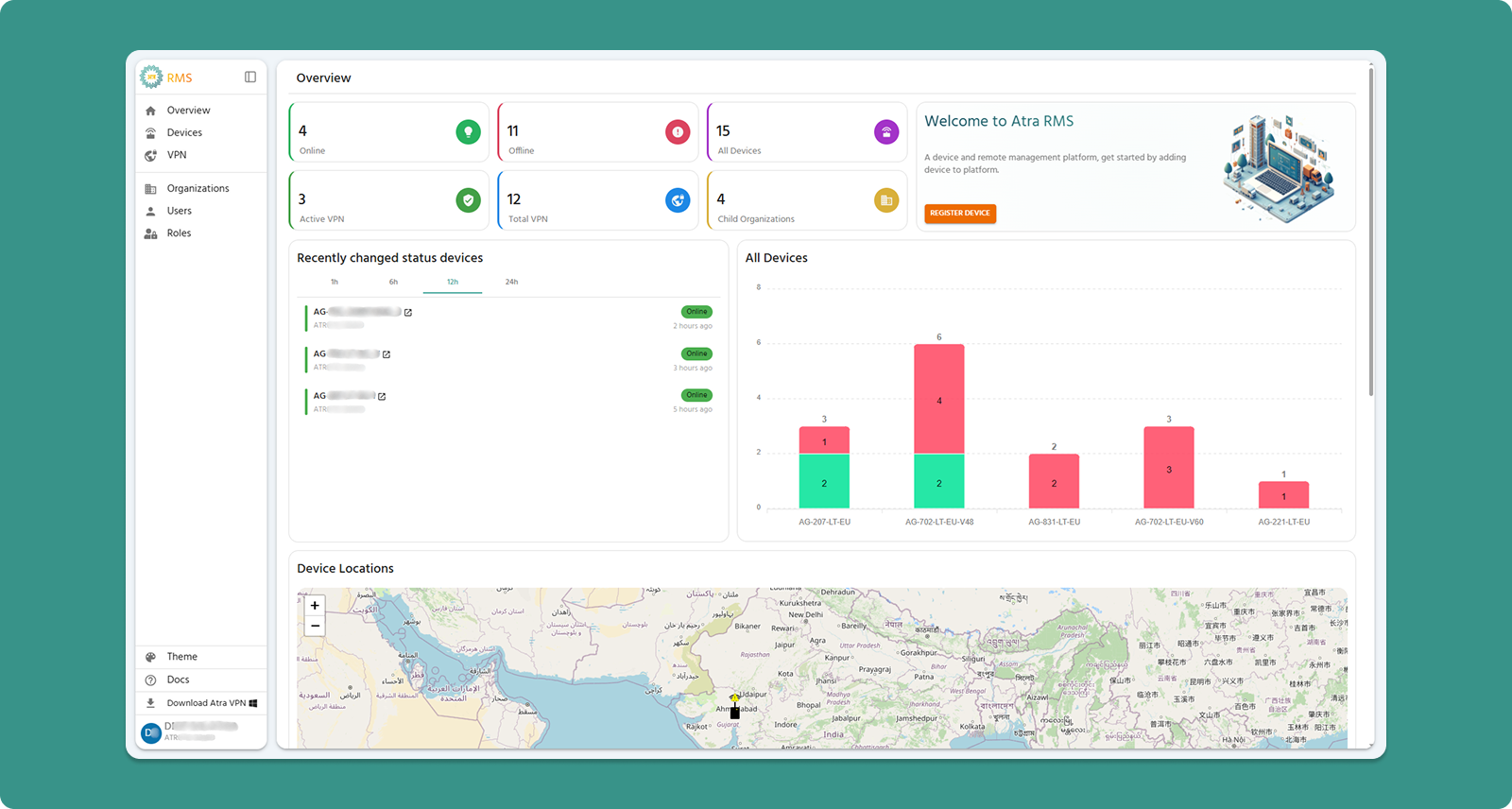
Device, VPN Tunnels & Organization Summary Cards
The six summary cards at the top display metrics for your organization and its immediate child organizations (1 level below).
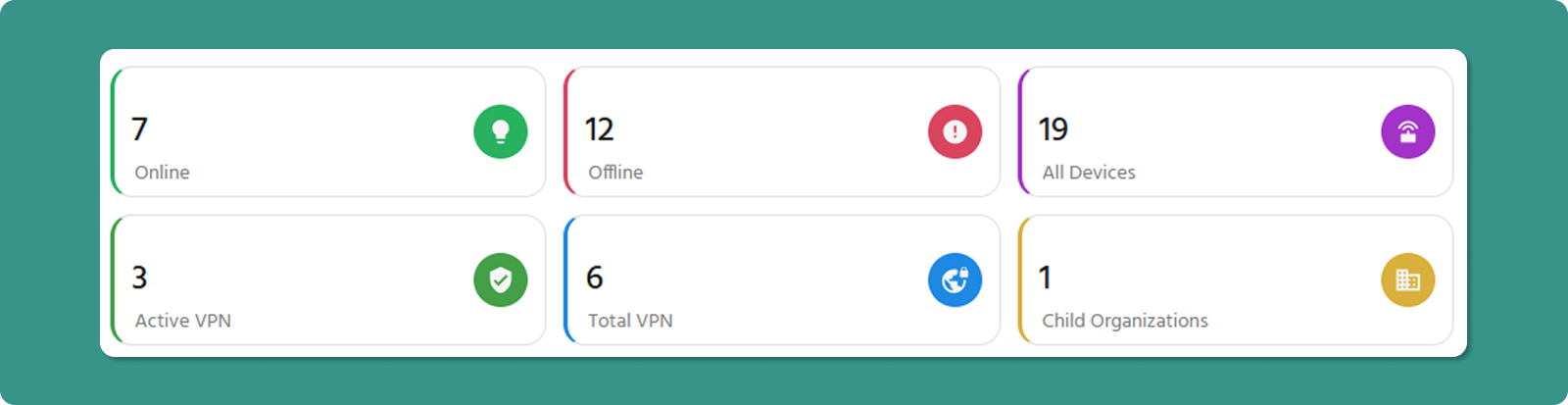
Card Breakdown
1. Online Devices
-
Displays: Number of devices currently online
-
Scope: Your organization + direct child organizations only
2. Offline Devices
-
Displays: Number of devices currently offline
-
Common Reasons: Device powered off, network issues, or maintenance
-
Action: Click through to Device List to investigate specific offline devices
-
Scope: Your organization + direct child organizations only
3. All Devices
-
Displays: Total registered devices under your management
-
Calculation: Online + Offline devices
-
Scope: Your organization + direct child organizations only
4. Active VPN
-
Displays: Number of active VPN Tunnels currently running
-
Scope: Your organization + direct child organizations only
5. Total VPN
-
Displays: Number of total VPN Tunnels
-
Calculation: Running + Exited
-
Scope: Your organization + direct child organizations only
4. Child Organizations
-
Displays: Count of immediate child organizations
-
Example: If your Level 1 org has 3 direct children, this shows "3"
-
Note: Does not count grandchild organizations (Level 3)
💡 Tip: Use these cards for quick health checks. A sudden spike in offline devices may indicate network issues requiring investigation.
Welcome Card & Key Action
Located on the right side of the summary section, this card provides quick access to the most common initial action.

Components
Welcome Message
-
Brief introduction to Atra RMS platform
-
Displayed on every login to orient new users
REGISTER DEVICE Button (Orange)
-
Purpose: Fast-track device registration
-
Action: Navigates directly to Device Registration form
-
Shortcut: Bypasses Devices menu navigation
-
When to Use: Registering new Gateways to your fleet
Device Statistics Charts
All Devices Bar Chart (Right Side)
This chart provides a visual breakdown of your online and offline device fleet by model type.
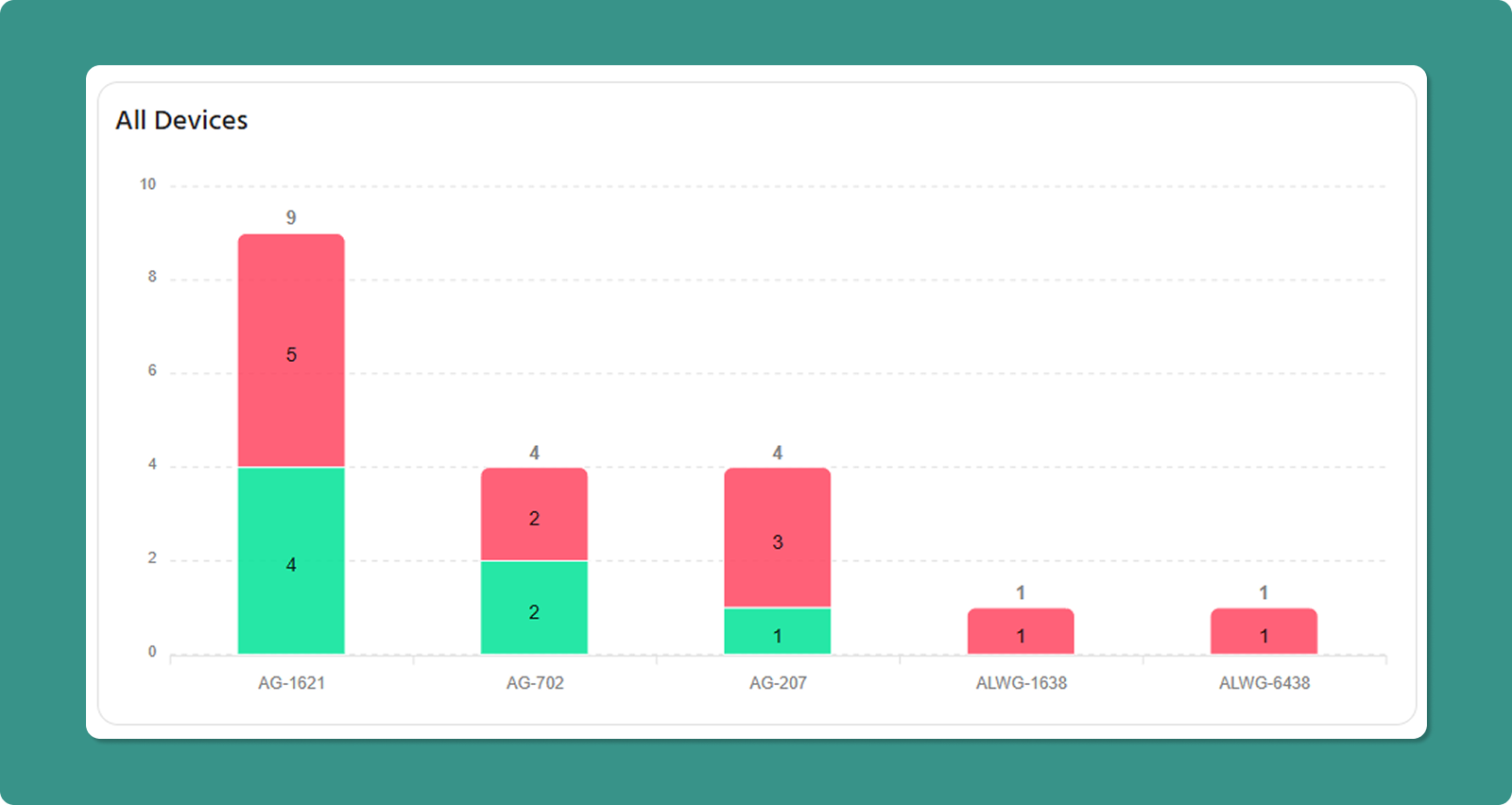
Chart Elements:
-
X-Axis: Device model names (e.g., AG-702-LT-EU-V48, AG-207-LT-EU)
-
Y-Axis: Total device count
-
Bar Values: Displays the total count of online and offline devices above each bar. Numbers in the green section indicate the online device count, while numbers in the red section indicate the offline device count.
-
Scope: Your organization + direct child organizations
Use Cases:
-
Activity Status: View ratios of Online vs. Offline devices across your entire fleet.
Device Status Activity (Left side)
This list provides a snapshot of the most recent connectivity events, highlighting exactly how long ago a device moved to its current Online or Offline state.
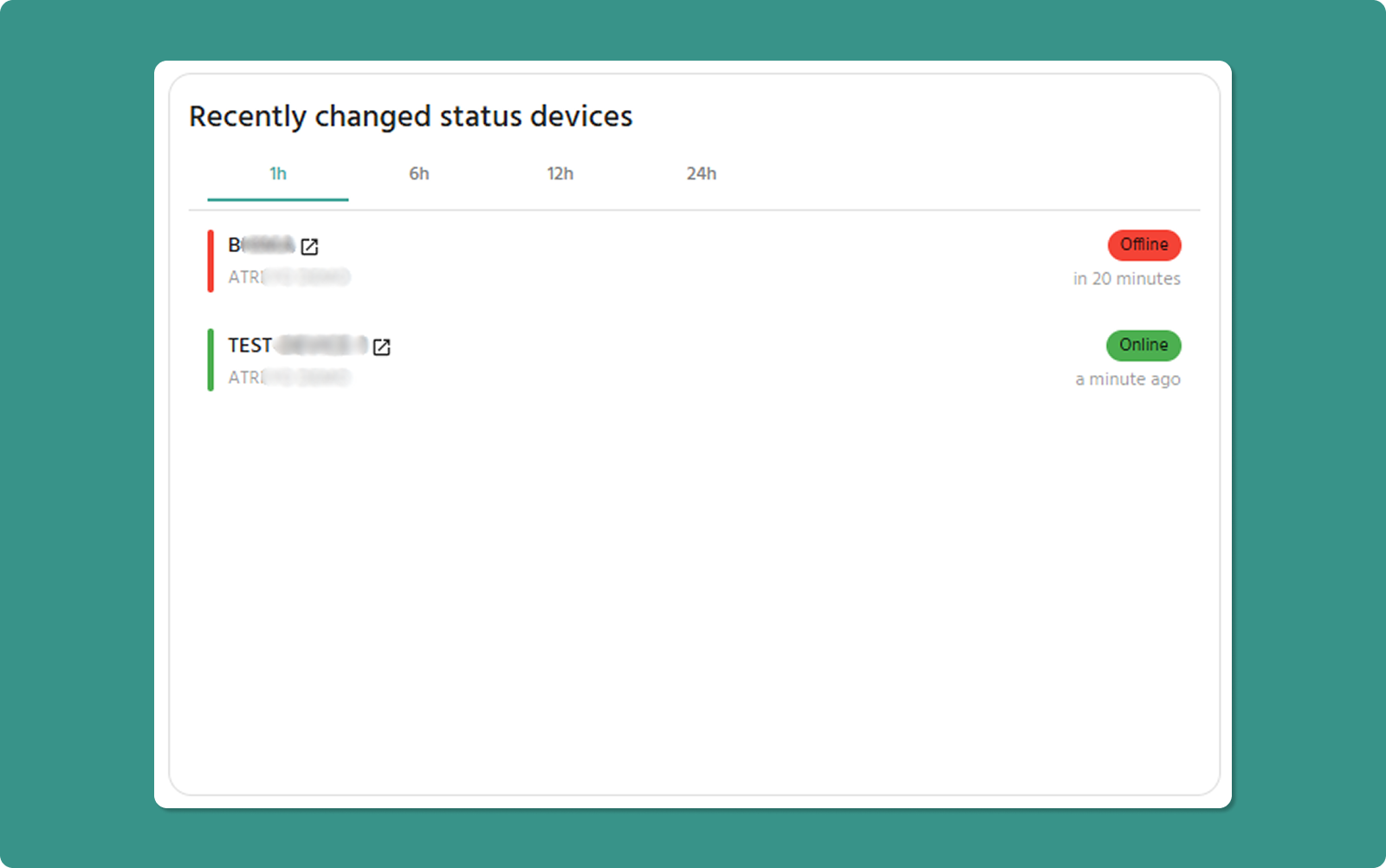
Card Elements:
-
Device Name: The specific identifier/name of the device.
-
Organization: The organization or child organization the device belongs to.
-
Status: A color-coded indicator showing the current state (Online/Green or Offline/Red).
-
Status Changed Time: Displays the relative or absolute time the device last switched status (e.g., "Online since 1 hour ago" or "Offline since 6 hours ago").
-
Time Filters: Quick-toggle options to filter events within the last 1, 6, 12, or 24 hours.
Scope: Your organization + direct child organizations.
Use Cases:
-
Connectivity Troubleshooting: Identify devices that have recently dropped offline to prioritize immediate maintenance or remote restarts.
-
Stability Monitoring: Observe if specific organizations are experiencing frequent "flapping" (devices repeatedly cycling between online and offline).
-
Deployment Validation: Confirm that newly installed devices have successfully reached an "Online" status within the expected timeframe.
Map Functionality
The interactive map displays geographic locations of your device fleet.
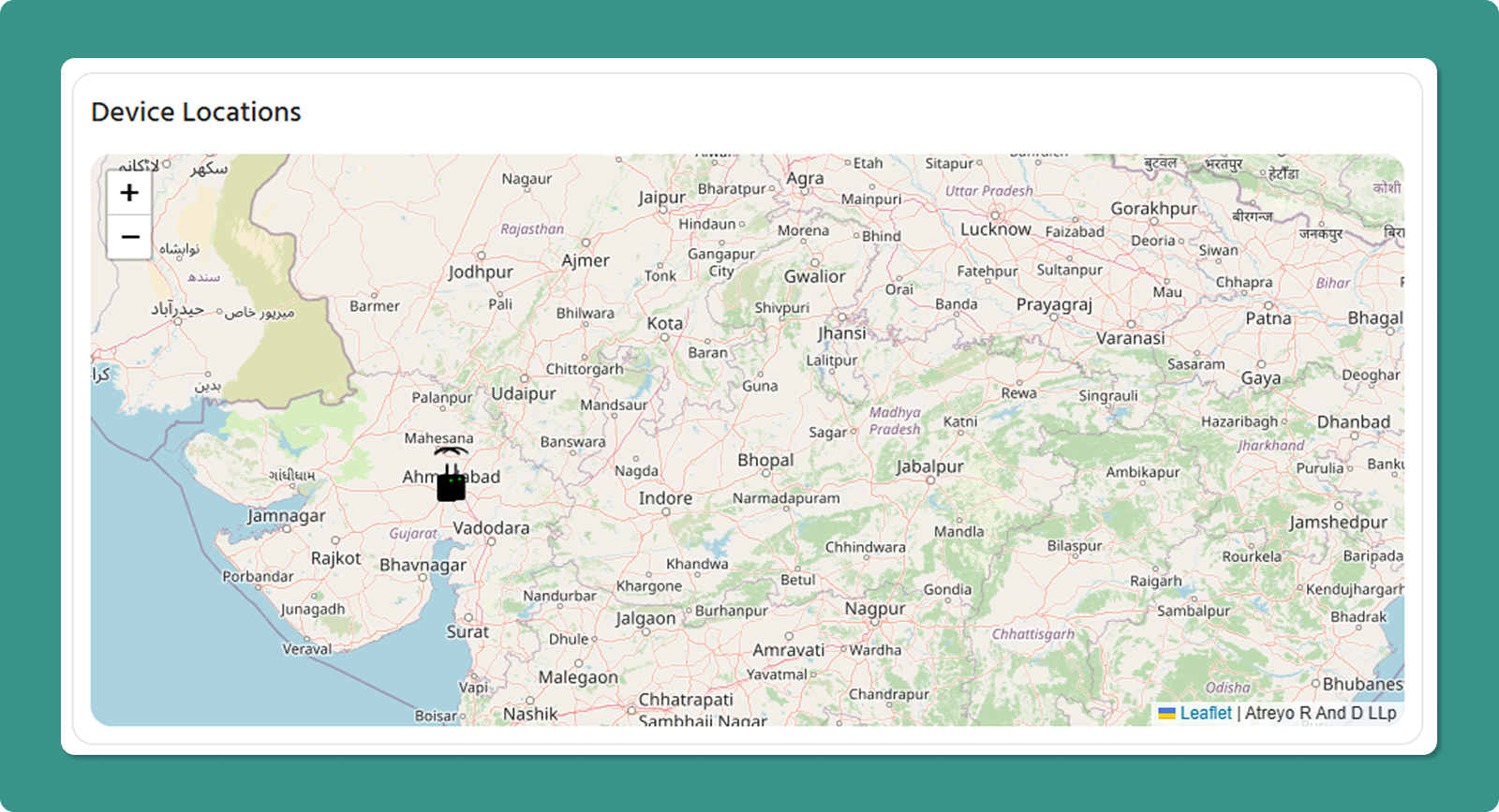
Location Data Sources
Devices appear on the map only when location data is available from:
-
GPS Service (Automatic)
-
Device fetches GPS coordinates
-
Manual Entry
-
The User sets fixed coordinates
-
Stored in cloud only (not on device)
-
Useful for stationary installations without GPS
⚠️ Important: If neither source is active, the device will not appear on the map, even if online.
Device Status Indicators
Online Device Icon:
-
Gateway symbol with Wi-Fi icon
-
Green dot indicator
-
Hover to see Serial Number
Offline Device Icon:
-
Gateway symbol with warning/alert icon
-
Hover to see Serial Number
Map Navigation
Zoom Controls:
Pan/Drag:
-
Click and hold to drag map
-
Reposition view to focus on specific regions
💡 Pro Tip: Use the map for quick visual confirmation that devices are deployed in expected locations.
Currently Connected Users (Right side)
This card displays a view of all users currently connected to the VPN tunnel via the Atra VPN Client.
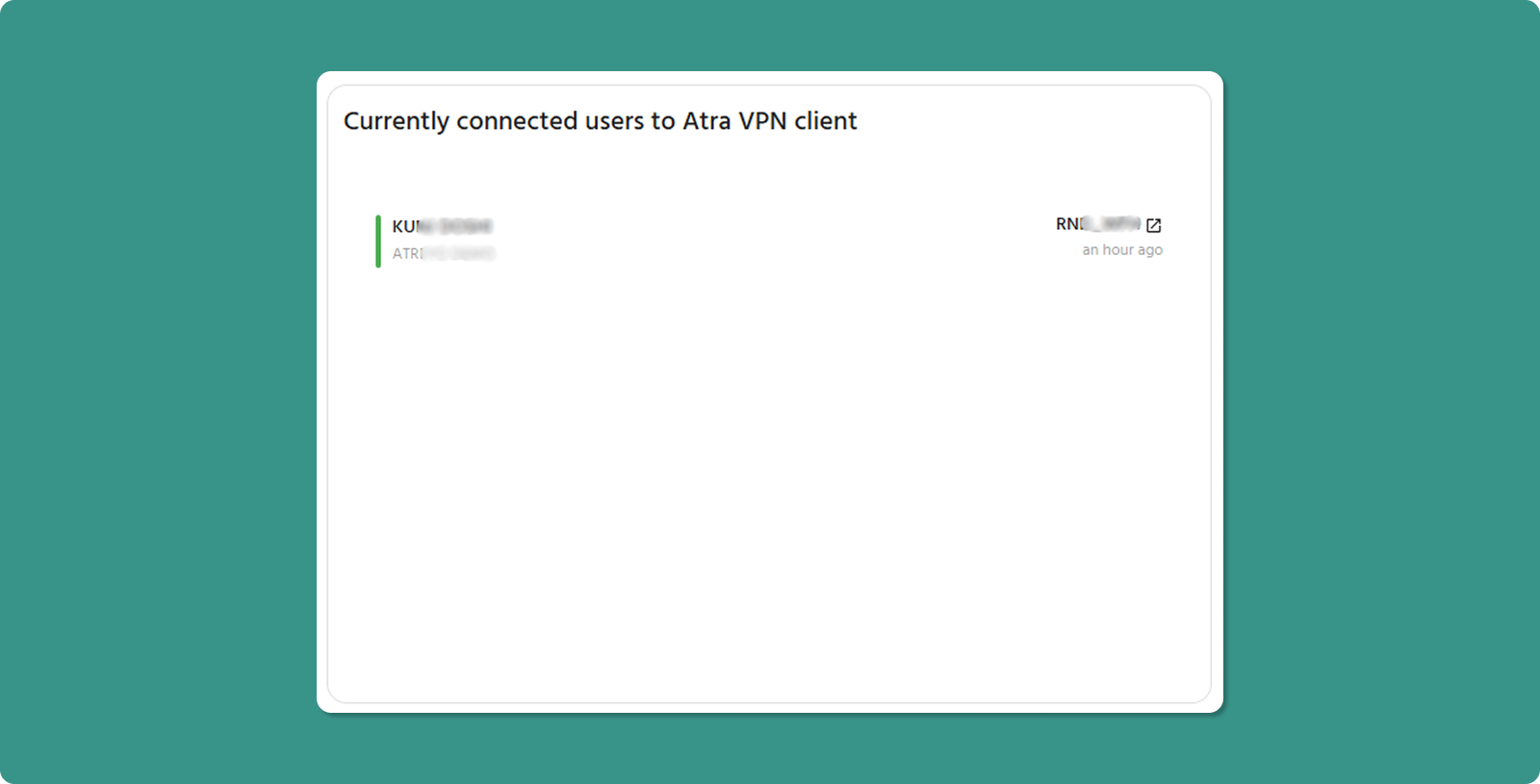
Card Elements:
-
User Name: The identity of the user currently connected.
-
Organization: The name of the organization with which the user is associated.
-
VPN Tunnel Name: The name of the VPN tunnel to which the user is connected.
-
Connected Time: The specific timestamp when the user established the connection to the VPN tunnel.
Scope: Your organization + direct child organizations.
Use Cases:
-
Gain instant visibility into how many users are actively working via VPN at any given moment.
-
See which VPN tunnels are most heavily utilized by tracking the distribution of active users across available tunnels.
Note: This card will only be displayed if a user is connected; otherwise, the map will be shown in full width.
Recent Activity Tables
Recently Registered Devices
This table shows the last 10 devices added to your system, providing a quick view of new devices onboarding.
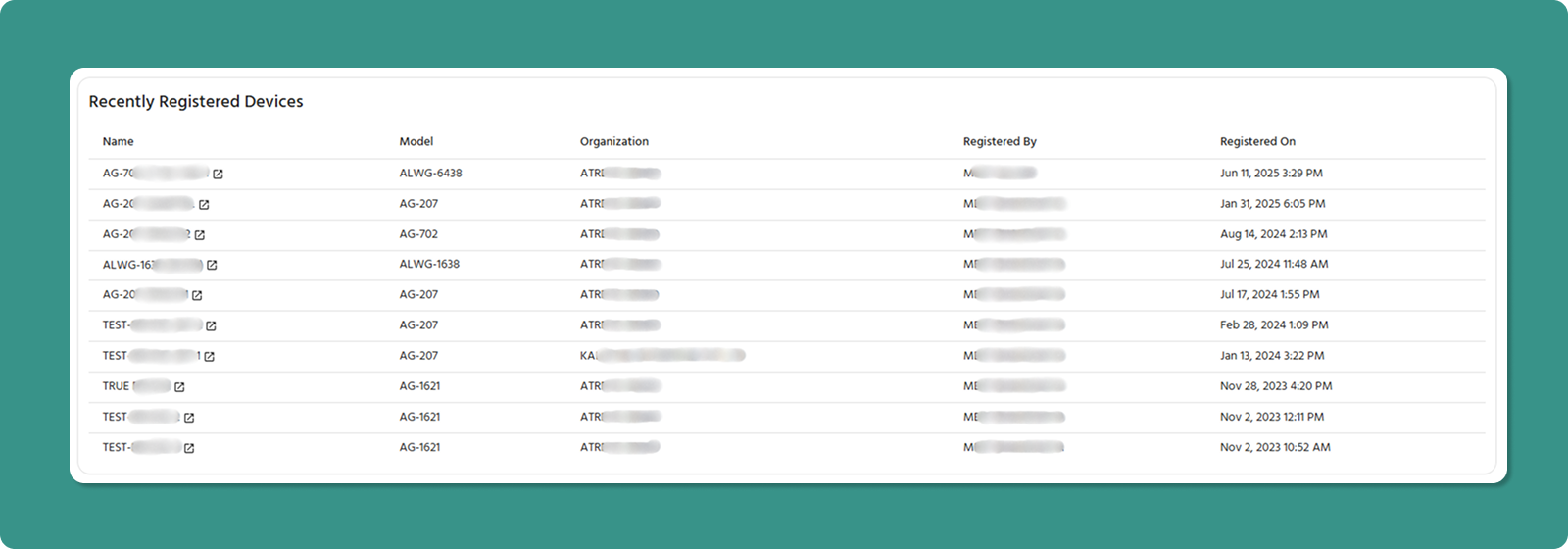
|
Column |
Information |
|
Name |
Custom device identifier |
|
Model |
Gateway model name |
|
Organization |
Assigned organizational name |
|
Registered By |
User who registered the device |
|
Registered On |
Date and time of registration |
Key Action:
-
Click device Name → Opens full Device Detail Page for monitoring
Common Uses:
-
Verify recent device additions were processed correctly
-
Identify who registered devices
Recently Added Child Organizations
This list shows the last 5 child organizations created.
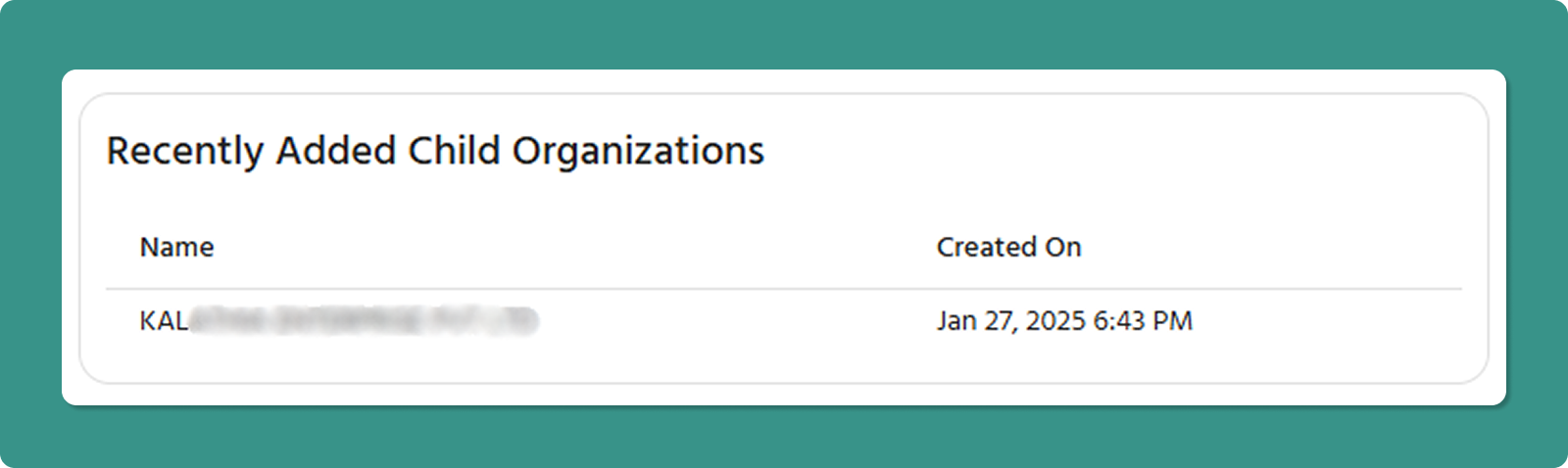
|
Column |
Information |
|
Name |
Child organization identifier |
|
Created On |
Date and time of creation |
Common Uses:
-
Verify that new organizations were created correctly
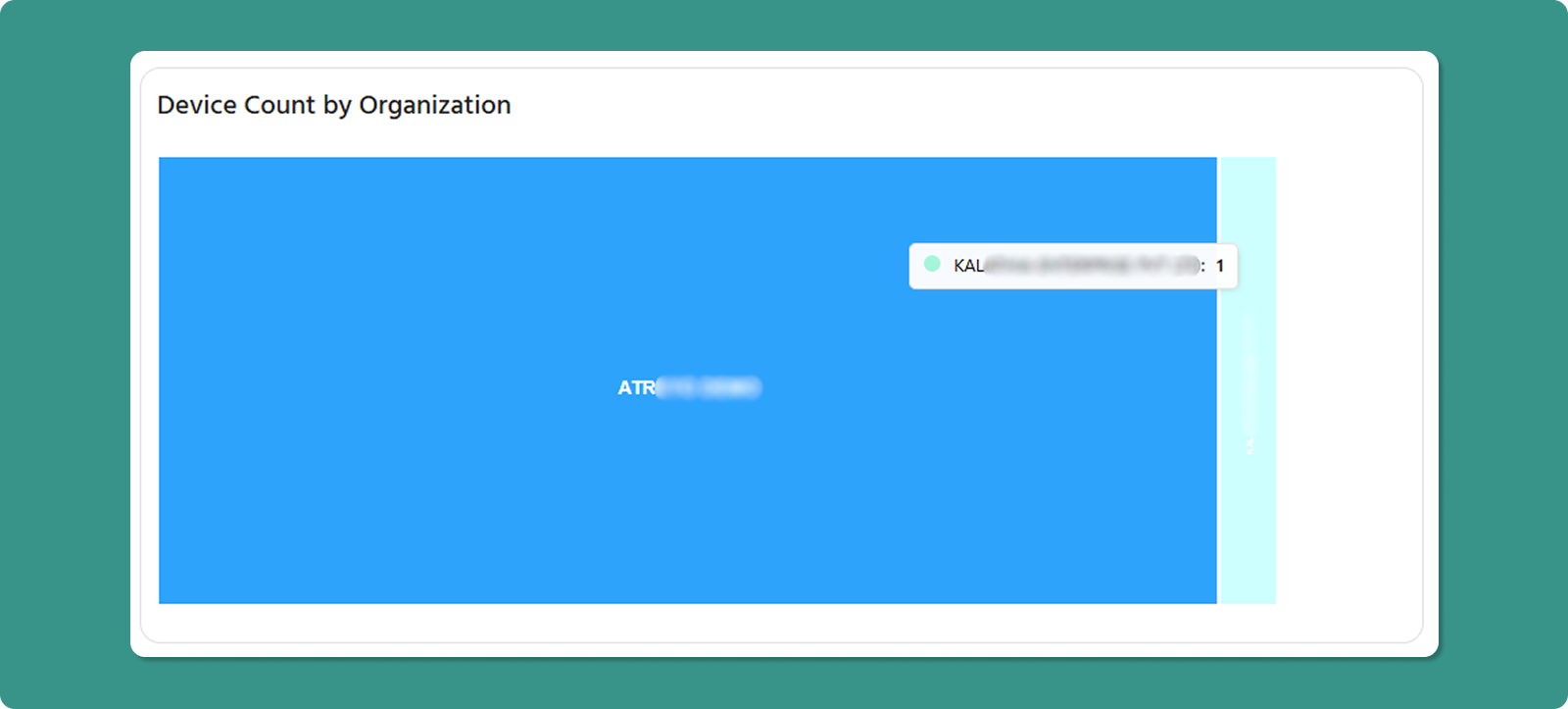
Device Count by Organization (Treemap)
The treemap provides an intuitive visual representation of device distribution across your organizational hierarchy.
Understanding the Treemap
Visual Encoding:
-
Rectangle Size: Proportional to number of devices in that organization
-
Larger Rectangle: More devices assigned
-
Smaller Rectangle: Fewer devices assigned
Data Display:
-
Organization Label: Name visible inside each rectangle
-
Hover Tooltip: Shows exact device count
-
Color: Each organization has a distinct color
Important Scope Note
⚠️ Critical Understanding:
Each rectangle shows ONLY devices registered directly to that specific organization. It does NOT include devices from child organizations below it.
Example:
-
ATREYO (Level 1): 50 devices registered directly
-
DEMO_1 (Level 2 child): 30 devices registered directly
-
Treemap shows: ATREYO = 50, DEMO_1 = 30 (NOT 80)