Manage and View VPN Tunnel Profiles
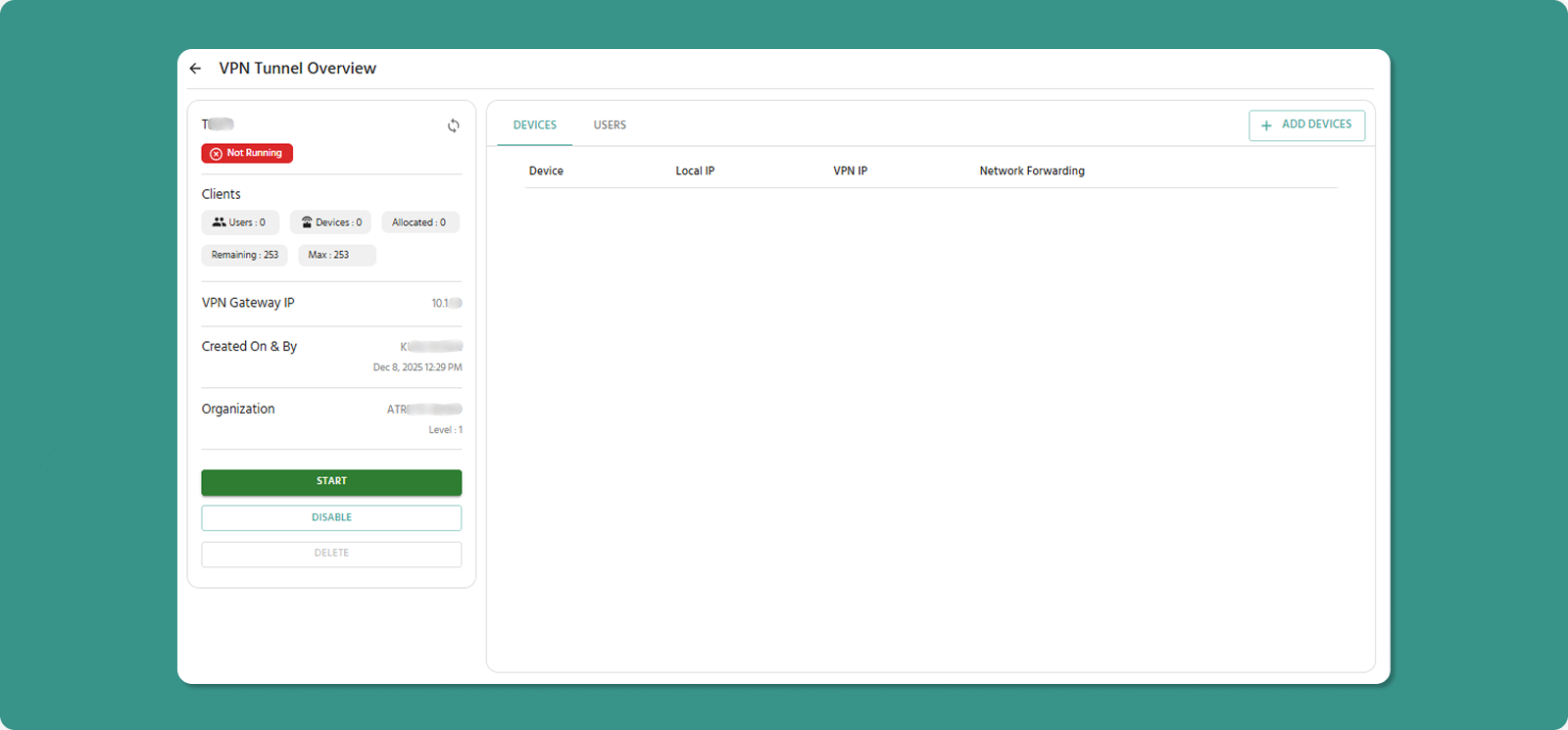
The Tunnel Overview page is your control center for managing an individual VPN tunnel, its process, and its connected clients.
Accessing Tunnel Overview
Page Layout
Two-Panel Design:
Left Panel: Tunnel details, status, and management actions
Right Panel: Client management tabs (Devices and Users)
Left Panel: Tunnel Details & Actions
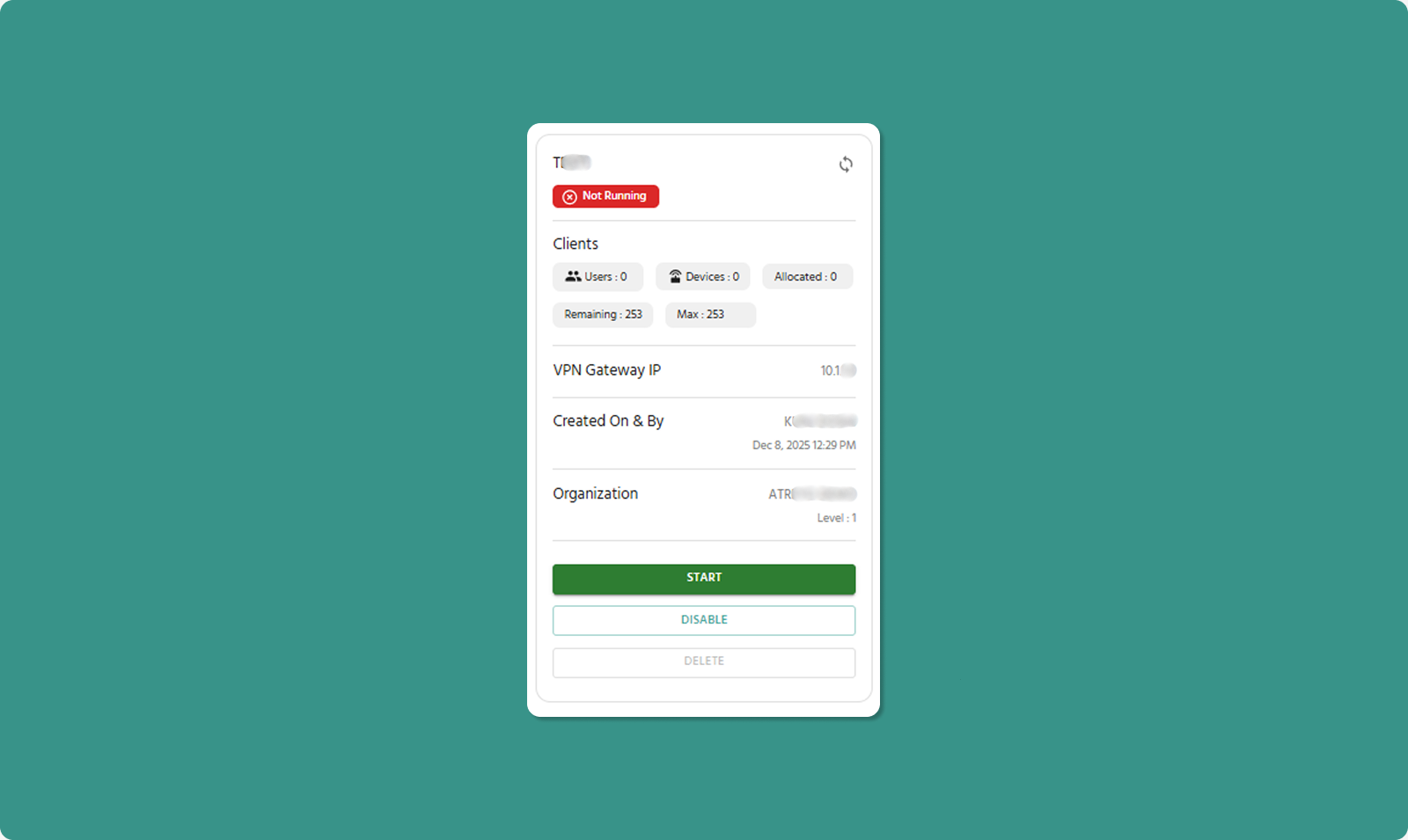
Core Status Information
|
Field |
Description |
Example |
|
Name of Tunnel |
Custom tunnel identifier |
Production_Tunnel_01 |
|
Status of Process |
Current VPN server state |
Running, Not-Running (Exited) |
|
VPN IP |
Gateway IP address for tunnel |
10.8.0.1 |
VPN IP Significance:
-
All traffic for this tunnel routes through this IP
-
First IP in tunnel's subnet
-
Cannot be modified
Client Information
|
Field |
Description |
Limit |
|
Number of Users |
Total users allocated to tunnel |
No specific limit (within Max) |
|
Number of Devices |
Total devices allocated to tunnel |
No specific limit (within Max) |
|
Allocated Clients |
Sum of users + devices currently in tunnel |
Max 253 |
|
Remaining Clients |
Available slots for additional users/devices |
253 - Allocated |
|
Max |
Absolute maximum clients supported |
253 (fixed) |
Example Calculation:
Users: 10
Devices: 5
Allocated Clients: 15
Remaining Clients: 253 - 15 = 238
Tunnel Metadata
|
Field |
Information |
|
Created By |
Username who created tunnel + date/time |
|
Organization |
Org name and level where tunnel exists |
Management Actions
Start/Stop Button
Purpose: Manually control VPN tunnel process
When Process is "Exited":
When Process is "Running":
⚠️ Important: Stopping process disconnects all active users/devices immediately. Use during maintenance windows only.
💡 Use Case for Stopping: If you need to add/remove devices or users and process is running, you CAN do so. However, stopping first ensures clean state management.
Enable/Disable Button
Purpose: Control tunnel's manageability and activity
When Status is "Enabled":
When Status is "Disabled":
⚠️ Critical Warning: If tunnel is Running and you click Disable:
-
Process automatically stops
-
All active connections immediately terminate
-
Users may lose work or# Atra RMS - User Guide
Delete Button
Purpose: Permanently remove tunnel from system
Important Restrictions:
⚠️ Cannot delete Enabled tunnel
Deletion Process:
-
Ensure tunnel is Disabled
-
Click DELETE button
-
Confirmation dialog appears
-
Click CONFIRM to permanently delete
-
Tunnel and all its configuration removed
What Gets Deleted:
-
Tunnel configuration
-
User/device associations
-
Process state
-
Historical connection logs (may be retained for audit)
What's NOT Affected:
-
Devices remain in system (not deleted)
-
Users remain in system (not deleted)
-
Other tunnels unaffected
⚠️ Deletion is Permanent: Cannot be undone. Must recreate the tunnel from scratch if needed again.
Refresh Button
Location: Top-right corner of Left Panel
Purpose: Manually update displayed information
When to Use:
-
After starting/stopping process (verify state change)
-
After adding/removing devices/users
-
To check current connection status
-
When expecting status change
💡 Note: Page auto-refreshes periodically, but manual refresh ensures immediate update.
Right Panel: Client Management Tabs
The right panel manages users and devices associated with the tunnel through two tabs.
Tab 1: Devices
Tab 2: Users
Both tabs have an "Add" button in the top-right corner of the tab header.
Tab 1: Devices
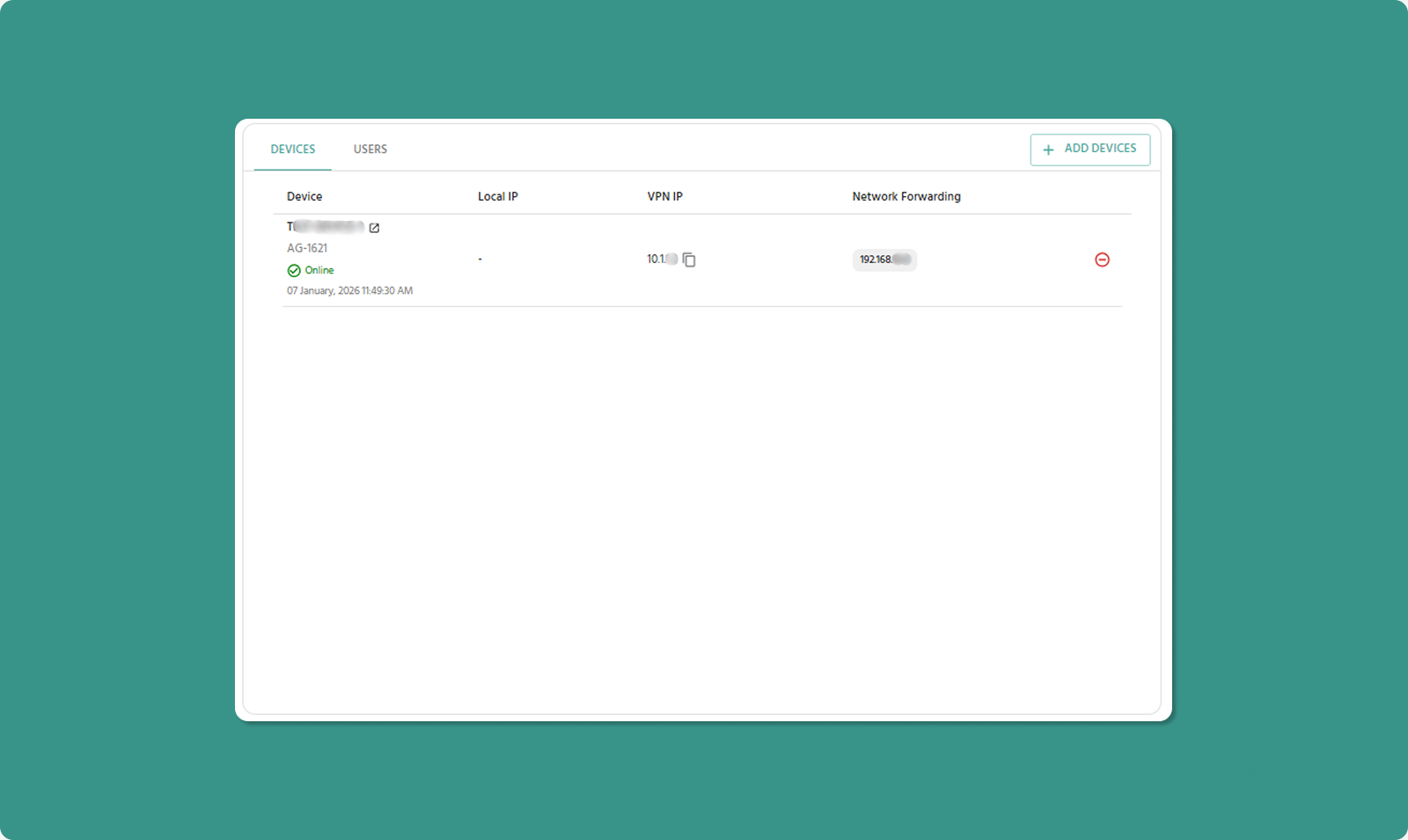
Displays all devices allocated to this VPN tunnel with their network configuration.
Adding Devices
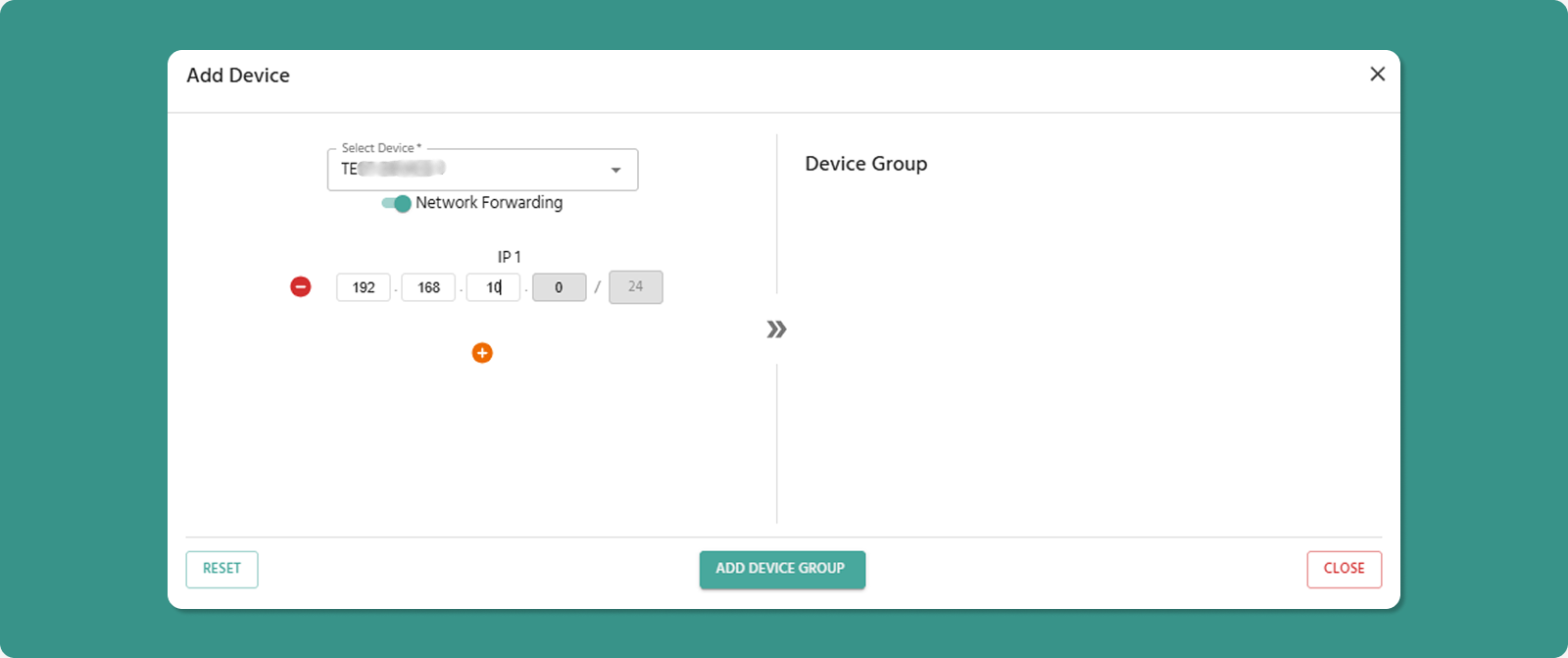
To Add Devices:
-
Click "Add Devices" button
-
Device selection dialog opens
-
Select devices from list (checkbox for each)
-
Configure Network Forwarding for each device
-
Click Add to confirm
Available Devices:
-
All devices from tunnel's organization
-
Devices from child organizations
Limit Check: System prevents adding devices if it would exceed 253 total clients (users + devices).
Network Forwarding Setting
Critical Decision: For each device added, choose Network Forwarding state.
|
State |
Effect |
Use When |
|
Enabled |
VPN users can access the device AND other devices on its local network |
Need to reach PLCs, sensors, or computers on device's LAN |
|
Disabled |
VPN users can ONLY access this specific device |
Only need device itself, not its local network (security/isolation) |
Example Scenarios:
Scenario 1: Factory with PLC Network
-
Device: IIoT Gateway in factory
-
Local Network: 10 PLCs on 192.168.10.x
-
Network Forwarding: ENABLED
-
Result: VPN users can connect to gateway AND all 10 PLCs
Scenario 2: Remote Sensor
-
Device: Standalone temperature sensor gateway
-
Local Network: None (device only)
-
Network Forwarding: DISABLED
-
Result: VPN users can only access sensor gateway itself
💡 Security Best Practice: Enable Network Forwarding only when necessary. Disabled provides better isolation and security.
Devices Table Columns
|
Column |
Description |
Details |
|
Device |
Device Name, Model, and Status |
Status shows Online/Offline with timestamp |
|
Local IP |
Device's IP on its physical LAN/WAN |
Example: 192.168.1.50 |
|
VPN IP |
Unique IP assigned by tunnel |
Example: 10.8.0.10 |
|
Network Forwarding |
Access to device's local network |
Enabled or Disabled (toggle switch) |
Device Name Link
The Device Name is a clickable link.
Action: Click device name
Result: Opens Device Detail Page in new browser tab
Use Case: Quick access to device monitoring without leaving VPN page
Local IP vs VPN IP
Local IP:
-
IP address on device's physical network
-
Example: 192.168.1.50 (factory LAN)
-
Used for communication within local site
-
Not accessible from internet
VPN IP:
-
IP assigned when device added to tunnel
-
Example: 10.8.0.10
-
Unique within this tunnel
-
Used for VPN communication
-
How users connect to device through VPN
Connection Flow:
User's Computer (10.8.0.25)
↓ VPN Tunnel
VPN Gateway (10.8.0.1)
↓Device VPN IP (10.8.0.10)
↓ If Network Forwarding Enabled
Device's Local Network (192.168.1.x)
Network Forwarding Toggle
Enabled State:
-
Toggle switch: ON (green)
-
Effect: VPN users can access device AND its local network
-
Routing: Traffic forwarded through device to local network
-
Access: Can reach 192.168.1.x devices (if device is on that network)
Disabled State:
-
Toggle switch: OFF (gray)
-
Effect: VPN users can ONLY access this specific device
-
Routing: No traffic forwarding to local network
-
Access: Can only reach device's VPN IP (10.8.0.10)
Changing Setting:
-
Click toggle switch
-
State changes immediately (Enabled ↔ Disabled)
-
Effect applies to all connected users
⚠️ Live Changes: You can toggle Network Forwarding while tunnel is running. Changes apply immediately without restarting the process.
Removing Devices
To Remove Device from Tunnel:
-
Locate device in table
-
Click Remove button (red, right side of row)
-
Confirmation dialog appears
-
Click CONFIRM to remove device
-
Device disappears from tunnel (but remains in system)
Effects:
-
Device's VPN IP deallocated
-
Allocated Clients count decreases
-
Remaining Clients increases
-
Device can be re-added later with different VPN IP
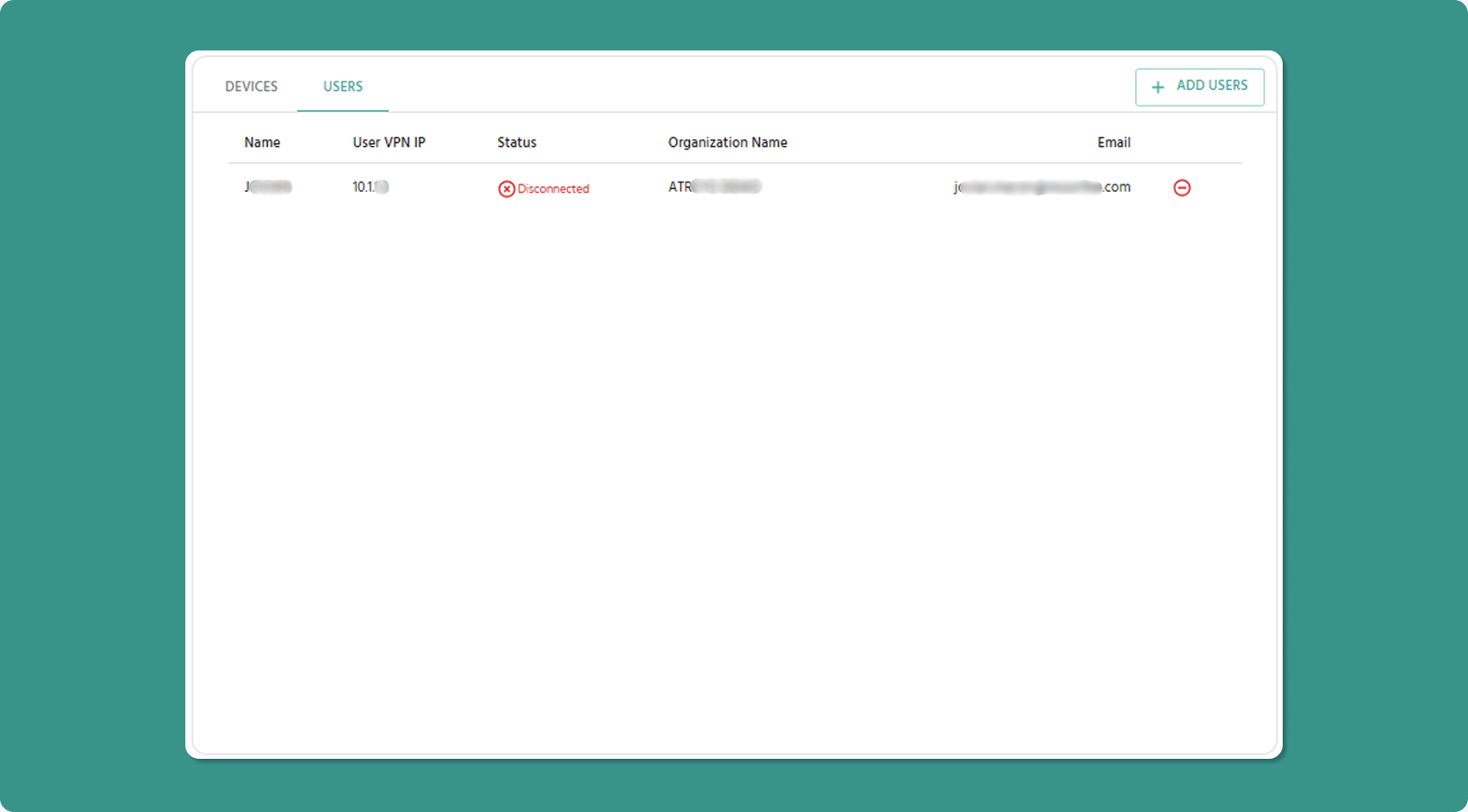
Tab 2: Users
Displays all users allocated to this VPN tunnel.
Adding Users
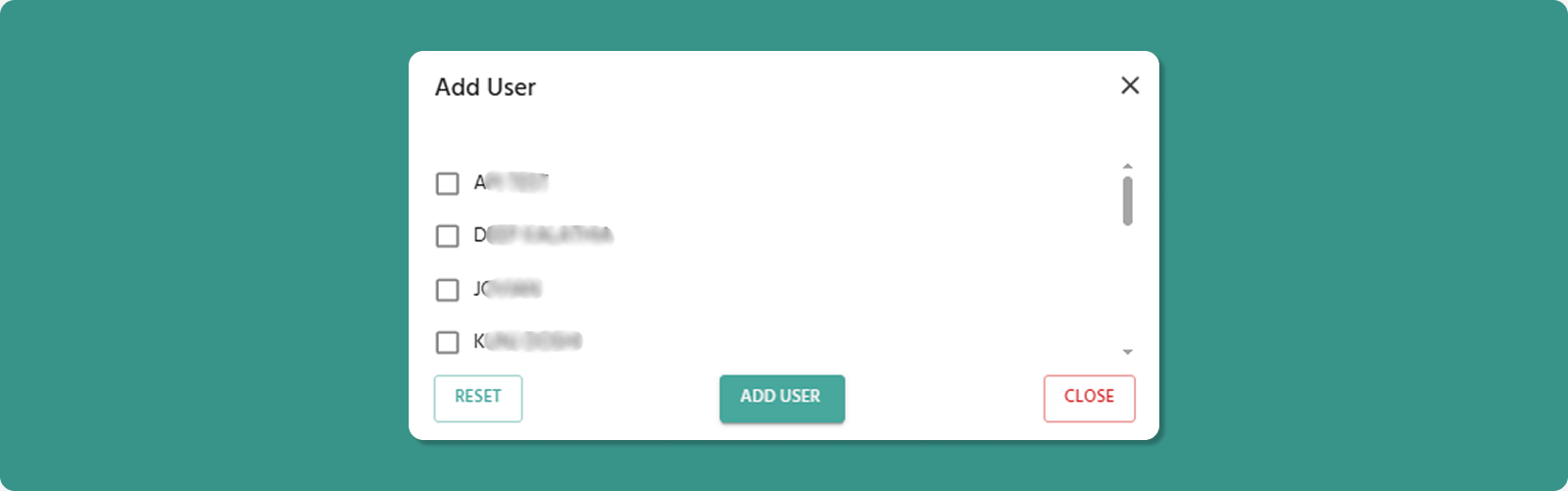
To Add Users:
-
Click "Add Users" button
-
User selection dialog opens
-
Select users from list (checkbox for each)
-
Click Add User to confirm
Available Users:
-
All users from selected organization
-
Users from child organizations (if any)
Available Users:
-
All users from tunnel's organization
-
Users from child organizations
Limit Check: System prevents adding users if it would exceed 253 total clients (users + devices).
Users Table Columns
[INSERT SCREENSHOT: Users_Table_Columns.png]
|
Column |
Description |
Example |
|
Name |
User's full name |
Jane Doe, Rajesh Kumar |
|
User VPN IP |
Unique IP assigned to user |
10.8.0.25 |
|
Status |
Shows whether the user is connected to the tunnel in the ATRA VPN client. |
Connected/Disconnected |
|
Organization Name |
User's organization |
ATREYO Level-1 |
|
|
User's login email |
jane.doe@company.com |
User VPN IP Assignment
How It Works:
-
Each user gets unique VPN IP when added to tunnel
-
IP automatically assigned from tunnel's subnet
-
Format: 10.8.0.x (where x = 2-254)
-
IP remains consistent until user removed
Usage:
-
User's VPN Desktop Application connects using this IP
-
Other users/devices can reach this user via this IP
-
Used for logging and access control
Removing Users
To Remove User from Tunnel:
-
Locate user in table
-
Click Remove button (red, right side of row)
-
Confirmation dialog appears
-
Click CONFIRM to remove user
-
User disappears from tunnel (but remains in system)
Effects:
-
User's VPN IP deallocated
-
Allocated Clients count decreases
-
Remaining Clients increases
-
User's VPN client disconnects (if currently connected)
-
User cannot reconnect to this tunnel
-
User can be re-added later with different VPN IP
⚠️ Active Connections: Removing user while they're connected immediately terminates their VPN session. Warn users before removal.