Understanding Device Details & Status
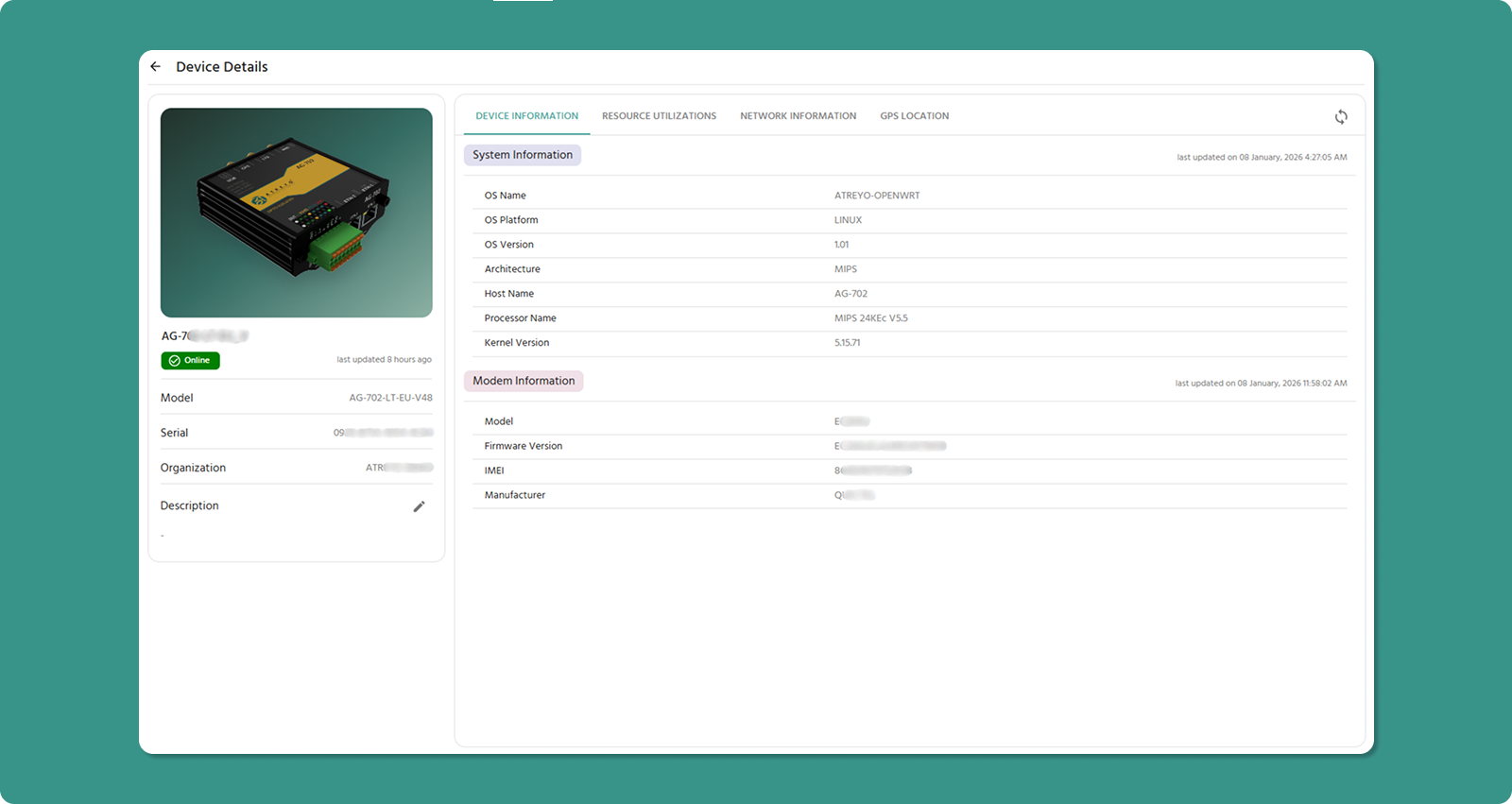
The Device Detail Page is your comprehensive monitoring dashboard for individual devices. It provides system information, resource utilization, network connectivity details, and GPS location.
Accessing Device Detail Page
From Device List:
Page Layout Overview
The Device Detail Page uses a two-column layout:
Left Panel: Static device identity and metadata
Right Panel: Dynamic monitoring data across four tabs
At-a-Glance Information (Left Panel)
The left panel displays the core identity and information for your device.
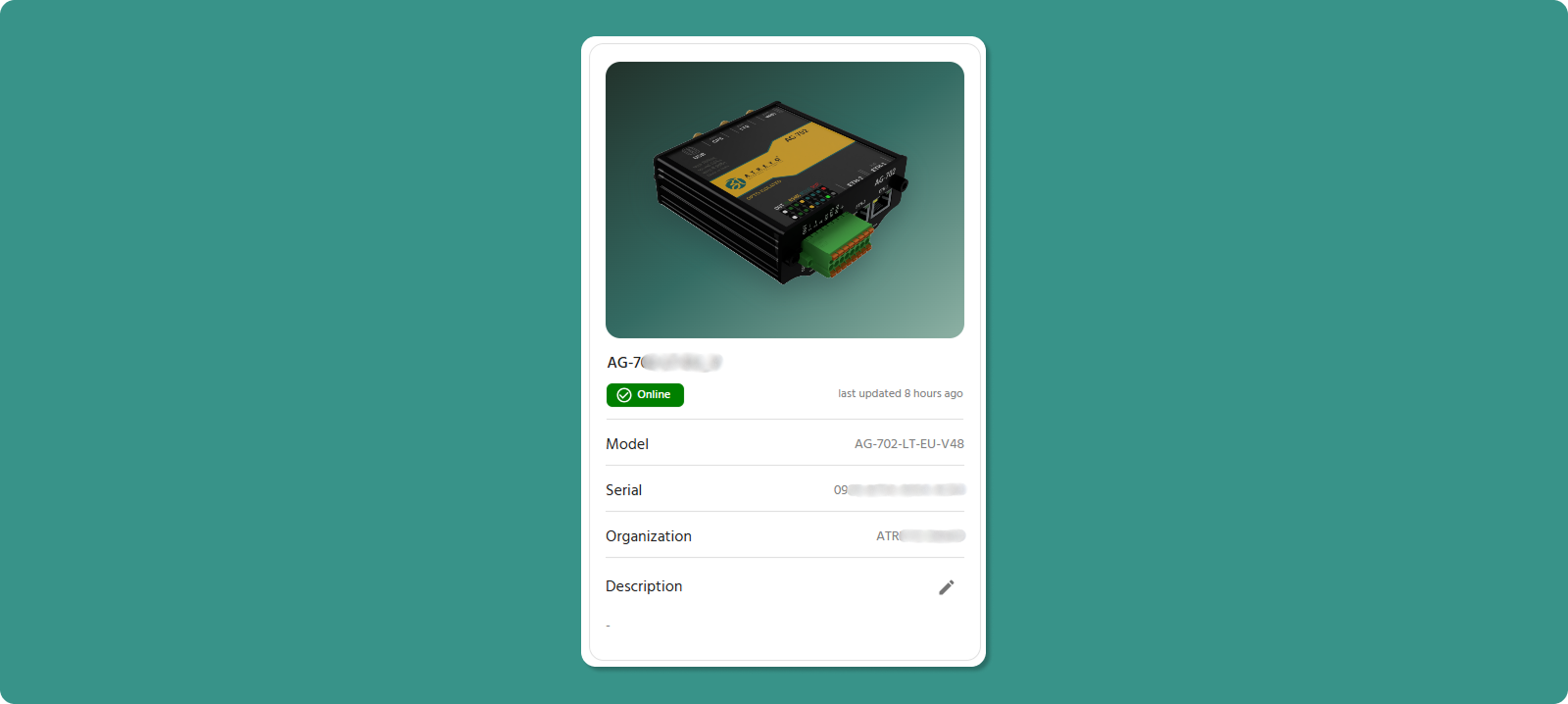
|
# |
Field |
Description |
Example |
|
1 |
Model Image |
Visual representation of device model |
Gateway illustration |
|
2 |
Device Name |
Custom name assigned during registration |
Delhi_Bus_207 |
|
3 |
Online Status |
Connection state with timestamp |
"Online since 5 minutes ago" |
|
4 |
Model Name |
The specific product name of your gateway. |
AG-207-LT-EU |
|
5 |
Serial-ID |
Unique 16-character device identifier |
1A2B-3C4D-5E6F-7G8H |
|
6 |
Organization |
Assigned organization |
ATREYO Level-1 |
|
7 |
Description |
Optional notes/details about device |
"Factory Floor A, Bay 3" |
|
8 |
Edit Button |
Pencil icon to modify description |
✏️ Click to edit |
Editing Device Description

To Edit Description:
Use Cases for Description Field:
-
Physical location updates
-
Maintenance schedules
-
Contact information for site
-
Network configuration notes
Detailed Monitoring Tabs (Right Panel)
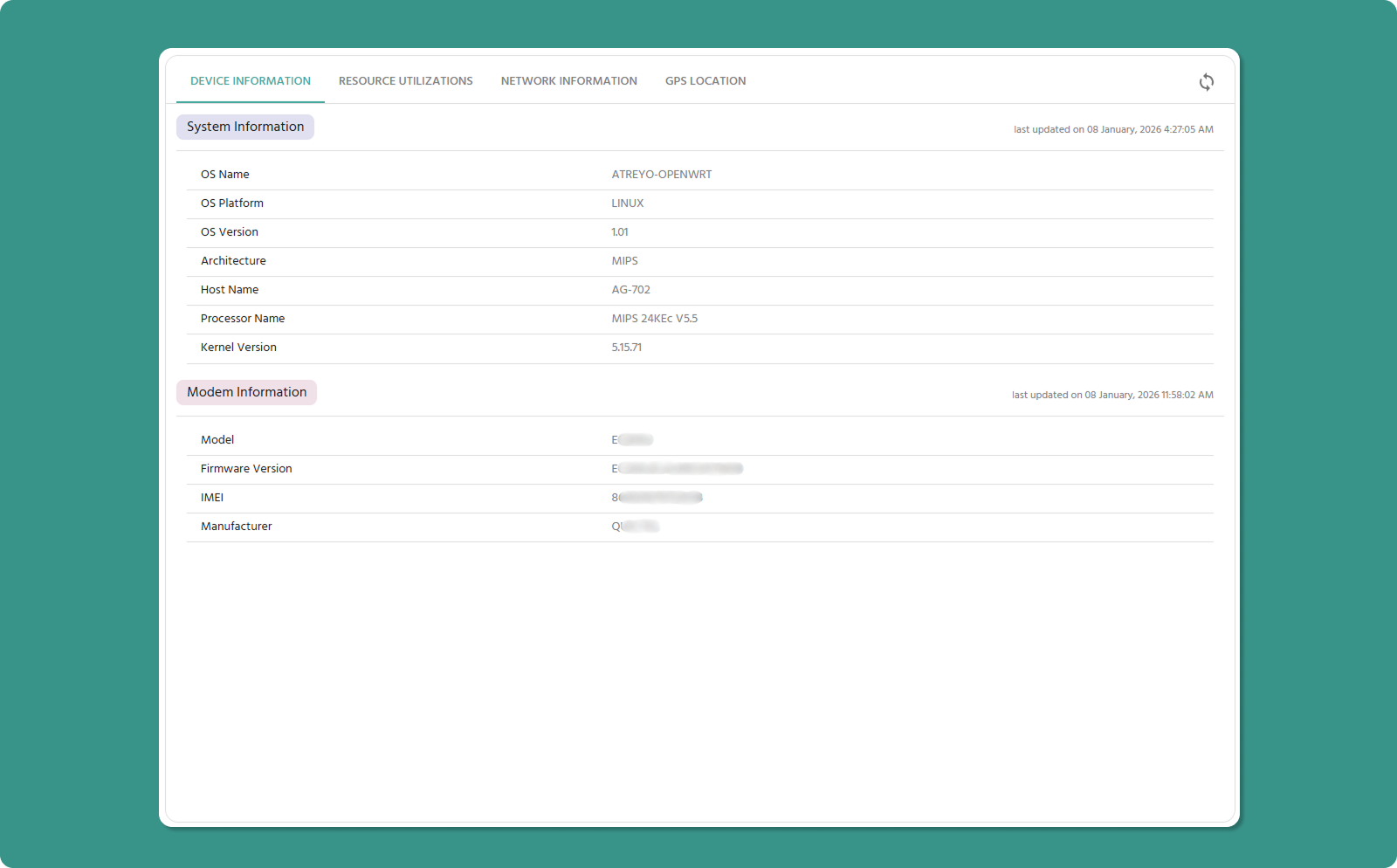
The right panel contains four tabs for in-depth device monitoring. A Refresh button (🔄) in the top-right corner manually updates tab data.
-
Device Information
-
Resource Utilization
-
Network Information
-
GPS Location
Tab 1: Device Information
This tab displays static technical specifications of your device's operating system, hardware, and cellular modem.
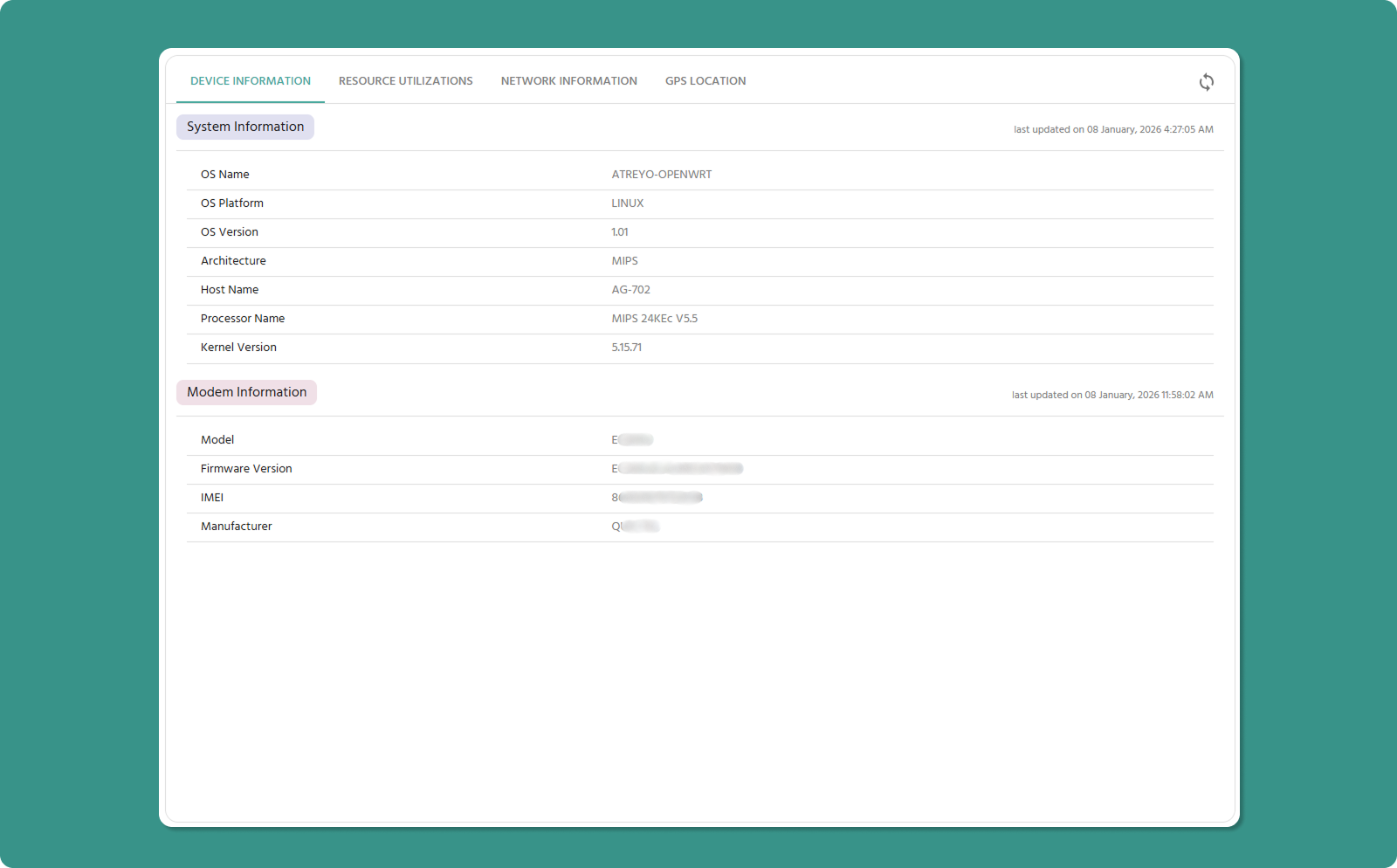
Section A: System Information
Core operating system and processor details.
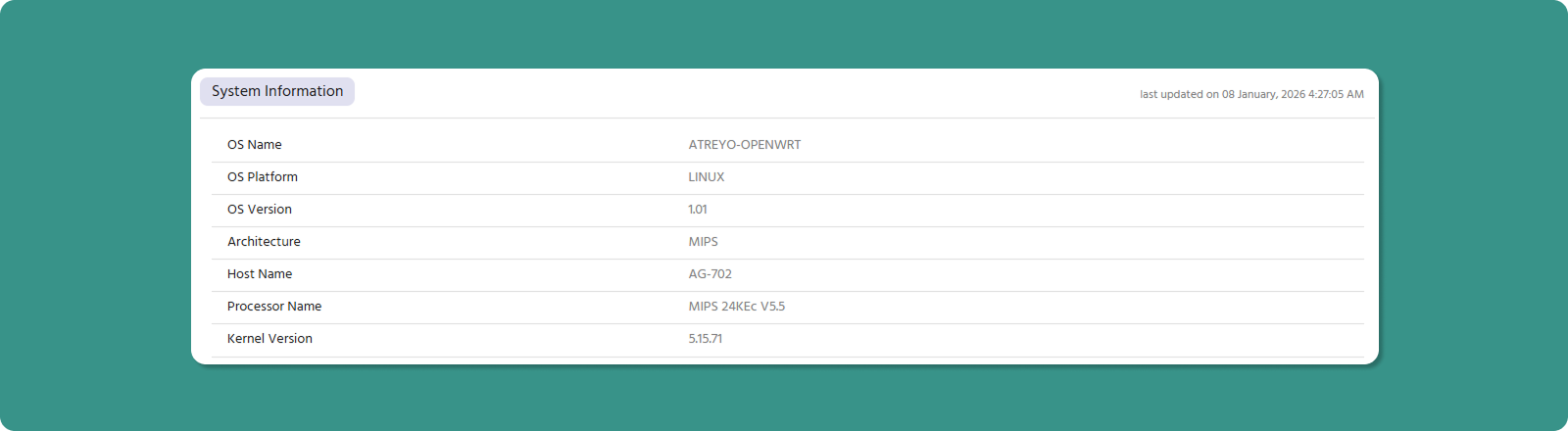
|
Parameter |
Definition |
Example |
|
OS Name |
Operating system commercial name |
OpenWRT, Debian, Ubuntu |
|
OS Platform |
OS family or kernel type |
Linux |
|
OS Version |
Specific release number |
10.0.22621, 24.04 LTS |
|
Architecture |
CPU instruction set |
ARMv7l, ARM64, MIPS |
|
Host Name |
Device model name |
AG-702 |
|
Processor Name |
CPU model designation |
MIPS 24KEc V5.5, ARMv7 Processor rev 5 |
Section B: Modem Information
Cellular modem hardware and firmware specifications.
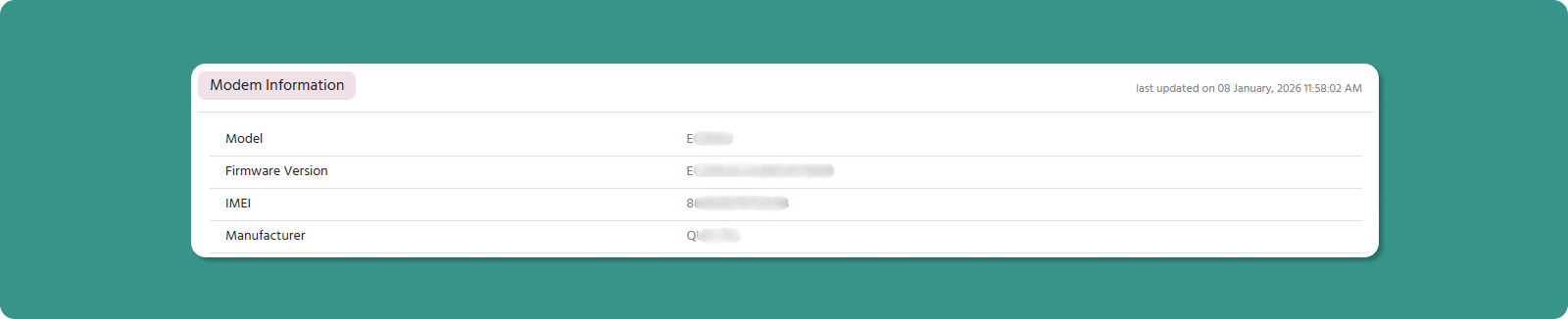
|
Parameter |
Definition |
Example |
|
Model |
Manufacturer's modem product designation |
- |
|
Firmware Version |
Embedded software version number |
V1.01.03, 2.1.25 |
|
IMEI |
International Mobile Equipment Identity (15 digits) |
123456789111111 |
|
Manufacturer |
Company that produced the modem |
- |
Tab 2: Resource Utilization
This tab is your device health dashboard, showing performance metrics and 24-hour historical trends.
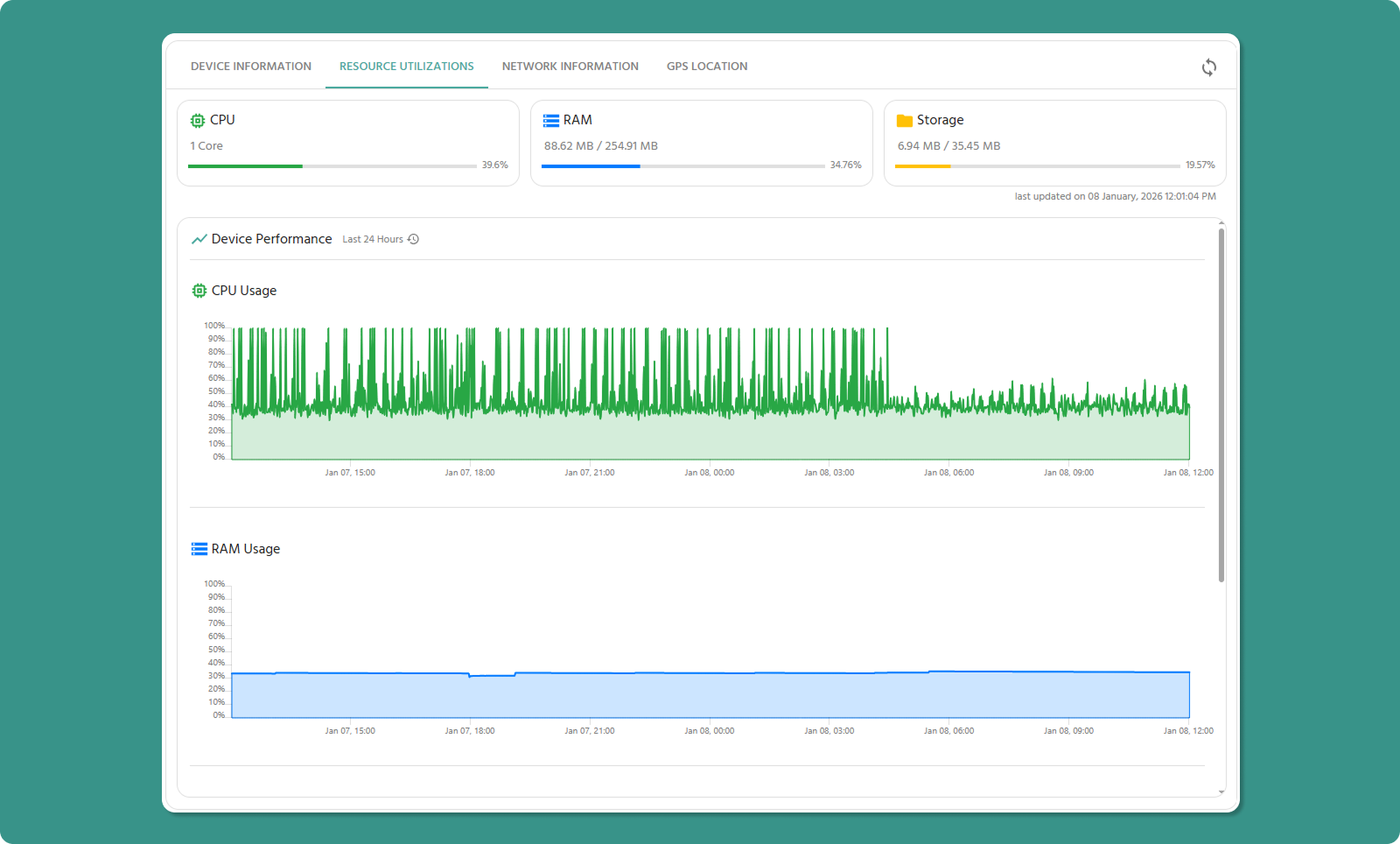
Metrics Cards
Three cards display current resource usage across critical components.

CPU Utilization
Displays:
-
Number of CPU cores
-
Current utilization percentage
Example:
CPU: 1 cores
Utilization: 45%
RAM Utilization
Displays:
-
Total RAM capacity
-
Currently used RAM
-
Utilization percentage
Example:
RAM: 128 MB total
Used: 66 MB (51.5%)
💡 Memory Management: High RAM usage isn't always problematic. Modern systems use available RAM efficiently. Concern arises when usage stays at 90%+ for extended periods.
Storage Utilization
Displays:
-
Total storage capacity
-
Used storage space
-
Utilization percentage
Example:
Storage: 512 MB total
Used: 270 MB (52.73%)
Common Storage Consumers:
-
Logs
-
Application data
24-Hour Performance Graphs
Below the real-time cards, three line graphs display historical resource usage trends.
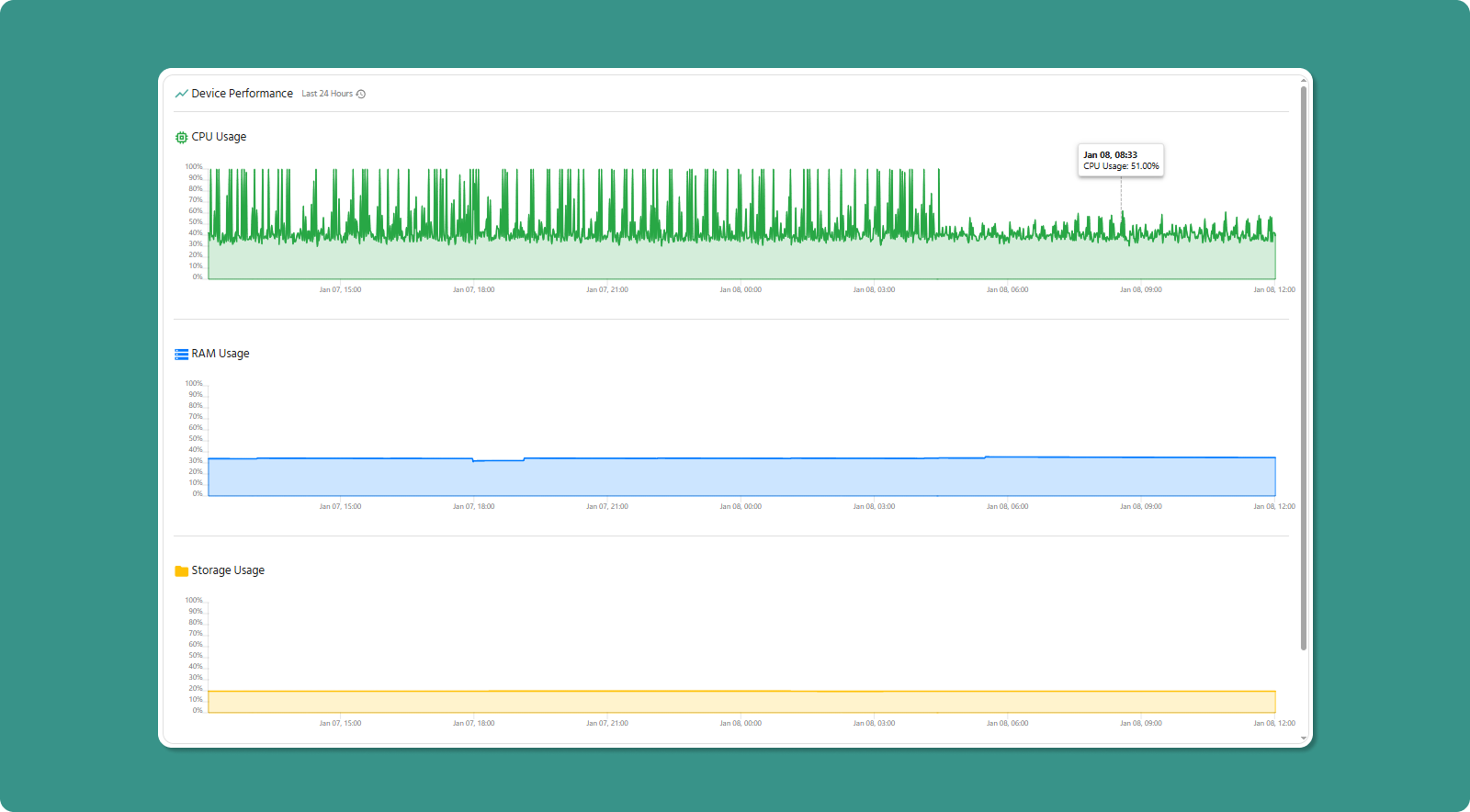
Graph Specifications:
-
Time Range: Last 24 hours
-
Data Points: Every 1 minute
-
X-Axis: Time (hours)
-
Y-Axis: Utilization percentage (0-100%)
Graph Types:
-
CPU Usage Graph (Green line)
-
RAM Usage Graph (Blue line)
-
Storage Usage Graph (Yellow line)
Analyzing Performance Trends
Normal Patterns:
CPU:
-
Fluctuates based on workload
-
Spikes during data transmission or processing
-
Should return to baseline after tasks complete
RAM:
-
Typically steady with gradual increases
-
May step up when new processes start
-
Rarely decreases significantly without restart
Storage:
-
Gradually increases over time
-
Sudden jumps indicate large file writes
-
Decreases indicate log rotation or cleanup
Tab 3: Network Information
This tab provides detailed connectivity information for both wired (Ethernet) and wireless (Cellular) network interfaces.
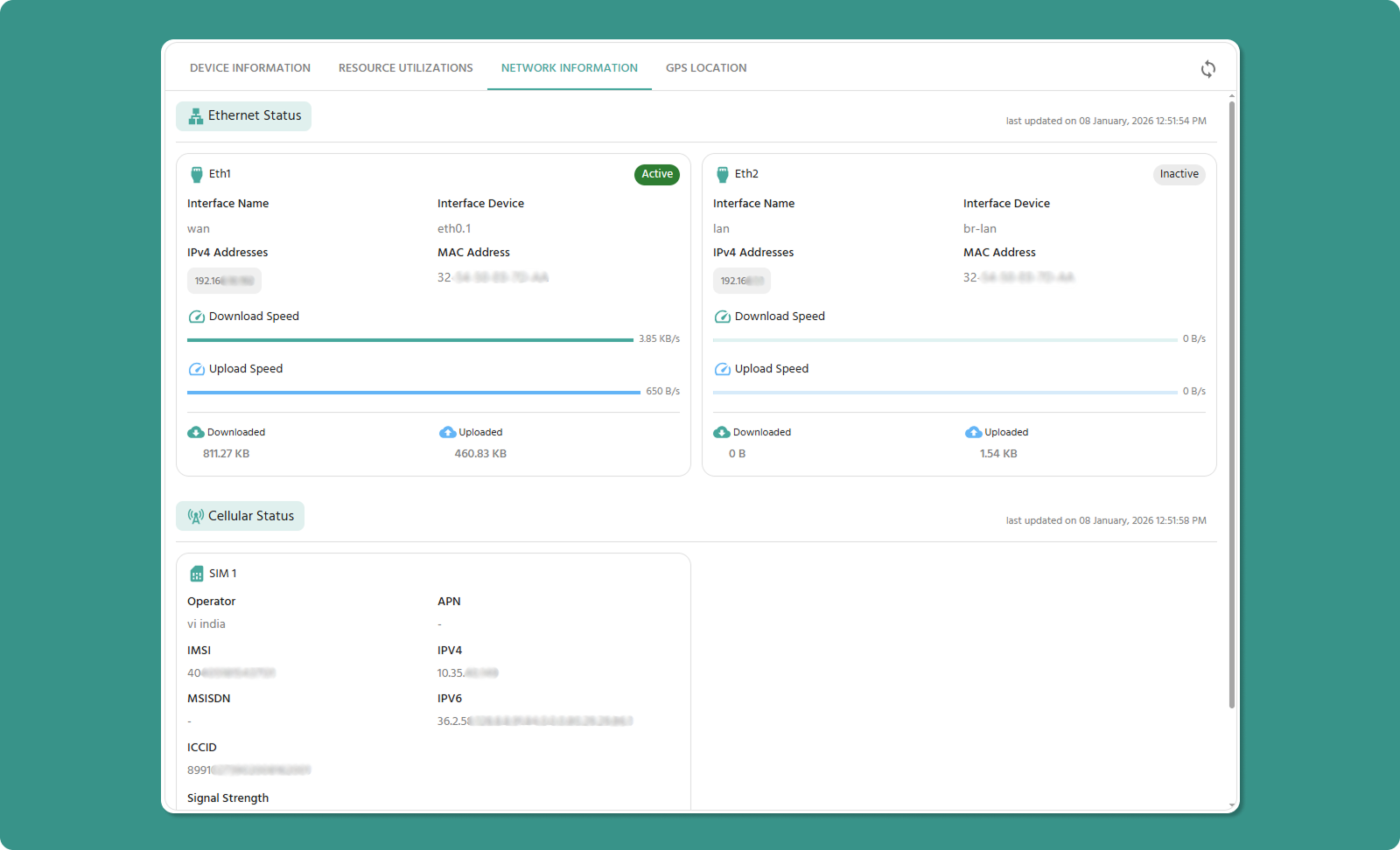
The tab is organized into two sections:
-
Ethernet Card Information
-
Cellular Card Information
Section A: Ethernet Card Information
Wired network interface details for WAN (internet) and LAN (local network) connections.
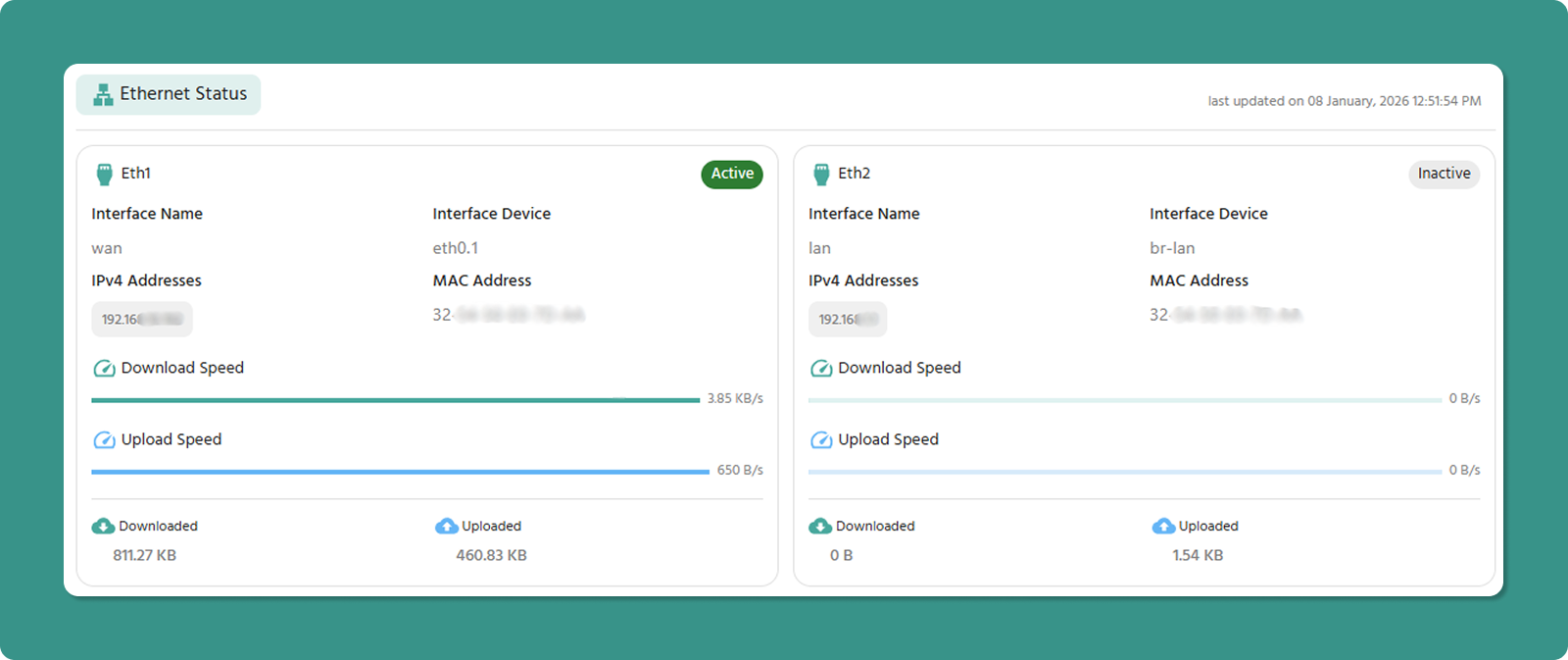
Typical Display: Multiple ethernet interfaces may be shown (e.g., WAN, LAN, LAN2)
Ethernet Parameters
|
Parameter |
Definition |
Example |
|
Interface Name |
Logical network function identifier |
WAN (internet-facing), LAN (local network) |
|
Interface Device |
OS-assigned hardware identifier |
eth0.1 (VLAN sub-interface), br-lan (bridge) |
|
IPv4 Address |
Network address for IPv4 communication |
192.168.1.1 (router), 192.168.1.105 (client) |
|
MAC Address |
Unique 12-digit hardware identifier |
00:1A:2B:3C:4D:5E |
|
Download Speed |
Current incoming data transfer rate |
100 Mbps, 1 Gbps |
|
Upload Speed |
Current outgoing data transfer rate |
50 Mbps, 900 Mbps |
|
Downloaded Data |
Total data received since last reset |
5.2 GB, 1.3 TB |
|
Uploaded Data |
Total data transmitted since last reset |
850 MB, 450 GB |
Section B: Cellular Card Information
Wireless cellular network connectivity details for mobile or backup internet connections.

Cellular Parameters
|
Parameter |
Definition |
Example |
|
Operator |
Telecommunications carrier providing service |
Vodafone, AT&T, T-Mobile, Airtel |
|
APN |
Access Point Name - Gateway for mobile internet |
internet.voda.ie, broadband, airtelgprs.com |
|
IMSI |
International Mobile Subscriber Identity (15 digits) |
310410123456789 |
|
IPv4 |
Mobile network IP address (version 4) |
10.123.45.67 (carrier private IP) |
|
IPv6 |
Mobile network IP address (version 6) |
2001:0db8:85a3::8a2e:0370:7334 |
|
MSISDN |
SIM card number |
+447700900000, 5551234567 |
|
ICCID |
Integrated Circuit Card ID - SIM serial number |
89014103210123456789 |
|
Signal Strength |
Cellular signal quality in dBm |
-75 dBm (excellent), -110 dBm (poor) |
|
Downloaded Data |
Total cellular data received |
2.1 GB |
|
Uploaded Data |
Total cellular data transmitted |
450 MB |
Interpreting Signal Strength
Signal strength is measured in dBm (decibel-milliwatts), a logarithmic scale where higher (less negative) values indicate stronger signals.
Signal Quality Scale:
|
dBm Range |
Quality |
Description |
Connectivity |
|
-50 to -70 |
Excellent |
Strong, clear signal |
Full-speed data, reliable |
|
-70 to -85 |
Good |
Adequate signal |
Good data speeds, stable |
|
-85 to -100 |
Fair |
Weak signal |
Reduced speeds, occasional drops |
|
-100 to -110 |
Poor |
Very weak signal |
Slow speeds, frequent disconnects |
|
-110 to -120 |
Critical |
Barely detectable |
Unusable, constant drops |
Factors Affecting Signal:
-
Distance from cell tower
-
Physical obstructions (buildings, terrain)
-
Weather conditions
-
Network congestion
-
Antenna quality and positioning
Cellular Troubleshooting Quick Guide
Problem: Poor Signal Strength (<-100 dBm)
Solutions:
-
Antenna Positioning: Relocate device or adjust external antenna
-
Alternative Location: Move device to higher elevation or near window
Problem: No Cellular Connection
Check:
-
✅ SIM card inserted correctly
-
✅ Carrier account is active and paid
-
✅ APN settings match carrier requirements
-
✅ Device is in carrier coverage area
-
✅ IMEI is not blocked by carrier
Problem: High Data Usage
Investigate:
-
Check Downloaded/Uploaded Data totals
-
Review application data transmission settings
-
Confirm data is being sent via cellular (not ethernet)
-
Look for unauthorized usage or malware
Tab 4: GPS Location
This tab manages device location tracking through automatic GPS data or manual coordinate entry.
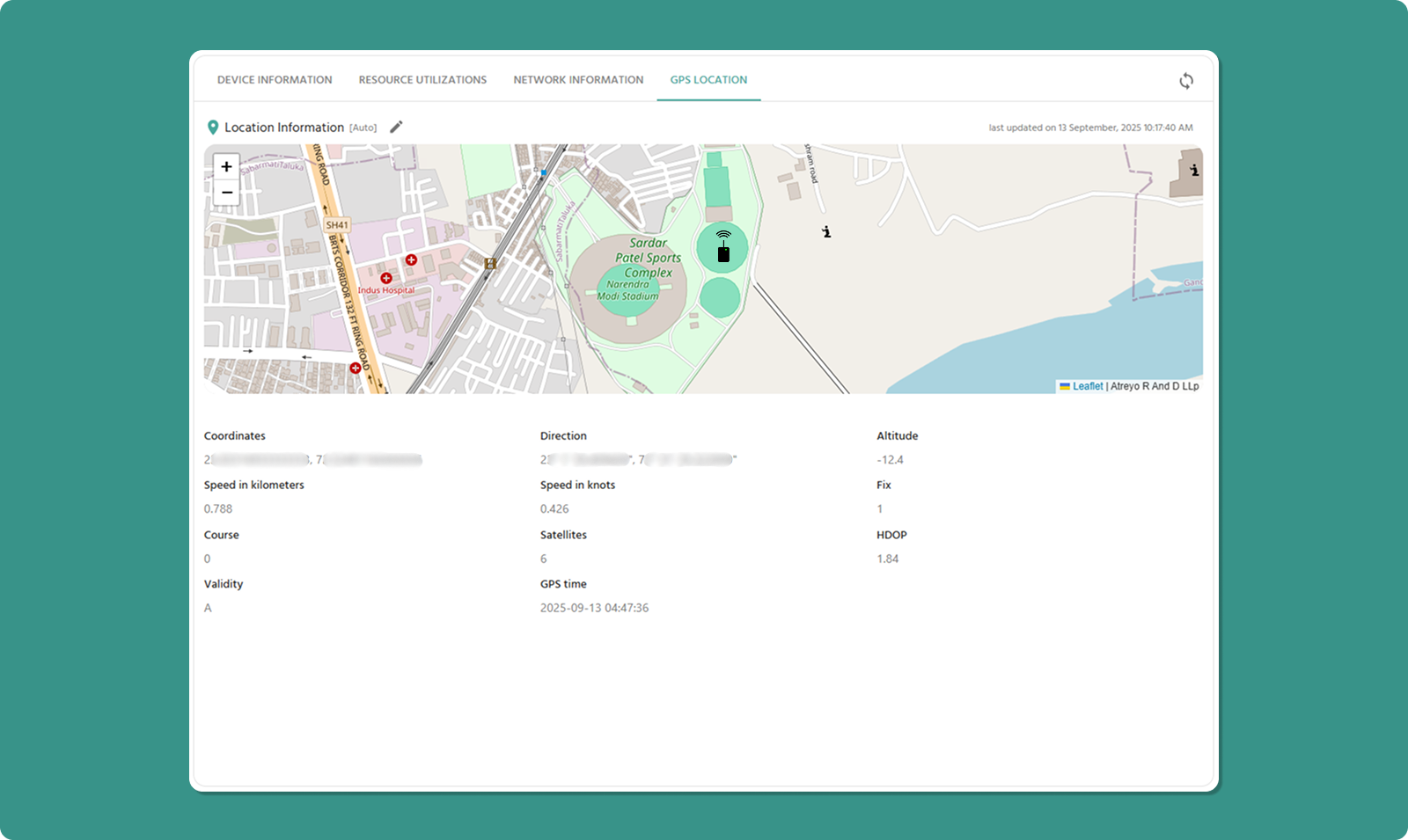
Location Tracking Modes
The tab offers two mutually exclusive modes:
-
Auto Mode: Automatic GPS tracking
-
Manual Mode: User-defined coordinates
Option A: Auto Mode
Automatic location tracking using the device's internal GPS modem.
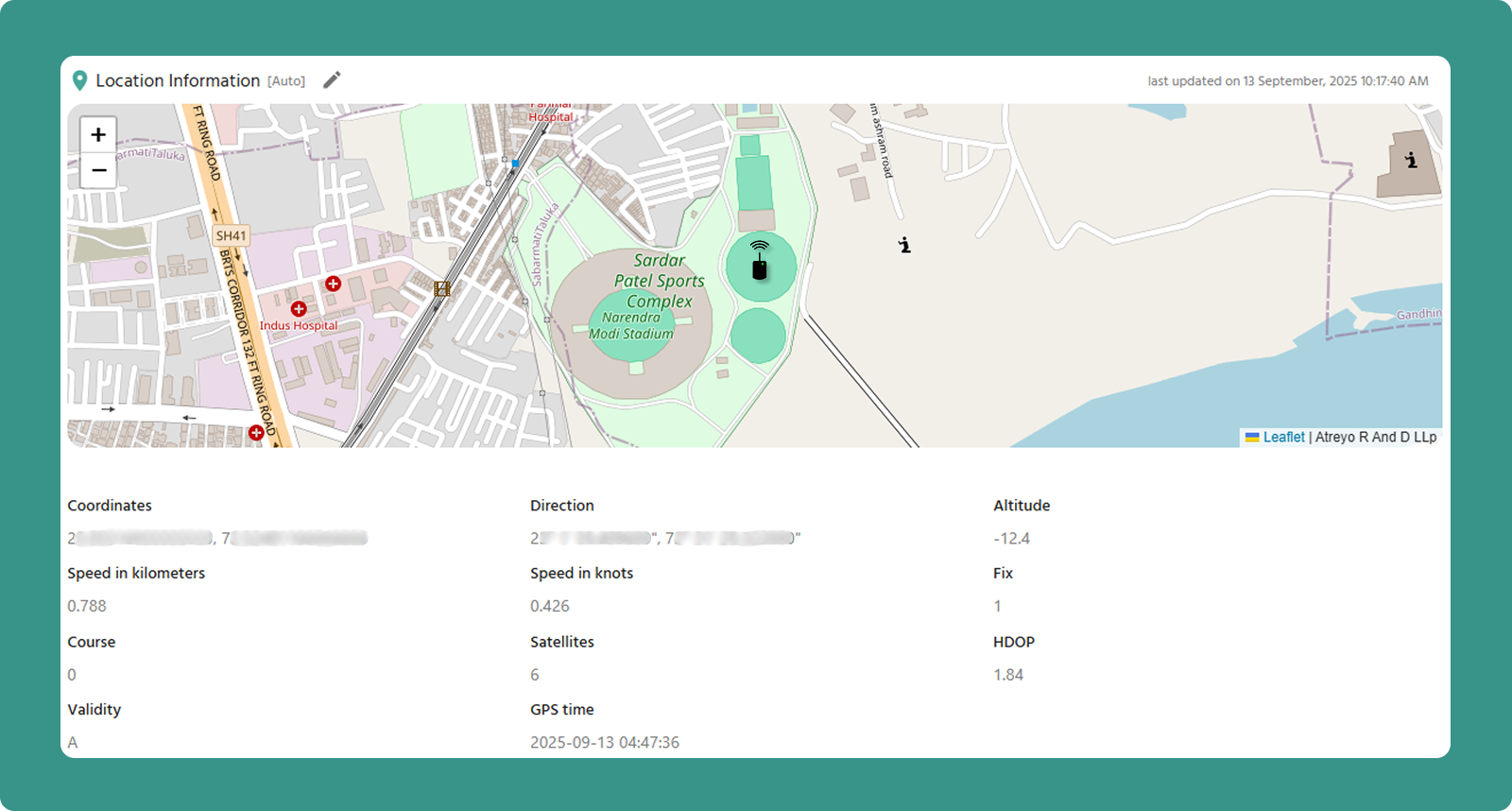
How It Works:
-
Device's cellular modem contains GPS receiver
-
Modem locks onto GPS satellites (requires 4+ satellites)
-
Location data calculated on device
-
Coordinates transmitted to Atra RMS
-
Map updates automatically
GPS Data Fields
When Auto mode is active and GPS has a fix, the following data is displayed:
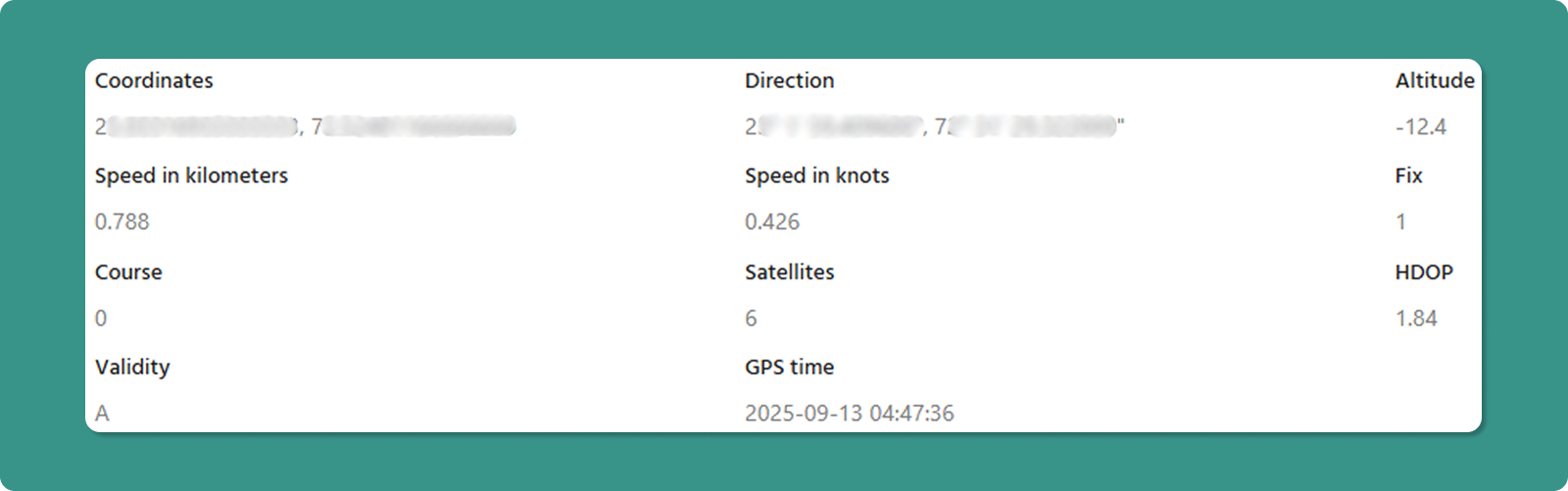
|
Field |
Description |
Example |
|
Coordinates |
Latitude and Longitude (decimal degrees) |
23.0225° N, 72.5714° E |
|
Altitude |
Height above mean sea level |
45 meters (147.6 feet) |
|
Speed |
Current velocity in km/h and knots |
60 km/h (32.4 knots) |
|
Direction/Course |
Compass heading (0-360°) |
270° (West), 45° (Northeast) |
|
Fix |
Position calculation status |
"3D Fix" (lat, lon, alt) |
|
Satellites |
Number of GPS satellites locked |
8 satellites |
|
HDOP |
Horizontal Dilution of Precision |
1.2 (excellent accuracy) |
|
Validity |
Data reliability indicator |
'A' (valid), 'V' (invalid) |
|
GPS Time |
Timestamp from GPS satellite system |
2025-12-31 14:30:45 UTC |
Understanding GPS Accuracy
Satellites Count:
-
4+ satellites: Minimum for 3D fix (lat, lon, altitude)
-
3 satellites: 2D fix only (lat, lon, no altitude)
-
8-12 satellites: Optimal accuracy
-
<3 satellites: No position fix possible
HDOP (Horizontal Dilution of Precision):
-
Quality Indicator: Lower values = better accuracy
-
Scale:
-
1.0-2.0: Excellent (typical accuracy: 1-3 meters)
-
2.0-5.0: Good (typical accuracy: 3-10 meters)
-
5.0-10.0: Moderate (typical accuracy: 10-30 meters)
-
>10.0: Poor (accuracy degraded)
-
Validity Codes:
-
'A' (Active/Valid): GPS data is current and reliable
-
'V' (Void/Invalid): GPS data is stale or unreliable
GPS Troubleshooting
Problem: No GPS Fix
Common Causes:
-
❌ Device is indoors (GPS requires clear sky view)
-
❌ Device is in metal enclosure (blocks signals)
-
❌ GPS antenna not connected properly
-
❌ Location service disabled in device settings
Solutions:
-
Move Device: Place near window or outdoors temporarily
-
Check Antenna: Verify external GPS antenna connection
-
Wait: First fix can take 5-15 minutes ("cold start")
-
Verify Settings: Ensure GPS service is enabled
Problem: Poor Accuracy (High HDOP)
Solutions:
-
Improve Sky View: Remove obstructions above device
-
Wait: Accuracy improves as more satellites are acquired
-
External Antenna: Use high-quality external GPS antenna
-
Check Environment: Avoid placement near RF interference sources
Use Cases for Auto GPS Mode
Ideal Scenarios:
-
✅ Vehicle-mounted devices (fleet tracking)
-
✅ Mobile equipment monitoring
-
✅ Temporary installations requiring location verification
-
✅ Asset tracking applications
-
✅ Devices requiring location-based automation
Not Recommended:
-
❌ Stationary indoor installations
-
❌ Underground or heavily shielded locations
-
❌ Locations with poor GPS visibility
Option B: Manual Mode
User-defined static location coordinates.
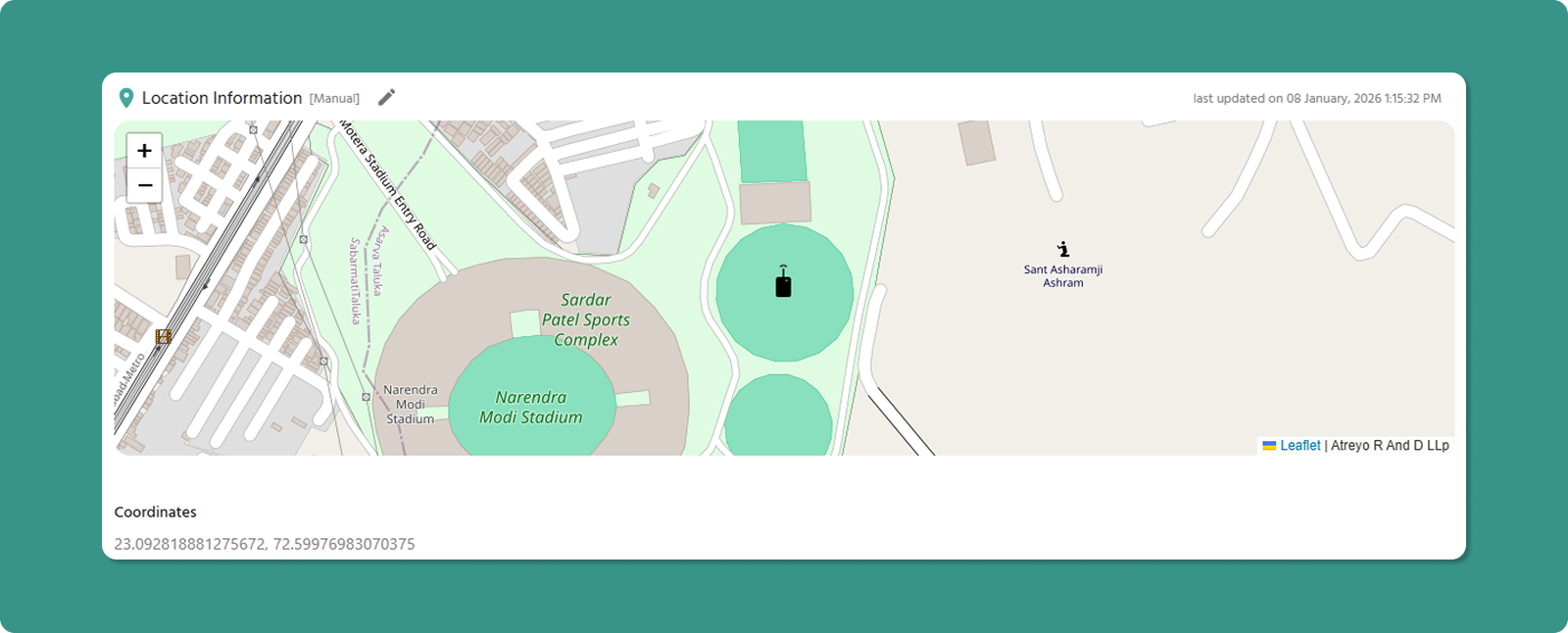
How It Works:
-
User enters Latitude and Longitude manually
-
Coordinates stored in cloud only
-
Location displayed on Overview map
-
No data transmitted from device
Manual Location Entry
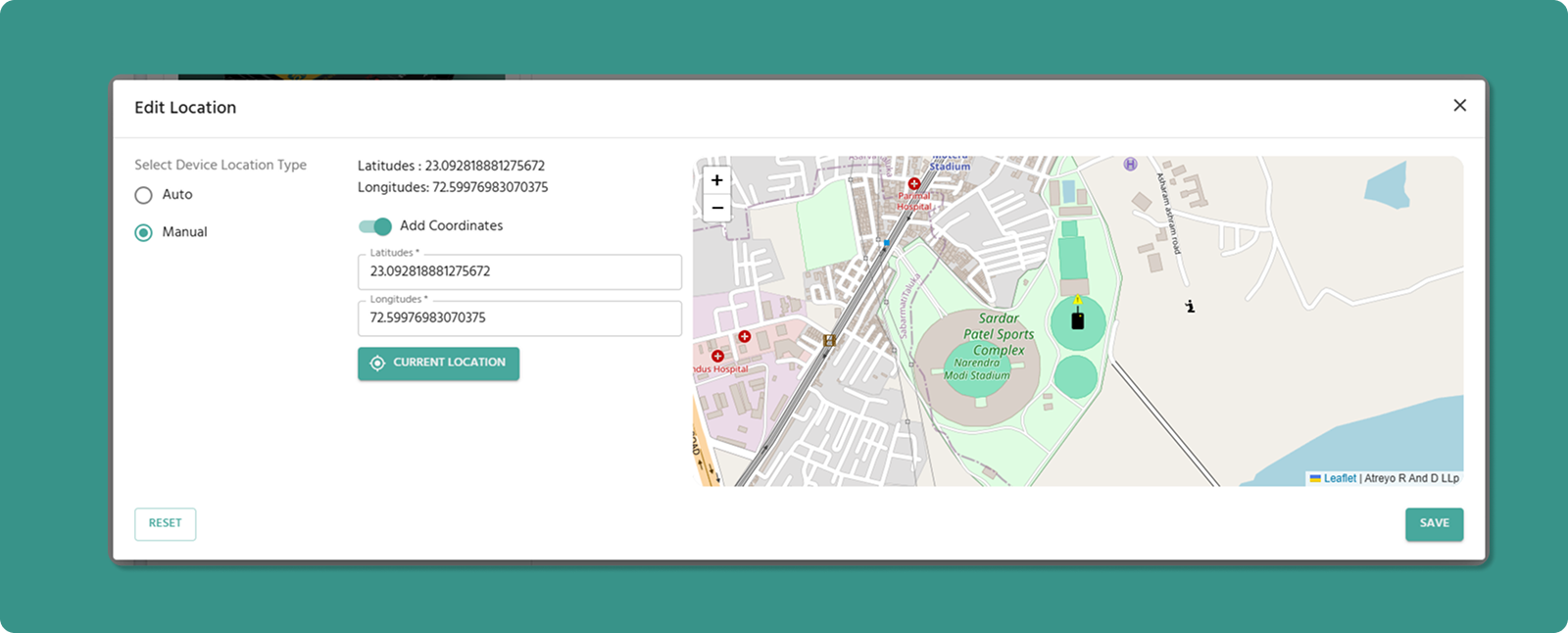
Input Fields:
Latitude:
-
Format: Decimal degrees
-
Range: -90° to +90°
-
North: Positive values
-
South: Negative values
-
Example: 23.0225 (23° N)
Longitude:
-
Format: Decimal degrees
-
Range: -180° to +180°
-
East: Positive values
-
West: Negative values
-
Example: 72.5714 (72° E)
Finding Coordinates for Manual Entry
Method 1: Google Maps
-
Open Google Maps (maps.google.com)
-
Right-click on desired location
-
Click "What's here?"
-
Coordinates appear at bottom (click to copy)
-
Format: Latitude, Longitude (e.g., 23.0225, 72.5714)
Method 2: GPS Device/Phone
-
Use smartphone GPS app
-
Stand at device location
-
Record coordinates from app
-
Enter into Manual Location fields
Method 3: Physical Address Lookup
-
Use geocoding service (e.g., geocode.xyz)
-
Enter physical address
-
Service returns coordinates
-
Verify accuracy on map before using
Important Limitations of Manual Mode
⚠️ Critical Understanding:
Manual location data is stored ONLY in the cloud, NOT on the physical device.
Implications:
-
Map Display: Device appears at manual location on Overview map
-
Device Reality: Physical device has no knowledge of this location
-
Mismatch Possible: Device may be physically elsewhere
⚠️ Use Manual Mode Only When:
Use Cases for Manual Mode
Appropriate Scenarios:
-
✅ Fixed indoor installations (factories, server rooms)
-
✅ Underground installations (basements, tunnels)
-
✅ Devices in GPS-shielded enclosures
-
✅ Legacy devices without GPS capability
-
✅ Approximate location sufficient for inventory purposes
Not Recommended:
-
❌ Mobile devices requiring real-time tracking
-
❌ Situations requiring precise location verification
-
❌ Applications with location-based automation
-
❌ Compliance scenarios requiring actual device location