User Invite Guide
Invite new users to join your Atra RMS organization through a secure email invitation process.
Step 1: Navigate to Invite Form
-
Click "Users" in left sidebar menu
-
Click "+INVITE" button (Teal, top-left corner)
-
"Invite New User" page loads
Step 2: Complete Invitation Form

[INSERT SCREENSHOT: User_Invite_Form.png]
Fill out all required fields:
1. Name (Required)
User's full name (can be edited later).
Input Rules:
-
Length: 3-40 characters
-
Allowed: Letters, numbers, spaces, periods (.), underscores (_), hyphens (-)
-
Not allowed at start/end: Period, underscore, hyphen
-
No consecutive special characters
Examples:
-
✅ Jane Doe
-
✅ Rajesh Kumar
-
✅ Product-Manager
-
✅ User_123
2. Email (Required)
User's email address (used for login and communication).
Input Rules:
-
Must be valid email format
-
Must include @ symbol and domain
-
Case-insensitive
Examples:
-
✅ user@company.com
-
✅ jane.doe@organization.co.in
-
✅ admin@example.org
-
❌ usercompany.com (missing @)
-
❌ user@ (incomplete domain)
⚠️ Email Uniqueness:
-
Email must be unique across entire Atra RMS platform
-
Cannot invite user with email already in system
-
If email exists, system shows error: "Email already registered"
3. Organization (Required)
Select the organization this user will belong to.
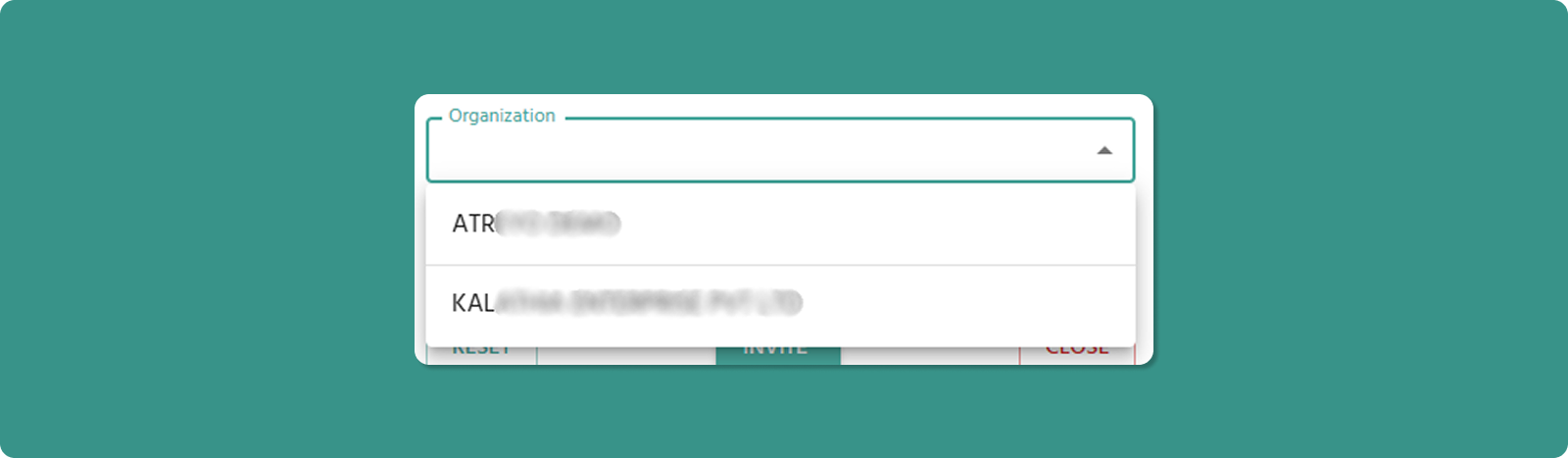
[INSERT SCREENSHOT: Organization_Dropdown_Invite.png]
Dropdown Options:
-
Your current organization
-
All child organizations under your management
Organization Impact:
-
User's access scope limited to assigned organization
-
User inherits organizational hierarchy visibility based on role
-
User can only manage resources within their organization
4. Role (Required)
Select the role that defines user's permissions.
Important: Role dropdown only activates after organization is selected.
Why?
-
Roles are organization-specific
-
Different organizations may have different available roles
-
System must know organization to display correct role options
Available Roles:
-
All roles created for the selected organization
-
Examples: ADMIN, MANAGER, VIEWER
Step 3: Submit Invitation
Step 4: Invitation Email Sent
After clicking INVITE:
-
System generates secure invitation token
-
Email sent to provided address containing:
-
Invitation message
-
"Set Up Password" button/link
-
User appears in Users List with "Invited" Yellow clock icon (⏳)
-
You are redirected back to Users List
Email Delivery Time: Usually instant, but may take up to 5 minutes.
⚠️ If User Doesn't Receive Email:
-
Check spam/junk folder
-
Verify email address was entered correctly
-
Wait 10 minutes, then resend the invitation. To do this, delete the user and re-invite them via the "Invite User" form. Only perform this process if the user needs an account but the email address was entered incorrectly, or if they haven’t received the email within 10 minutes.