View VPN Tunnels
The main VPN interface displays all VPN tunnels under your management.
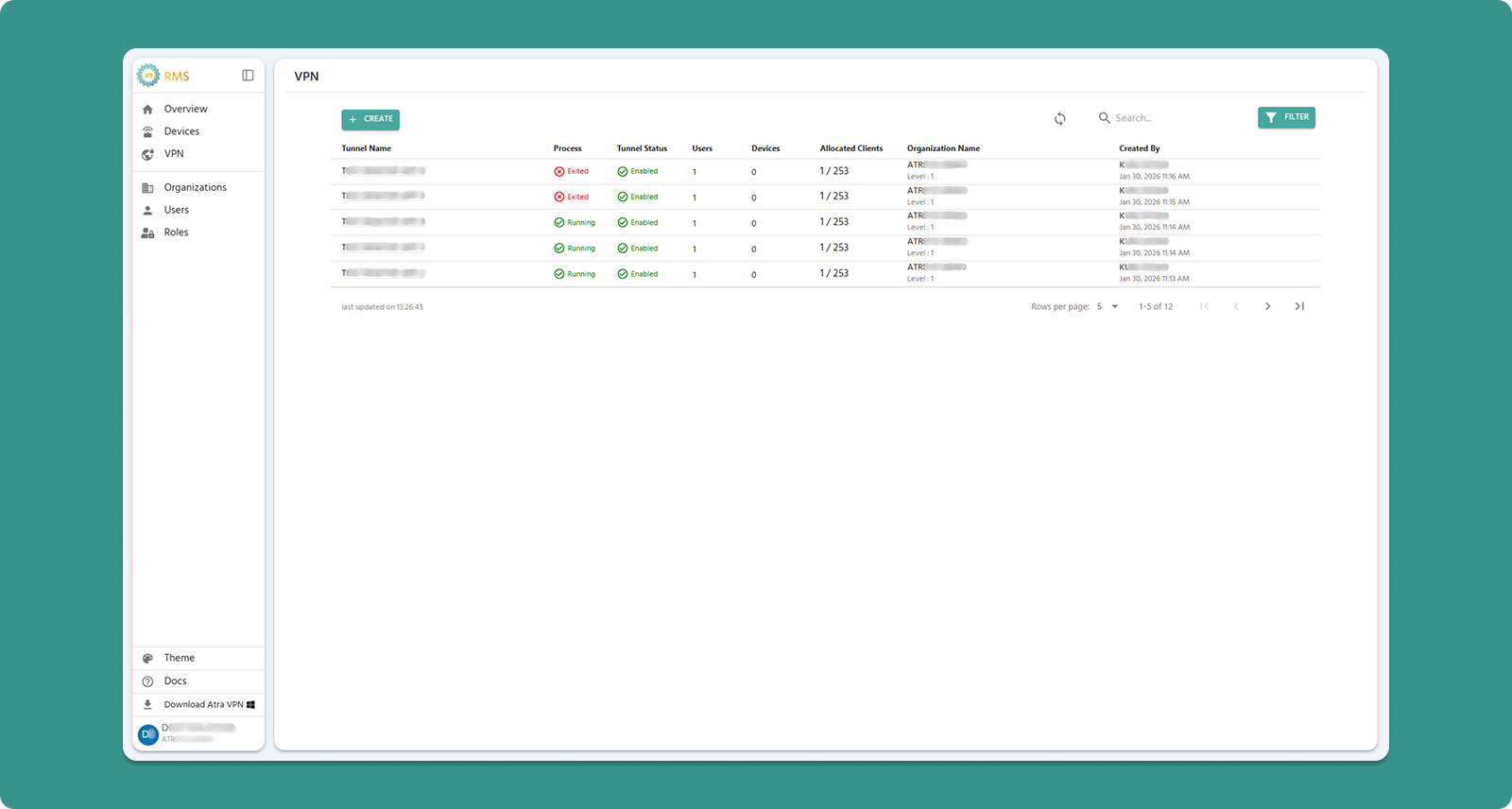
Interface Actions (Top Bar)

|
Action |
Location |
Purpose |
|
+CREATE Button |
Primary action area (Left) |
Click to navigate to the VPN tunnel creation form and establish a new tunnel. |
|
Refresh Button |
Primary action area(Right) |
Manually update tunnel list (also auto-refreshes every 5 seconds) |
|
Search Bar |
Search area(Right) |
Filter by tunnel name, organization or creator |
|
Filter |
Primary action area (Right) |
Filter by Creator,Organization Name and Process Status(Running/Exited) |
Column Definitions
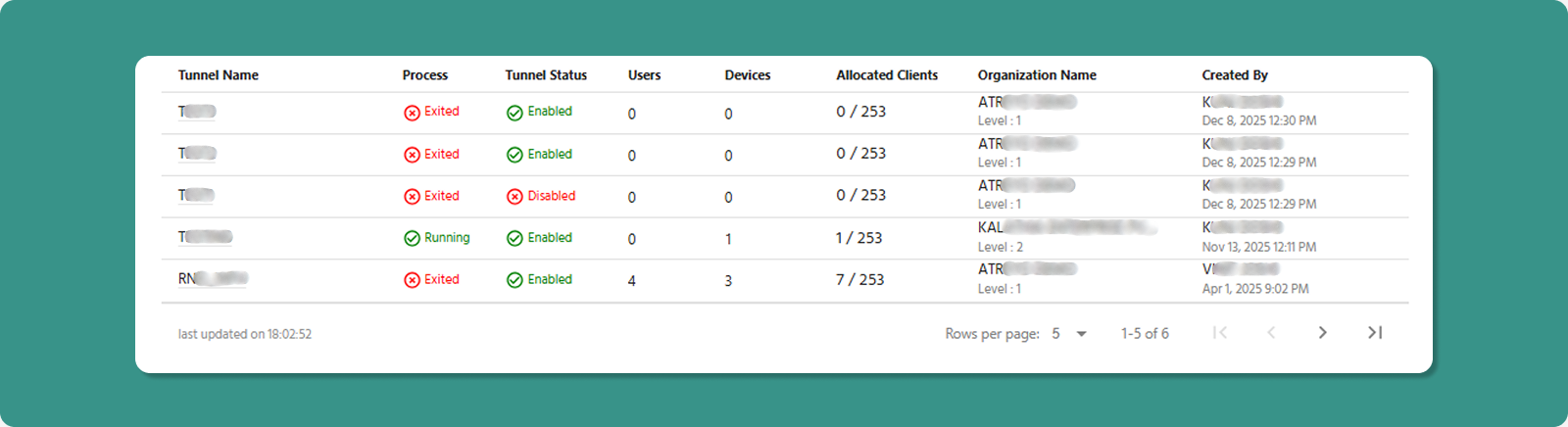
|
Column |
Description |
Values |
|
Tunnel Name |
Custom name assigned during creation (click to open VPN Tunnel Overview page) |
Production_Tunnel, Office_VPN |
|
Process |
Indicates the operational state of the VPN server process. |
Running, Exited |
|
Tunnel Status |
Management/activity state |
Enabled, Disabled |
|
Users |
Count of users allocated to tunnel |
10 |
|
Devices |
Count of devices allocated to tunnel |
5 |
|
Allocated Clients |
Total users + devices in tunnel |
15 |
|
Organization Name & Level |
name of the organization and its level under which the tunnel was created or assigned |
ATREYO Level-1 |
|
Created By |
Username who created tunnel |
admin@company.com |
|
Created At |
Date/time of tunnel creation |
Dec 28, 2025, 9:30 AM |
Understanding VPN States
Process State
The Process indicates the VPN server operational state.
|
State |
Meaning |
User/Device Impact |
|
Running |
VPN tunnel is active |
✅ Users and devices CAN connect securely |
|
Exited |
VPN tunnel is inactive |
❌ Users and devices CANNOT connect. |
Common Causes of "Exited":
-
Administrator manually stopped the process
-
Tunnel was disabled (automatically stops process)
-
Inactivity timeout (no connections for extended period)
-
Technical error or crash (rare)
💡 Troubleshooting: If process shows "Exited" unexpectedly, check Tunnel Status. If "Disabled", enable it. If "Enabled", manually start the process.
Tunnel Status
The Tunnel Status determines management capabilities.
|
Status |
Meaning |
What You Can Do |
|
Enabled |
Tunnel is active and fully manageable |
✅ Start/Stop process |
|
Disabled |
Tunnel is inactive and locked down |
❌ Cannot start process |
When to Disable:
-
Temporarily suspend VPN access without deleting tunnel
-
Maintenance period requiring no connections
-
Security incident requiring immediate access cutoff
-
Preparing tunnel for deletion
Effect of Disabling:
-
Process automatically stops (becomes "Exited")
-
All connected users/devices are disconnected
-
No new connections possible until re-enable
Auto-Refresh Feature
🔄 Automatic Update: The VPN tunnel table refreshes every 5 seconds to show real-time status.
Benefits:
-
Monitor process state changes automatically
-
See when users/devices connect or disconnect
-
Immediate visibility into tunnel health
Manual Override:
Table Navigation
|
Control |
Purpose |
Options |
|
Rows per page |
Adjust visible tunnels |
5, 10, 15, 20,25 |
|
Total Count |
Display total tunnels |
"Showing 1-5 of 25" |
|
Page Navigation |
Move between pages |
Previous, Next, Last, First |
What is Atra RMS VPN?
-
Secure Virtual Private Network service
-
Encrypted tunnels connecting users and devices
-
Remote access to devices and their local networks
-
Built on OpenVPN protocol for enterprise-grade security
Use Cases:
-
Remote Device Access: Connect to IIoT gateways from anywhere
-
Network Access: Access devices on remote local networks
-
Secure Connectivity: Encrypted communication for sensitive data
-
Troubleshooting: Remote diagnostics without site visits