# SIM switch

<div class="note" id="bkmrk--5"></div>The SIM Switch app allows you to comprehensively manage both SIM cards, APNs, and more.

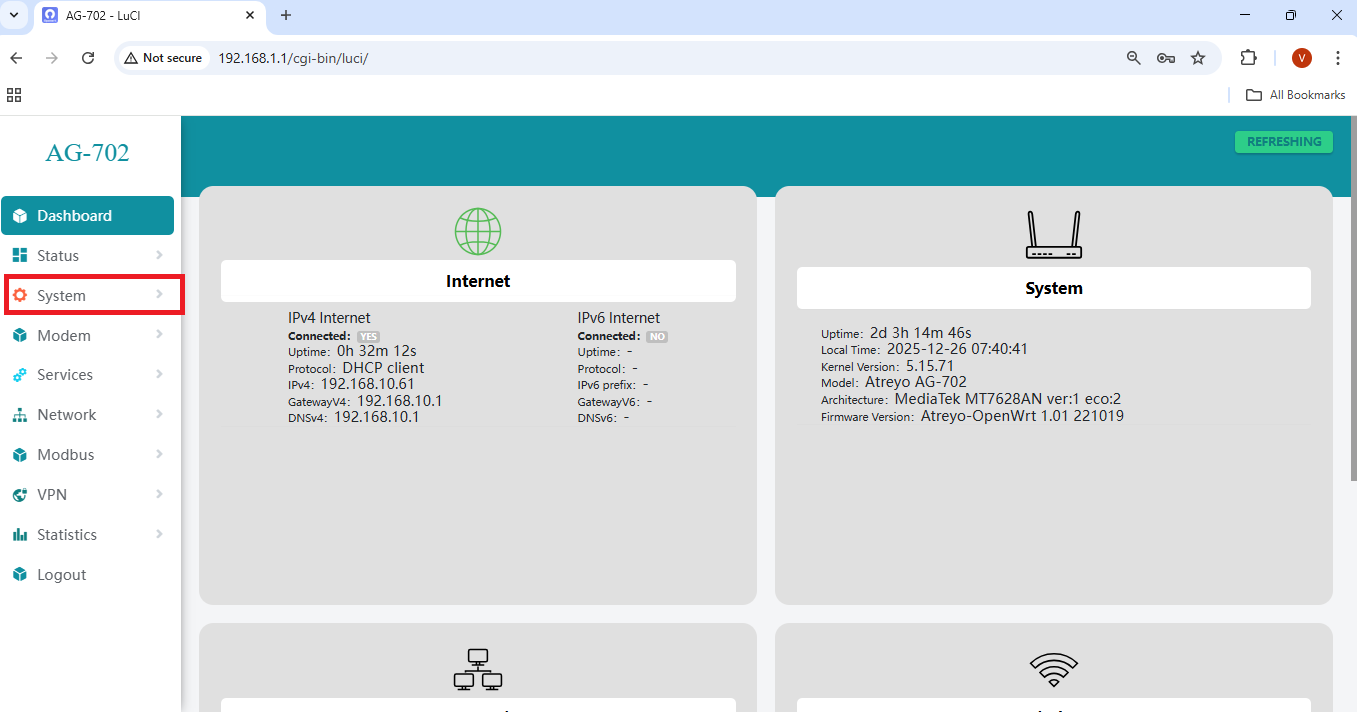
<div class="note" id="bkmrk-from-the-top-menu%2C-c">Navigate to System.</div>[![obraz.png](https://docs.atreyo.in/uploads/images/gallery/2026-08/scaled-1680-/obraz.png)](https://docs.atreyo.in/uploads/images/gallery/2026-08/obraz.png)

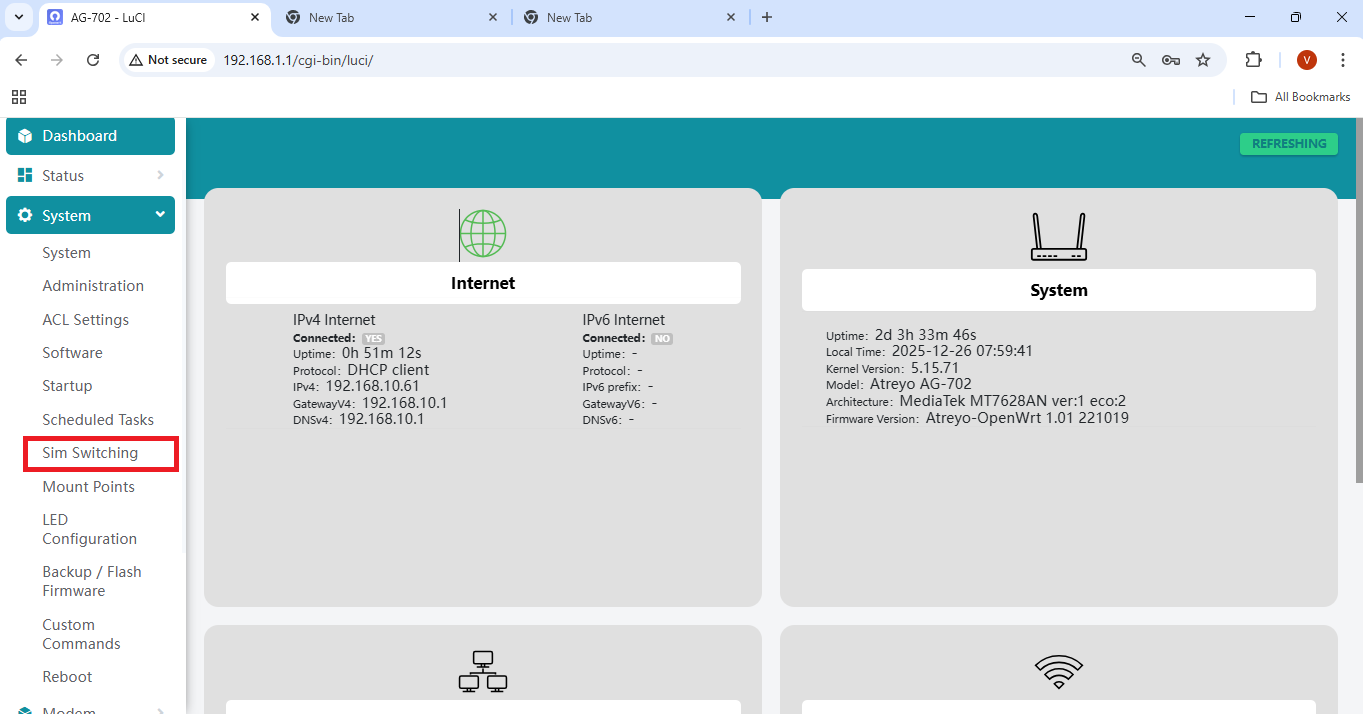
<div class="note" id="bkmrk--1"></div><div class="note" id="bkmrk--10"></div><div class="note" id="bkmrk-under-the-system-men"><span style="text-decoration: underline;"><span style="color: rgb(0,0,0);">Go to System <span style="font-size: 12pt; line-height: 107%; font-family: Calibri, sans-serif;">→ Sim\_Switching  
  
</span></span></span></div>[![obraz.png](https://docs.atreyo.in/uploads/images/gallery/2026-08/scaled-1680-/2Rpobraz.png)](https://docs.atreyo.in/uploads/images/gallery/2026-08/2Rpobraz.png)

<div class="note" id="bkmrk--3"></div><div class="note" id="bkmrk--11"></div><div class="note" id="bkmrk--12"></div><div class="note" id="bkmrk--14"></div><div class="note" id="bkmrk-you-will-now-be-redi">You will now be redirected to the SIM Switching configuration page.</div><p class="callout warning">Before configuring the SIM switch, make sure the modem is turned off.</p>

---

##### **1. Start Cellular Modem at Startup**

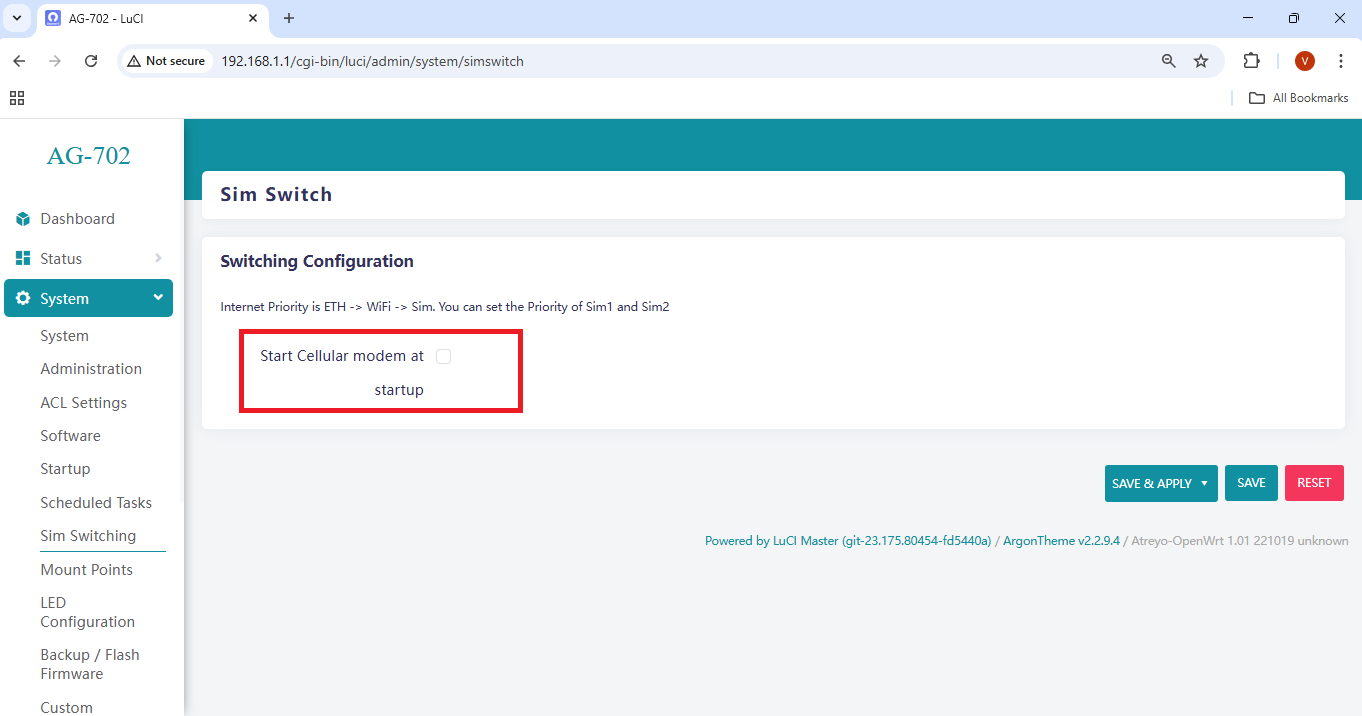
<div class="note" id="bkmrk-enable-the-option-st">Enable the option **Start cellular modem at startup** as shown below.</div><div class="note" id="bkmrk--16"></div><p class="callout info">This option ensures that the cellular modem automatically starts whenever the device boots.</p>

[![obraz.png](https://docs.atreyo.in/uploads/images/gallery/2026-08/scaled-1680-/LIGobraz.png)](https://docs.atreyo.in/uploads/images/gallery/2026-08/LIGobraz.png)

<div class="note" id="bkmrk--17"></div><div class="note" id="bkmrk-once-enabled%2C-the-si">Once enabled, the SIM configuration options will become available.</div>---

##### **2. SIM Configuration**

<div class="note" id="bkmrk-there-are-two-ways-t">There are two ways to configure the SIM card:</div><div class="note" id="bkmrk-1.-single-sim-mode2.">1. Single SIM mode  
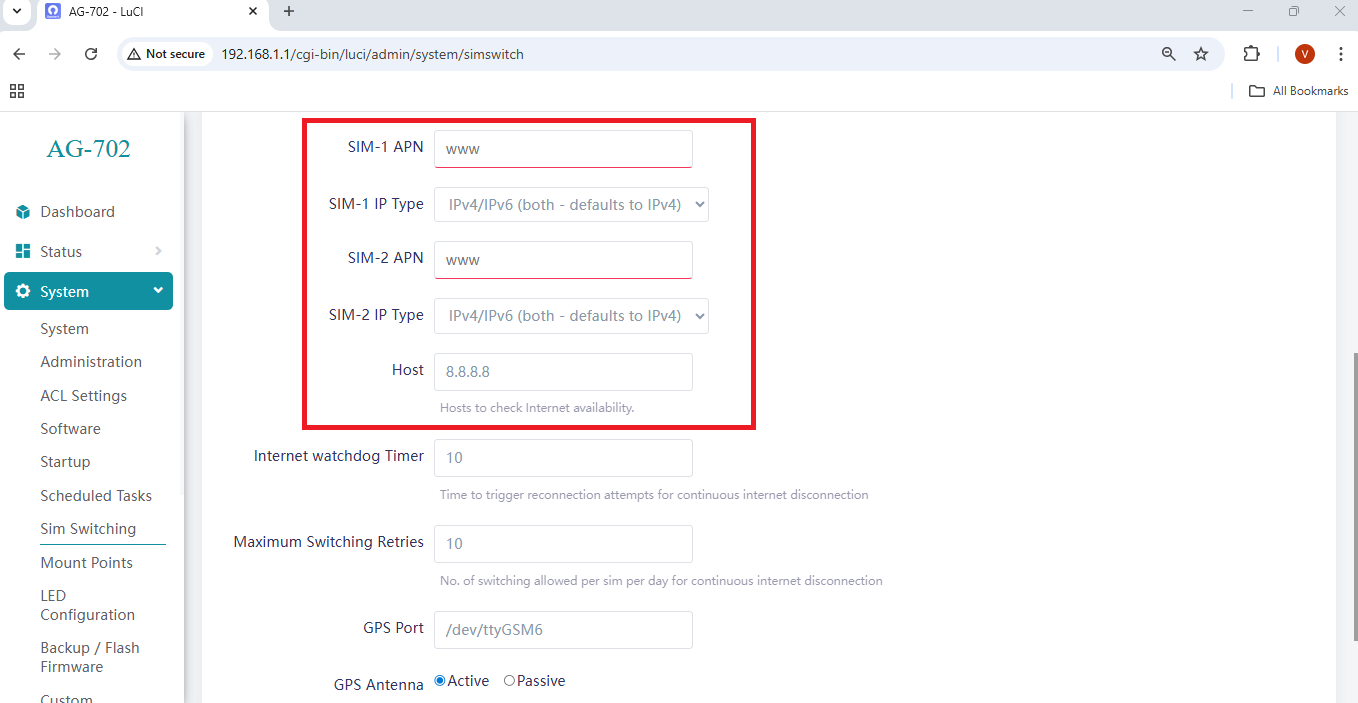
2. Dual SIM mode</div><div class="note" id="bkmrk--20"></div><div class="note" id="bkmrk-2.1-single-sim-confi">**2.1 Single SIM Configuration**</div><div class="note" id="bkmrk--21"></div>- Select **SIM1** or **SIM2** depending on the slot in which the SIM card is inserted.
- Configure the **APN** and **IP Type** as shown below.

[![obraz.png](https://docs.atreyo.in/uploads/images/gallery/2026-08/scaled-1680-/PV7obraz.png)](https://docs.atreyo.in/uploads/images/gallery/2026-08/PV7obraz.png)
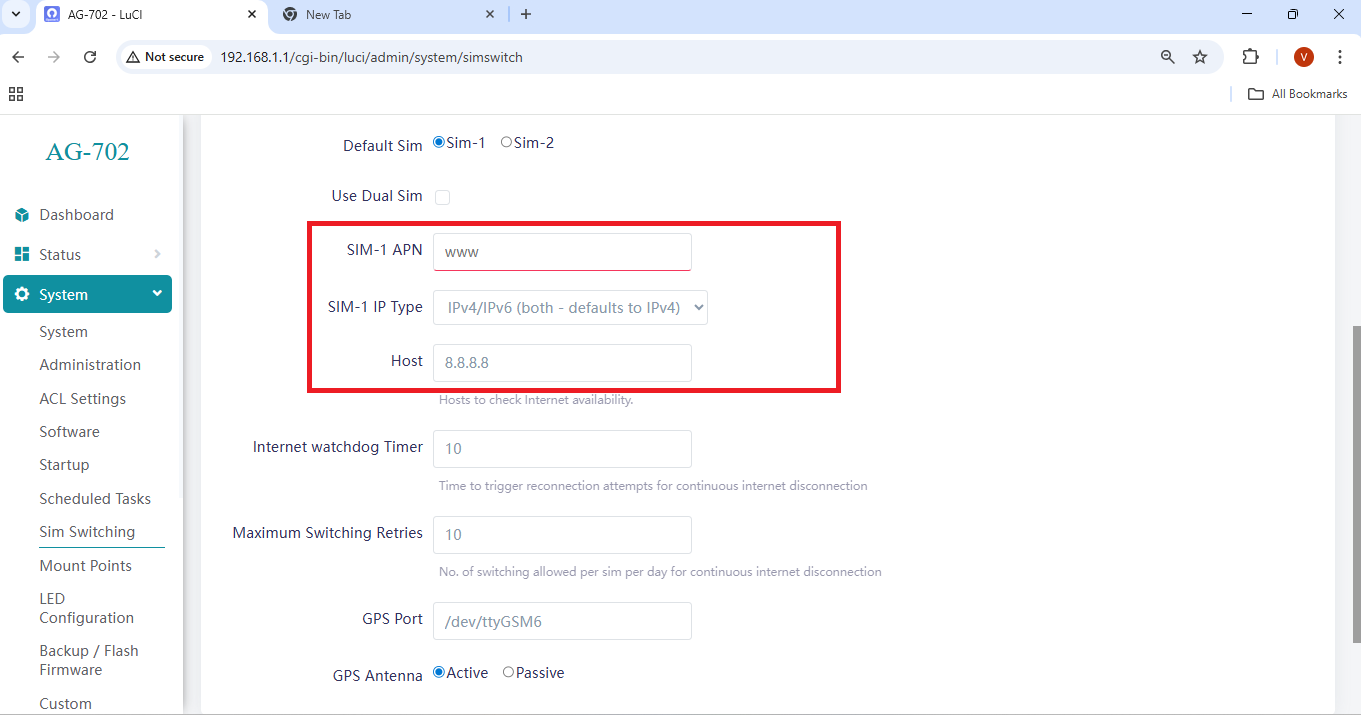
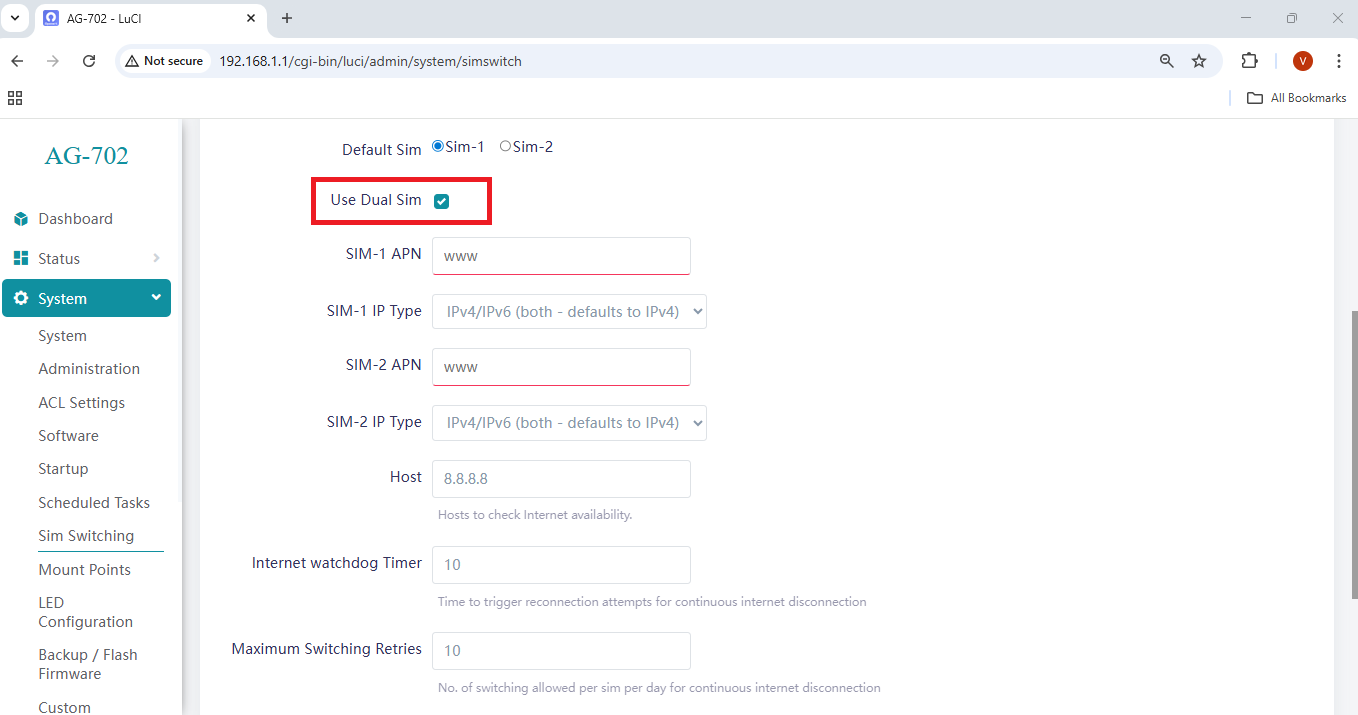
<div class="note" id="bkmrk-2.2-dual-sim-configu">**2.2 Dual SIM Configuration**</div><div class="note" id="bkmrk--23">  
</div><div class="note" id="bkmrk-select-the-sim-card-">Select the SIM card that should be used at device startup.</div><div class="note" id="bkmrk-enable-the-option-us">Enable the option **Use Dual SIM**.</div><div class="note" id="bkmrk--7"></div>[![obraz.png](https://docs.atreyo.in/uploads/images/gallery/2026-08/scaled-1680-/vWvobraz.png)](https://docs.atreyo.in/uploads/images/gallery/2026-08/vWvobraz.png)

<div class="note" id="bkmrk--25"></div><div class="note" id="bkmrk--26"></div><div class="note" id="bkmrk-after-enabling-dual-">After enabling Dual SIM mode, configure the **APN** and **IP Type** for both SIMs.</div><div class="note" id="bkmrk--13"></div><div class="note" id="bkmrk--27"></div>[![obraz.png](https://docs.atreyo.in/uploads/images/gallery/2026-08/scaled-1680-/znFobraz.png)](https://docs.atreyo.in/uploads/images/gallery/2026-08/znFobraz.png)

<div class="note" id="bkmrk--28"></div>---

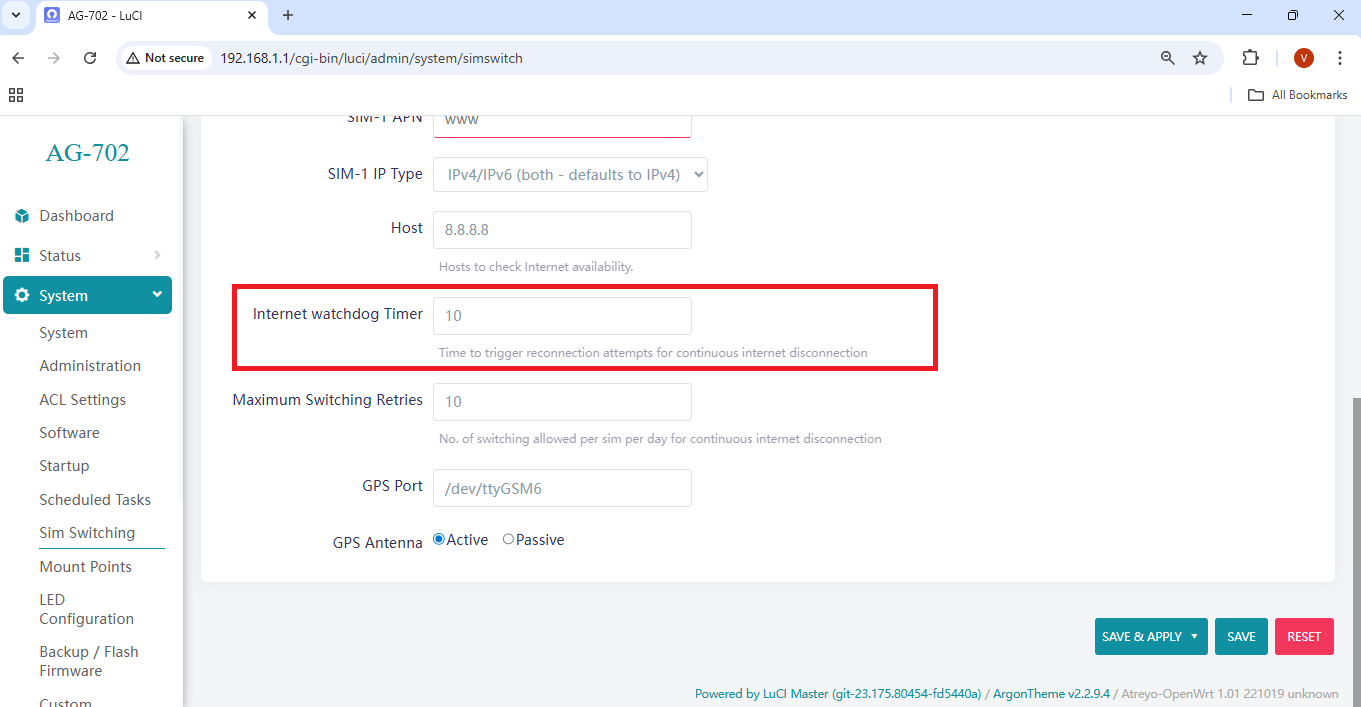
<div class="note" id="bkmrk--30"></div>##### **3. Internet Watchdog Timer**

<div class="note" id="bkmrk--31"></div>[![obraz.png](https://docs.atreyo.in/uploads/images/gallery/2026-08/scaled-1680-/2X7obraz.png)](https://docs.atreyo.in/uploads/images/gallery/2026-08/2X7obraz.png)

<div class="note" id="bkmrk--32"></div><div class="note" id="bkmrk--33"></div><div class="note" id="bkmrk-the-internet-watchdo">The Internet Watchdog Timer continuously monitors Internet connectivity and automatically performs recovery actions if the connection is lost for a defined duration.</div><p class="callout info">**Important:** The cellular modem requires approximately **1–2 minutes** to initialize. Therefore, configure the watchdog timeout to a minimum of **2 minutes**. Do not set a lower value.</p>

---

##### **4. Maximum Switching Retries**

<div class="note" id="bkmrk-this-parameter-defin">This parameter defines the maximum number of SIM switching attempts allowed per SIM during continuous Internet disconnection scenarios.</div><div class="note" id="bkmrk-after-completing-all">After completing all configurations, click **Save**, and then click **Save &amp; Apply** to apply the changes.</div>