
System Configuration Manual
Please read carefully before starting. Also read the product safety information.
1. First start
After unpacking, the gateway is ready to use, but requires configuration to adapt to the required functions.
1.1 Power supply
First, connect the power supply according to the power supply information.
2. Opening inbuilt website
2.1 Through the WAN interface
To access the built-in website, connect the gateway by WAN to the local network and enter the DHCP assigned IP address in the address window of the browser. Please note that it may take some time from powering on to booting up the system. When the LEDs next to the RJ45 socket start flashing, after about 10 seconds the built-in website becomes available.
user name: root
password: root
2.2 Through the LAN interface
Connect the ETH2 directly to the computer and enter in the address window of the browser default IP of Gateway.
IP: 192.168.1.1
user name: root
password: root
2.3 Through the WiFi interface
By default, the gateway creates its own network with default ESSID "AG-702". The network is secured with default password "atreyo12".
Connect to this network and enter the IP in the address bar of your browser.
IP: 192.168.1.1
user name: root
password: root

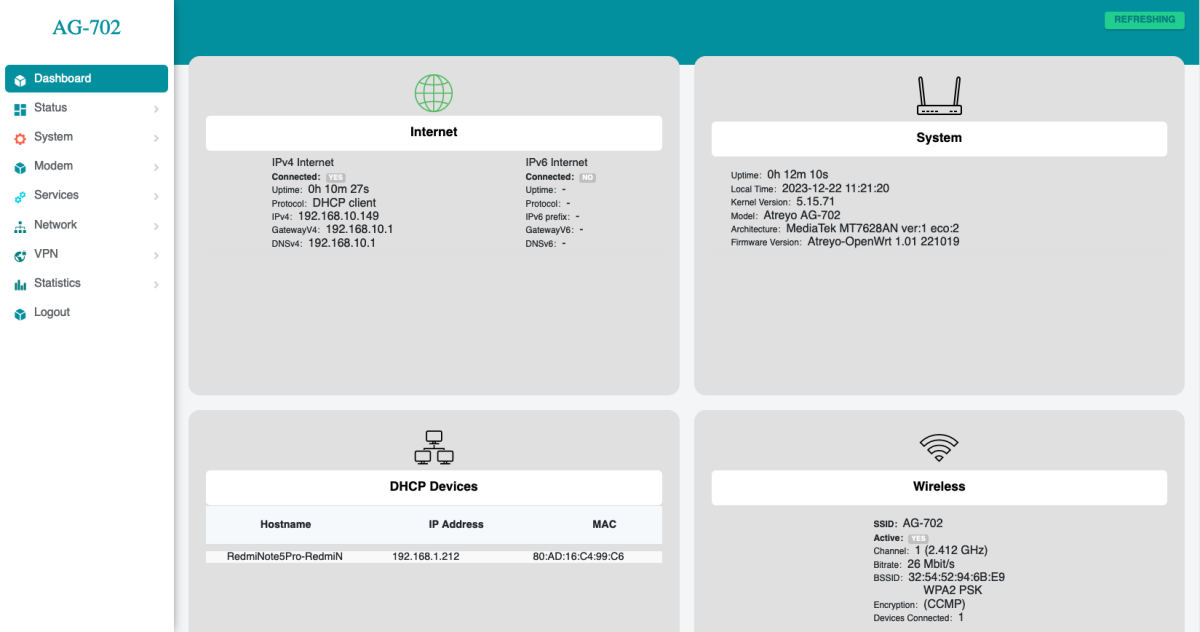
ASfter logging in, you are automatically taken to the dashboard page.
2.4 Password setting
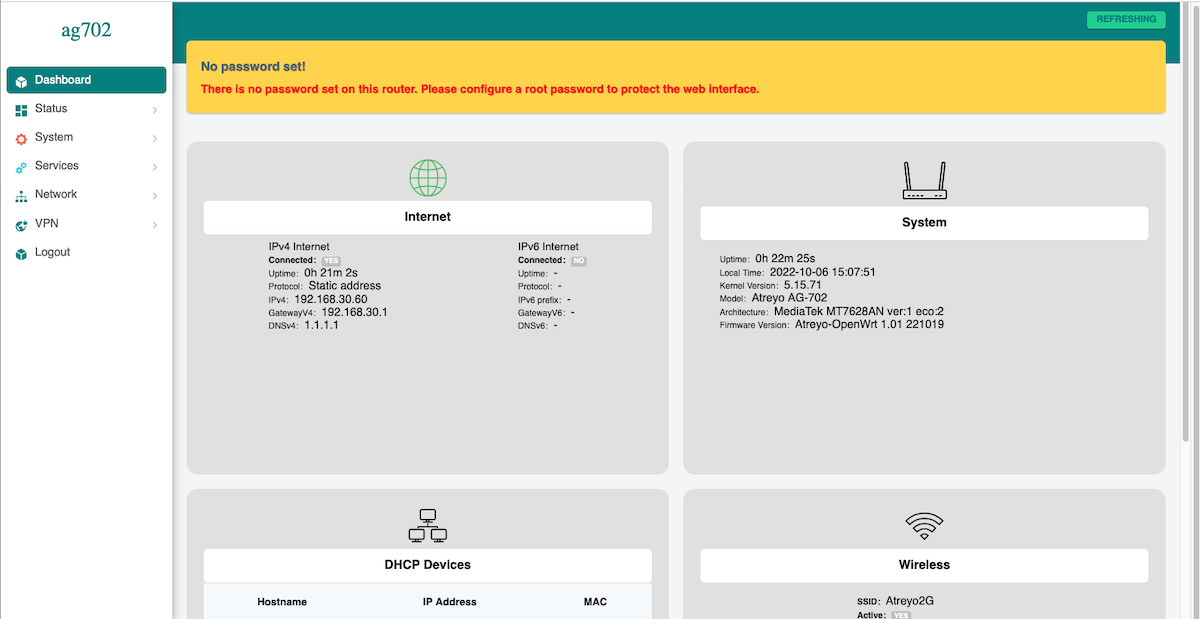
At the top there is a message that no password has been set.
Set a password on the system>administration page:
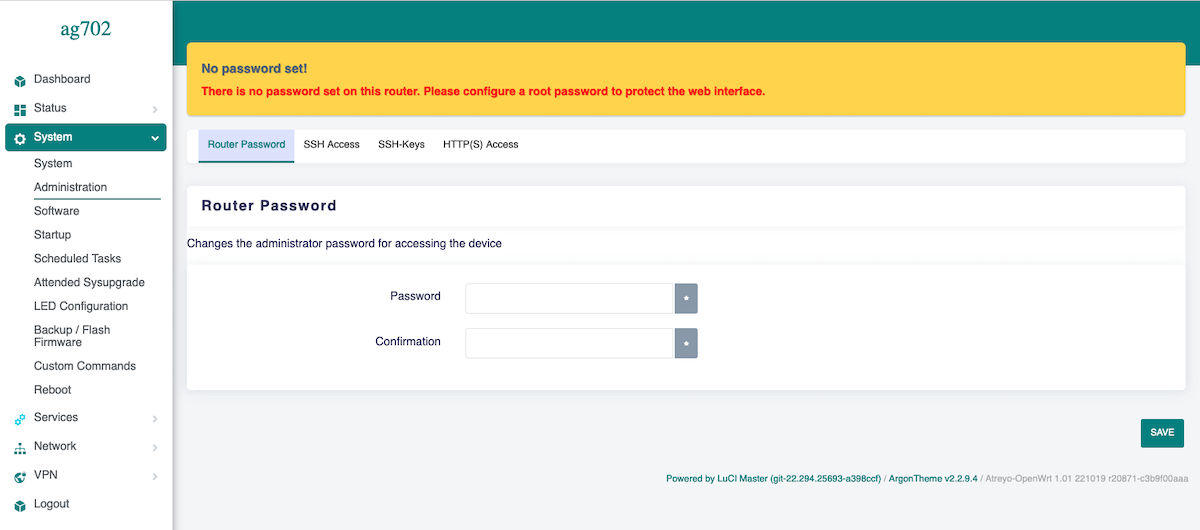
To maintain security, it is recommended to use long and complex passwords.
3. System statistics
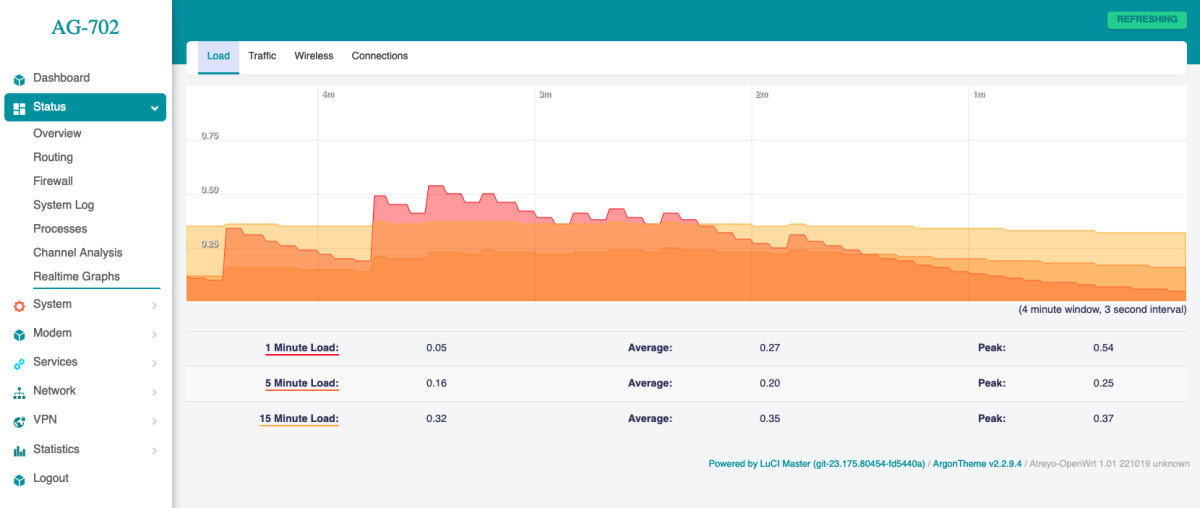
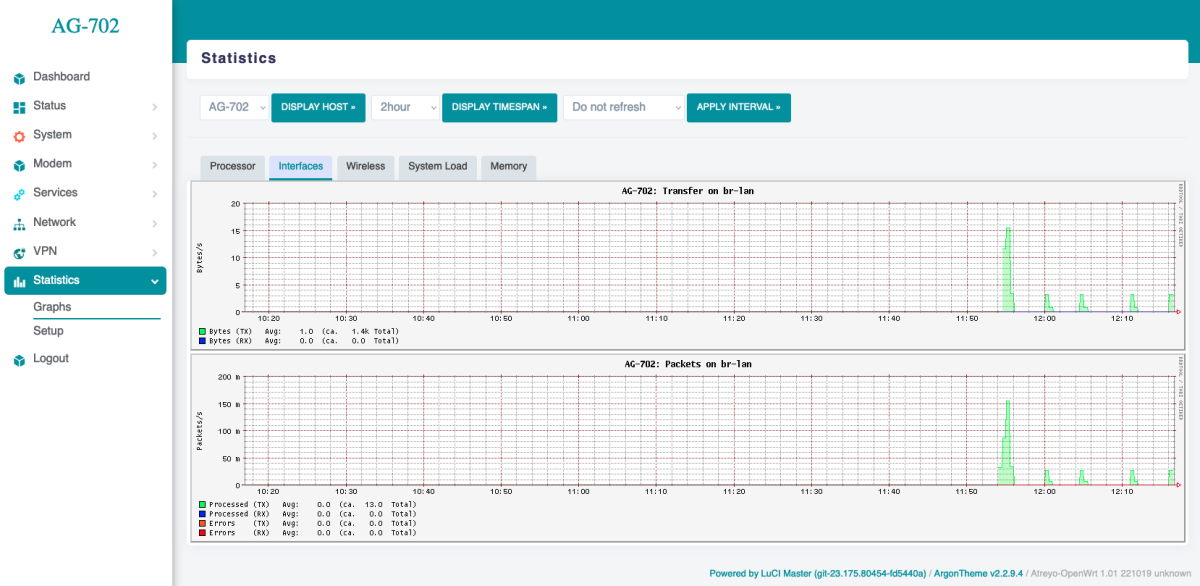
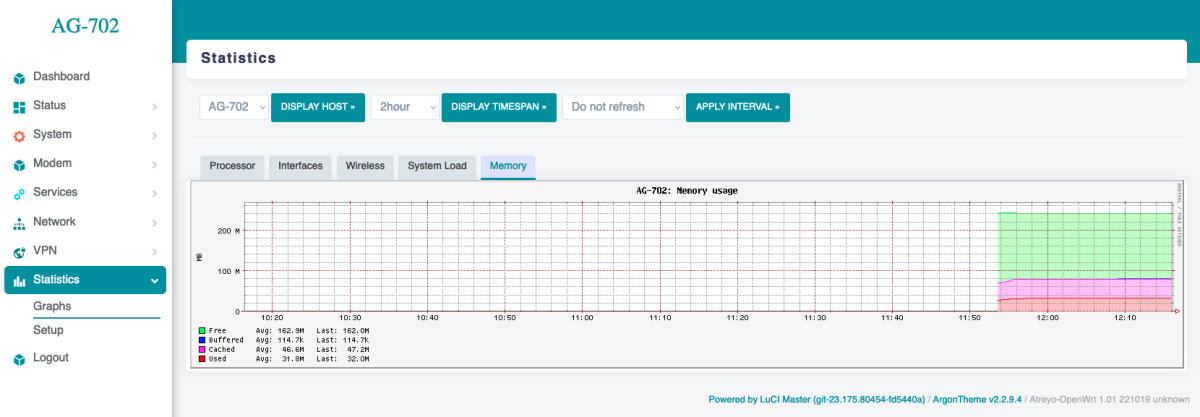
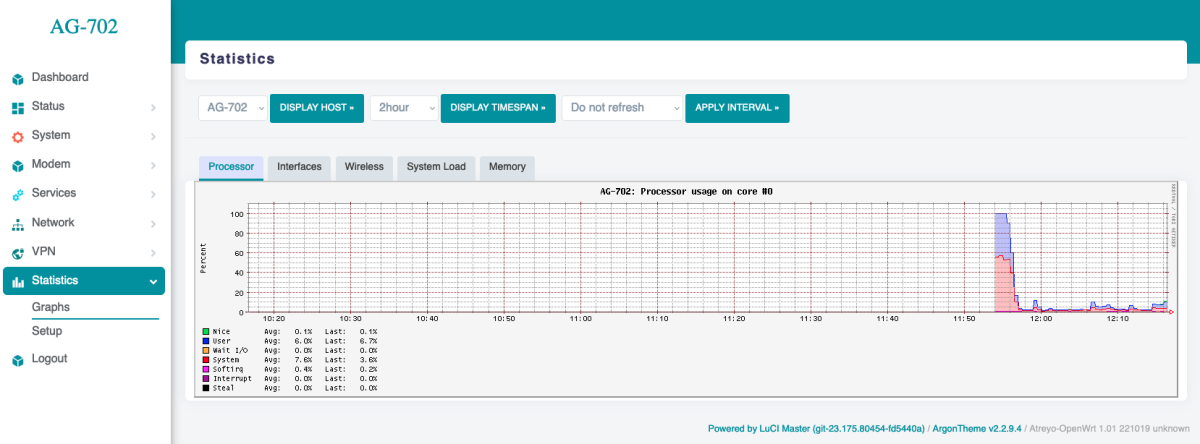
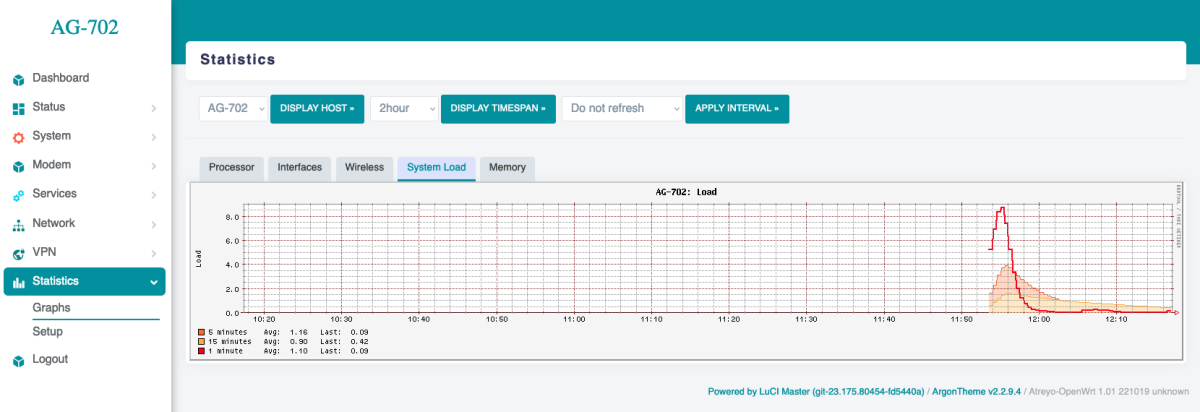
The gateway has a built-in real-time statistics system under Status > Realtime Graphs and accurate statistics with selectable time range under Statistcis > Graph. You can check CPU load, memory usage, network load, etc.
3.1 Realtime load
3.2 Statistics interfaces
3.3 Statistics memory
3.4 Statistics processor
3.5 Statistics system load
4. Using the terminal
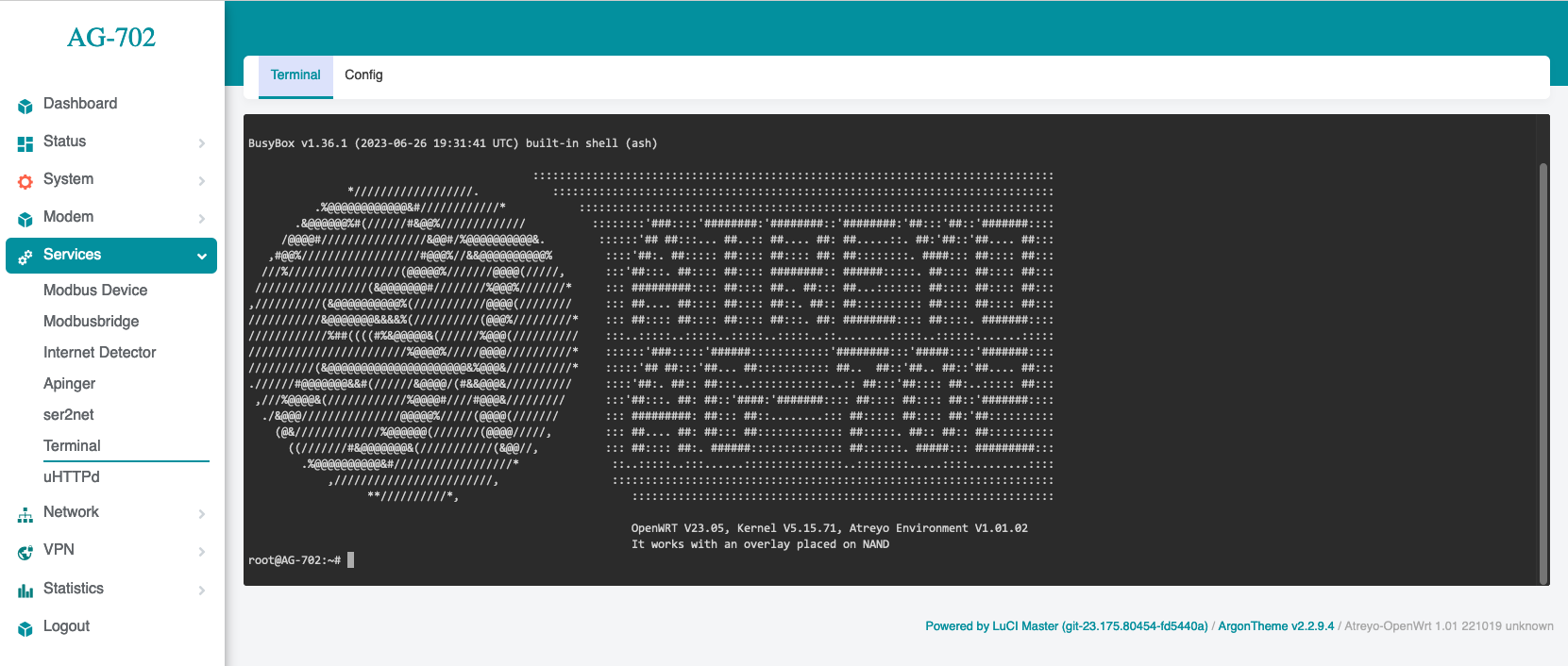
The AG-702 has a built-in bash terminal. With it you can execute all commands in the OpenWRT system. To enter the terminal, go to the tools > terminal section on the built-in website. The default password is the same root/root.
5. Reset and default
5.1 Make factory default
To reset the system to factory settings, hold down the "Default/Reset" button for more than 5 seconds while the device is operational. During the factory reset, all LED indicators will light up for 2 seconds.
5.2 Reset device
To restart the gateway without disconnecting the power supply, press and hold the "Reset/Default" button for less than 5 seconds. During the restart, 4 LED indicators will light up for 1 second (IN-1, IN-2, RS485, RS232)
Do not hold the button for more than 5 seconds, as it will trigger the gateway to restore default settings.