
Account Setup Guide
✉️ Invitation Email Guide
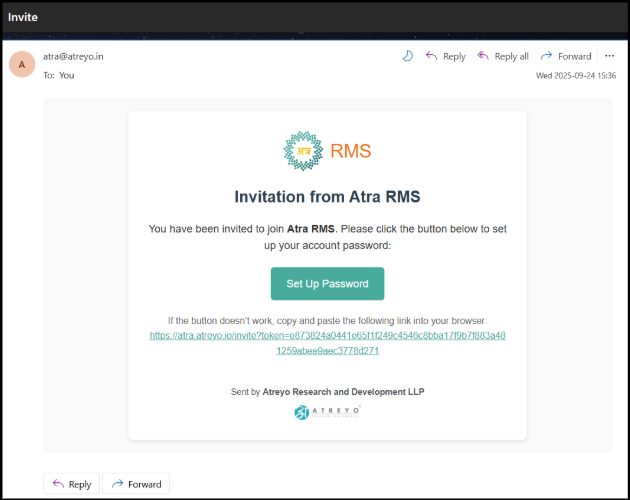
This email is sent when you are invited to join the Atra-RMS platform. It contains a secure link that allows you to set up your new account.
🪜 Account Setup Steps
- Set Up Your Password:
Click the Set Up Password button in the email. You’ll be redirected to a secure page where you can create a password for your new account. - Alternative Access:
If the button doesn’t work, copy the full link provided below it (starting withhttps://atra.atreyo.io/invite?token=...) and paste it directly into your web browser’s address bar to continue account setup.
⚠️ Important Note on Expiration
- Validity: This invitation is valid for 24 hours from the time you receive the email.
- Post-Setup: Once you have successfully set up your password, the invitation link will automatically expire.
- Expiration: If your invitation has expired, please contact your organization administrator or the person who invited you to request a new invitation.
🧩 Account Setup Guide
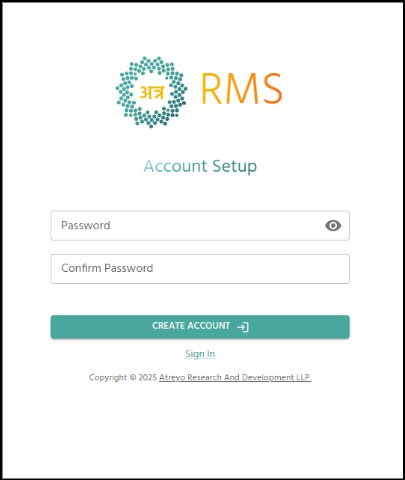
This page allows you to create a password for your new Atra-RMS account after clicking the setup link from your invitation email.
🔒 Password Requirements
Your new password must meet the following complexity rules:
-
Length: Minimum 8 characters.
-
Lowercase: At least one lowercase letter (a–z).
-
Uppercase: At least one uppercase letter (A–Z).
-
Numeric: At least one number (0–9).
-
Special Character: Must include at least one special character such as
!@#$%^&*. -
Not Allowed: Passwords cannot start with a hyphen (-) or contain parentheses (( or )).
🪜 Steps to Set Up Your Account
- Enter Password: Type your new password in the Password field, following the above requirements.
- 💡 Tip: Click the eye icon (⊙) to toggle password visibility.
- Confirm Password: Re-enter the same password in the Confirm Password field.
- Validation: The system checks that both passwords match.
- Create Account: Click the CREATE ACCOUNT button (→) to finalize the setup.
Once completed, your account will be activated, the invitation link will expire, and you’ll be able to sign in to Atra-RMS.
🔁 Other Actions
-
Sign In: If you already have a password, click the Sign In link to go directly to the login page.
📩 Invitation Expired Message Guide
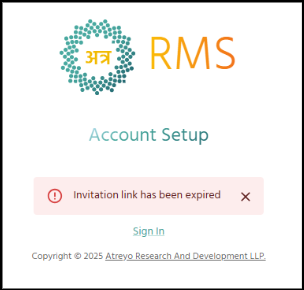
This page appears when you try to access the account setup link from your invitation email, but the link is no longer valid.
🎯 Purpose
The message "Invitation link has expired" means the invitation can no longer be used due to one of the following reasons:
-
⏰ Time Limit: The 24-hour validity period of the invitation has expired.
-
✅ Completion: The account setup process was already successfully completed using this link.
🔁 Next Steps
-
🔐Sign In: If you have already created your password, click the Sign In link to go to the login page and access your account.
-
🧑💼Contact Admin: If you haven’t set your password yet and the link has expired, contact your organization administrator or a person who invited you to request a new invitation email.
✅ Account Creation Success Email Guide
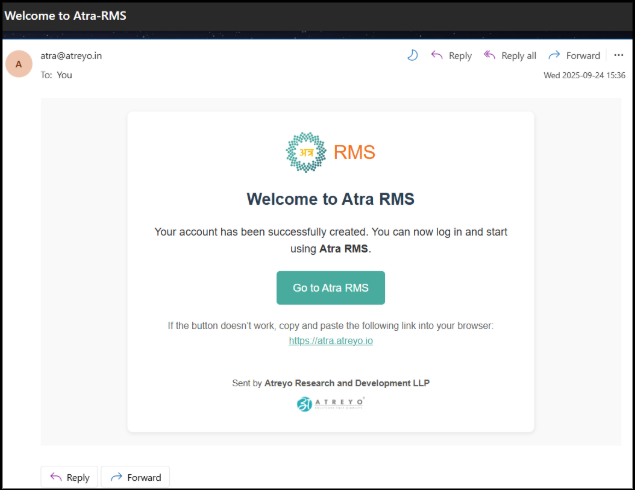
This email confirms that your Atra-RMS account setup has been successfully completed. 🎉
🎯 Purpose
The message:
"Your account has been successfully created. You can now log in and start using Atra RMS."
indicates that your account is active, and you can now access the platform(Atra RMS).
🌐 Accessing the Atra-RMS
You have two convenient ways to open the Atra RMS login page:
🚀 Next Step
You can now log in using your registered email address and the password you created during the setup process to start using Atra RMS.
🔐 Login Page Guide
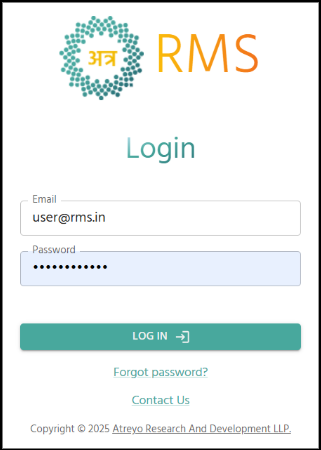
This is the main login page for the Atra-RMS platform, where users can securely access their accounts using their registered credentials.
🧭 How to Log In
- 📧 Email:
Enter your registered email address (e.g.,user@rms.in) in the top field. - 🔑 Password:
Enter the password you created during the account setup process in the bottom field. - ▶️ Log In:
Click the LOG IN → button to access your account
🆘 Need Help?
If you’re unable to log in:
-
🔄 Forgot Password?
Click the Forgot password? link to start the password reset process. -
📞 Contact Us:
Click the Contact Us link for help or support from Atreyo Research and Development LLP.
💡 Note: Only accounts with successfully set passwords can log in to the platform.