
Device Registration Guide
Follow this 4-step process to register and activate new devices on your Atra RMS platform.
Prerequisites Checklist
Before starting registration:
✅ You have the device's Serial ID
✅ You have "Devices Register" permission in your role
✅ Target organization exists (create it first if needed)
Step 1: Locate Your Device's Serial ID
The Serial ID is a unique 16-character identifier required for registration.
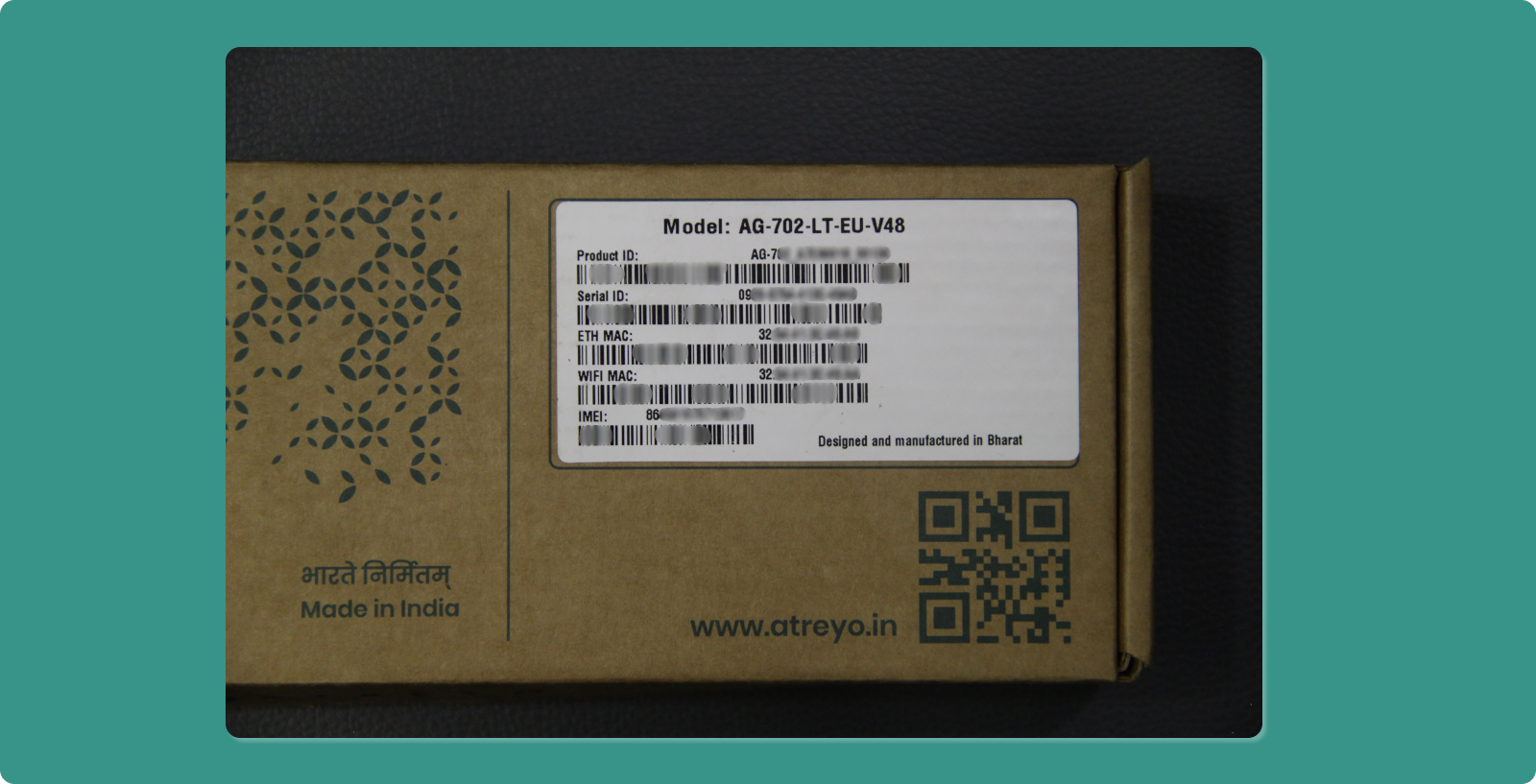
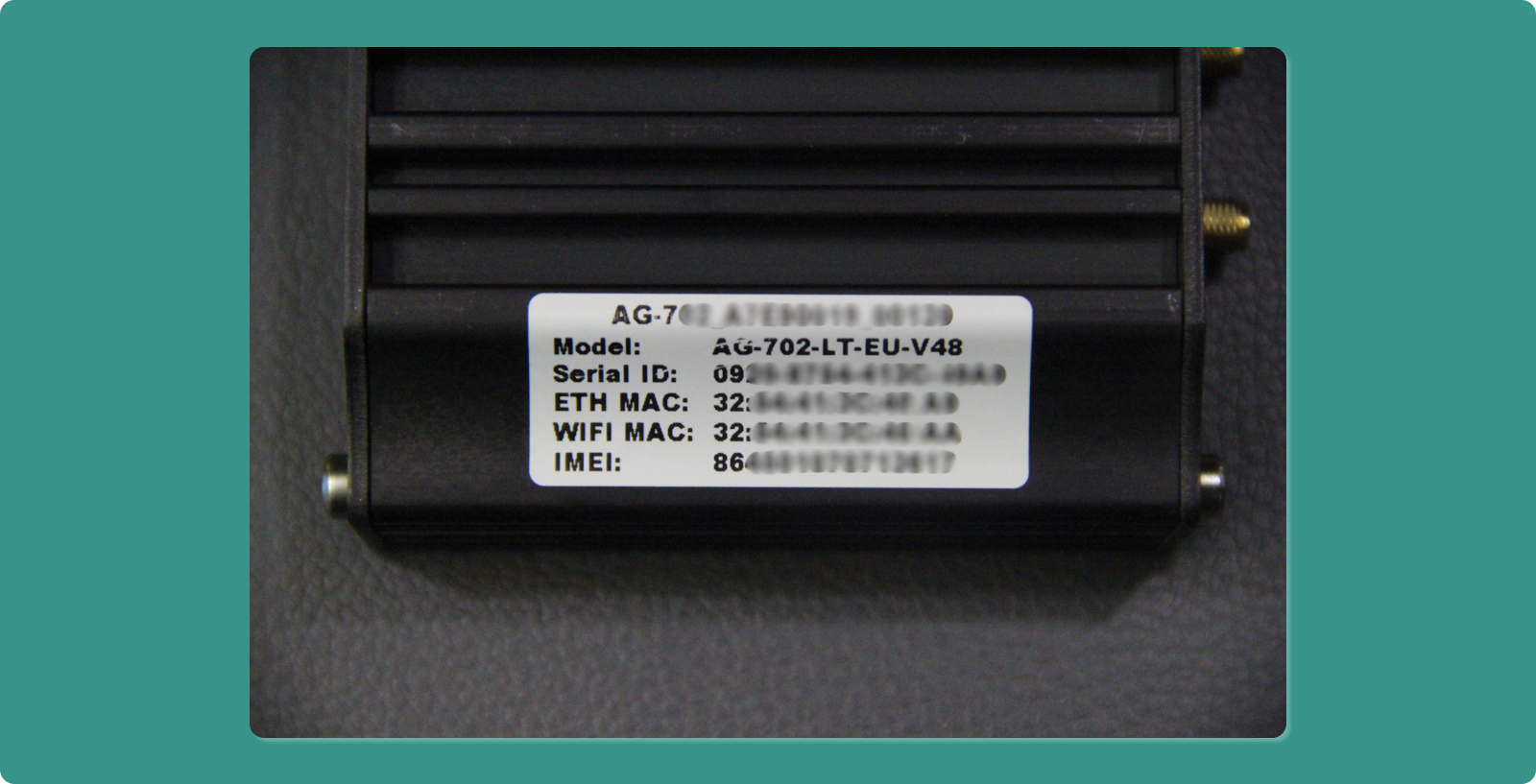
Finding the Serial ID:
Option A: On the Box
-
Look for white sticker on device packaging
-
Format: xxxx-xxxx-xxxx-xxxx
-
Example: 1A2B-3C4D-5E6F-7G8H
Option B: On the Device
-
Check white sticker on back or underside of device
-
Same format as above
🔍 Serial ID Format:
-
Exactly 16 characters
-
Four groups of 4 characters
-
Separated by hyphens
-
Mix of numbers and letters
⚠️ Common Mistakes:
-
Don't confuse Serial ID with MAC Address
-
Don't include extra spaces
-
Ensure all characters are correctly transcribed (0 vs O, 1 vs I)
Step 2: Navigate to Registration Page
-
Click "Devices" in the left sidebar menu
-
Click the "REGISTER" button (teal, top-left corner)
-
"Register Device" page loads
Step 3: Complete Registration Form
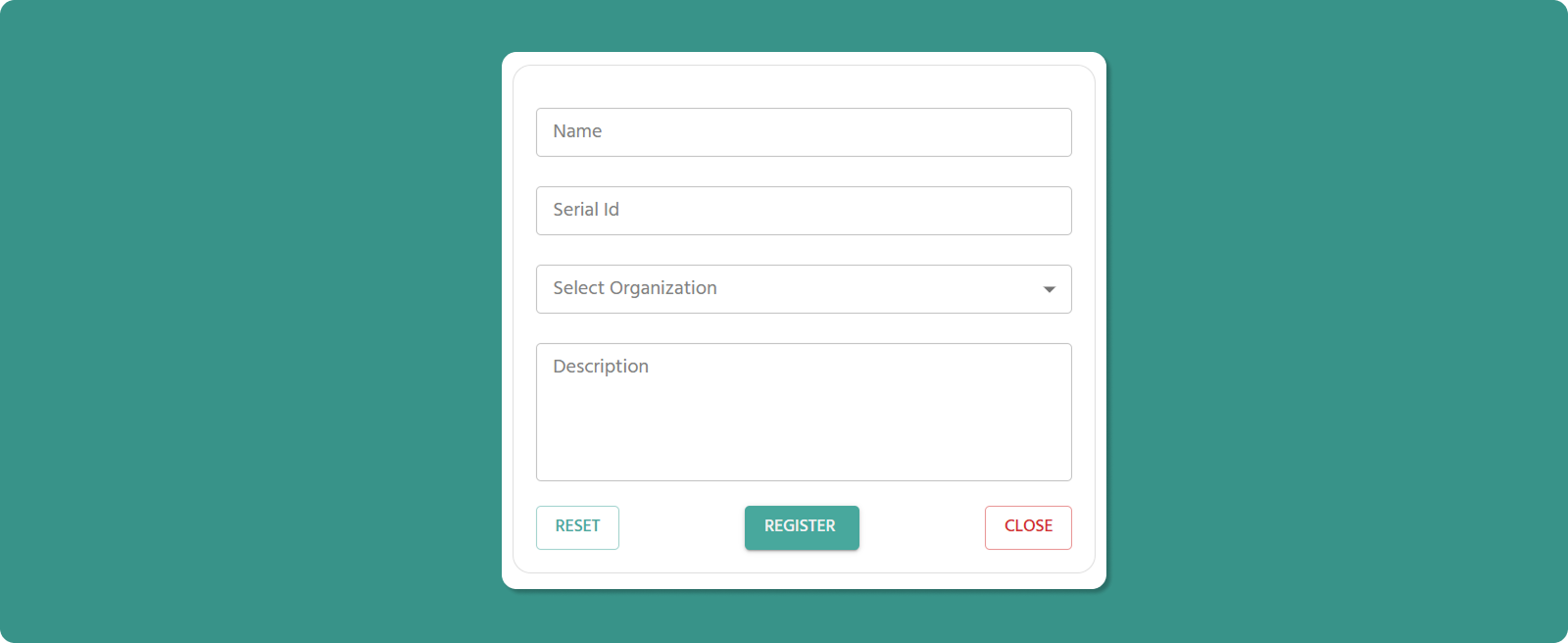
Fill out all required fields:
Name of Device (Required)
Input Rules:
-
Length: 3-40 characters
-
Allowed: Letters, numbers, spaces, periods (.), underscores (_), hyphens (-)
-
Not allowed at start/end: Period (.), underscore (_), hyphen (-)
-
No consecutive special characters: Avoid device..name or device--name
Examples:
-
✅ Factory_Gateway_01
-
✅ Warehouse-Floor-2
-
✅ Office.Main.Router
-
❌ _Gateway01 (starts with underscore)
-
❌ Device..Name (consecutive periods)
💡 Best Practice: Use descriptive names that indicate location or function (e.g., "Mumbai_Plant_A_Gateway" rather than "Device123").
Serial ID (Required)
Input Rules:
-
Format: Exactly xxxx-xxxx-xxxx-xxxx
-
Case: Usually uppercase, but system accepts both
-
Validation: System checks if Serial ID is valid and not already registered
What Happens:
-
✅ Valid + Unused: Registration proceeds
-
❌ Invalid Format: Error message appears
-
❌ Already Registered: "Device already registered" error
Select Organization (Required)
Dropdown Options:
-
Your current organization
-
All child organizations under your management
⚠️ Important Notes:
Creating Child Organizations:
-
If target child org doesn't exist yet, you must create it first
-
Go to: Organizations → Create button
-
Then return to device registration
Organization Hierarchy:
-
Device will belong to selected organization only
-
Parent orgs can view child org devices
-
Child orgs cannot view parent org devices
Description (Optional)
Input Rules:
-
Length: 0-1000 characters
-
Purpose: Additional notes about device
Example Use Cases:
-
Physical location details: "2nd Floor, Server Room B, Rack 5"
-
Network information: "Connected to Switch-A, Port 12"
-
Maintenance notes: "Installed June 2025, Warranty until June 2027"
-
Contact information: "Site supervisor: John Doe, +91-9876543210"
Form Actions
Step 4: Power On & Activate
After successful registration, the device must establish its first connection to come online.
Scenario A: First-Time Setup (Device Never Powered On)
-
Immediately After Registration:
-
Device appears in Device List
-
Status shows: "Offline"
-
Power On the Physical Device:
-
Connect power supply
-
Provide internet to gateway
-
Wait 90-120 seconds for boot sequence
-
Automatic Connection:
-
Device establishes connection to Atra RMS
-
Status changes to: "Online"
-
Example: "Online - 2 minutes ago"
Typical Boot Time: 90-120 seconds depending on model and network speed.
Scenario B: Device Was Already Running
If the device was powered on before registration:
⚠️ Critical Step: You must restart the device to complete registration.
Restart Methods:
Method 1: Power Cycle
-
Unplug power cable
-
Wait 10 seconds
-
Reconnect power cable
-
Wait 90-120 seconds for connection
Method 2: Reboot Command (if accessible)
-
Access device admin interface
-
Execute reboot command
-
Wait for restart completion
Troubleshooting: Device Stays Offline
If device remains "Offline" after several minutes:
Quick Fix - Manual Refresh:
If Still Offline - Check Common Issues:
❌ Power Supply
-
Verify power cable is connected
-
Check power LED indicator on device
-
Try different power outlet
❌ Network Connection
-
Ethernet: Verify cable is connected, check link lights on port
-
Cellular: Verify SIM card is inserted correctly and active
❌ Serial ID Issues
-
Verify Serial ID was entered correctly during registration
-
Check for typos (0 vs O, 1 vs I, etc.)
-
Confirm device hasn't been registered to different organization
Still Having Issues?
-
See Comprehensive Troubleshooting section
-
Contact Atreyo for Support