
Password Recovery Guide
If you forget your password, use this process to reset it securely.
Step 1: Password Recovery Page
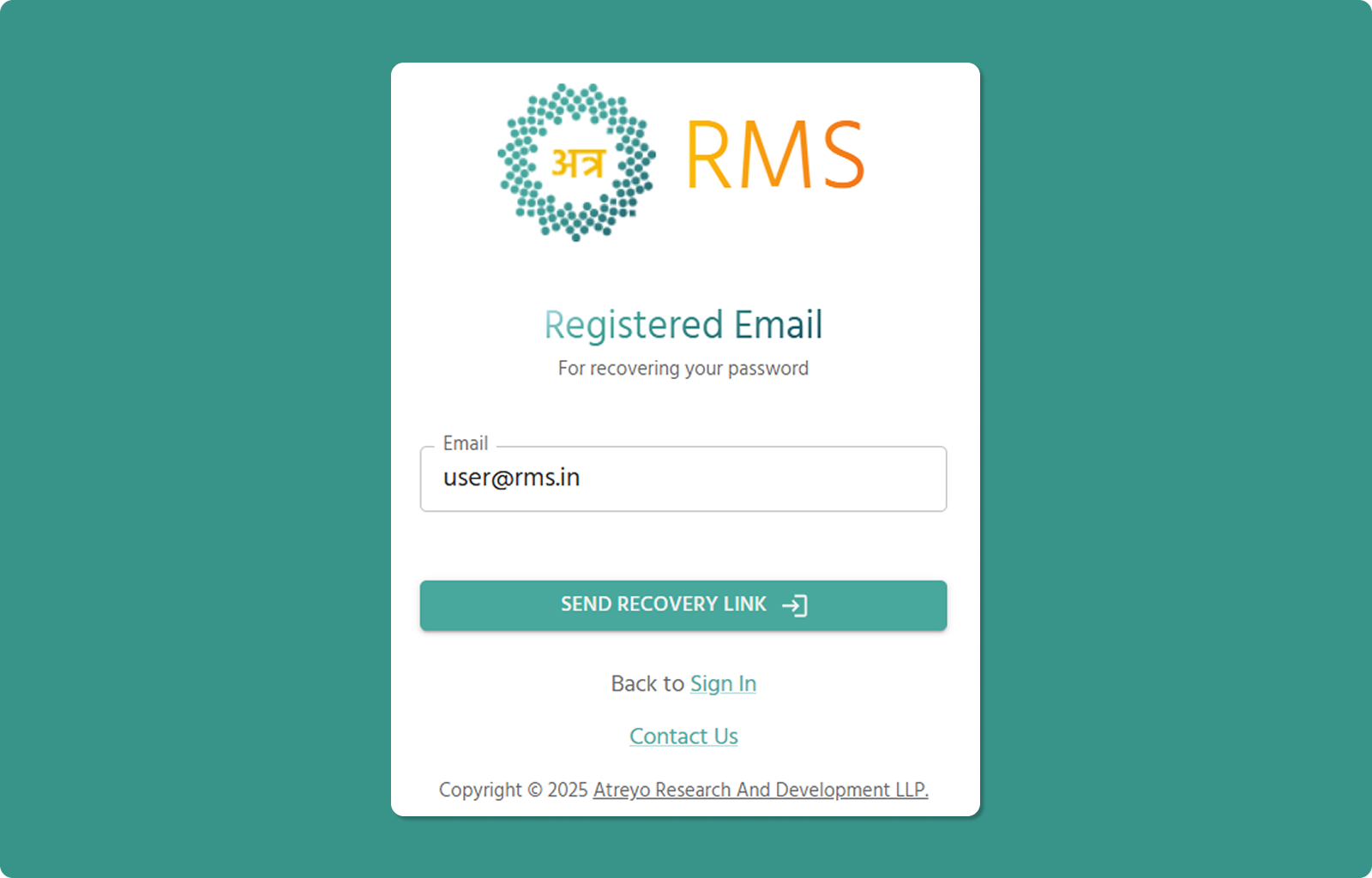
Accessing Recovery Page:
-
Go to login page
-
Click "Forgot password?" link
-
Password Recovery page opens
Step 2: Enter Registered Email
Steps:
-
Click in "Email" field (📧)
-
Type the email address associated with your Atra RMS account
-
Verify email is correct (check for typos)
-
Click "SEND RECOVERY LINK →" button
System Processes:
-
Validates email exists in system
-
Generates secure recovery token
-
Sends recovery email to address
Step 3: Check Email for Recovery Link
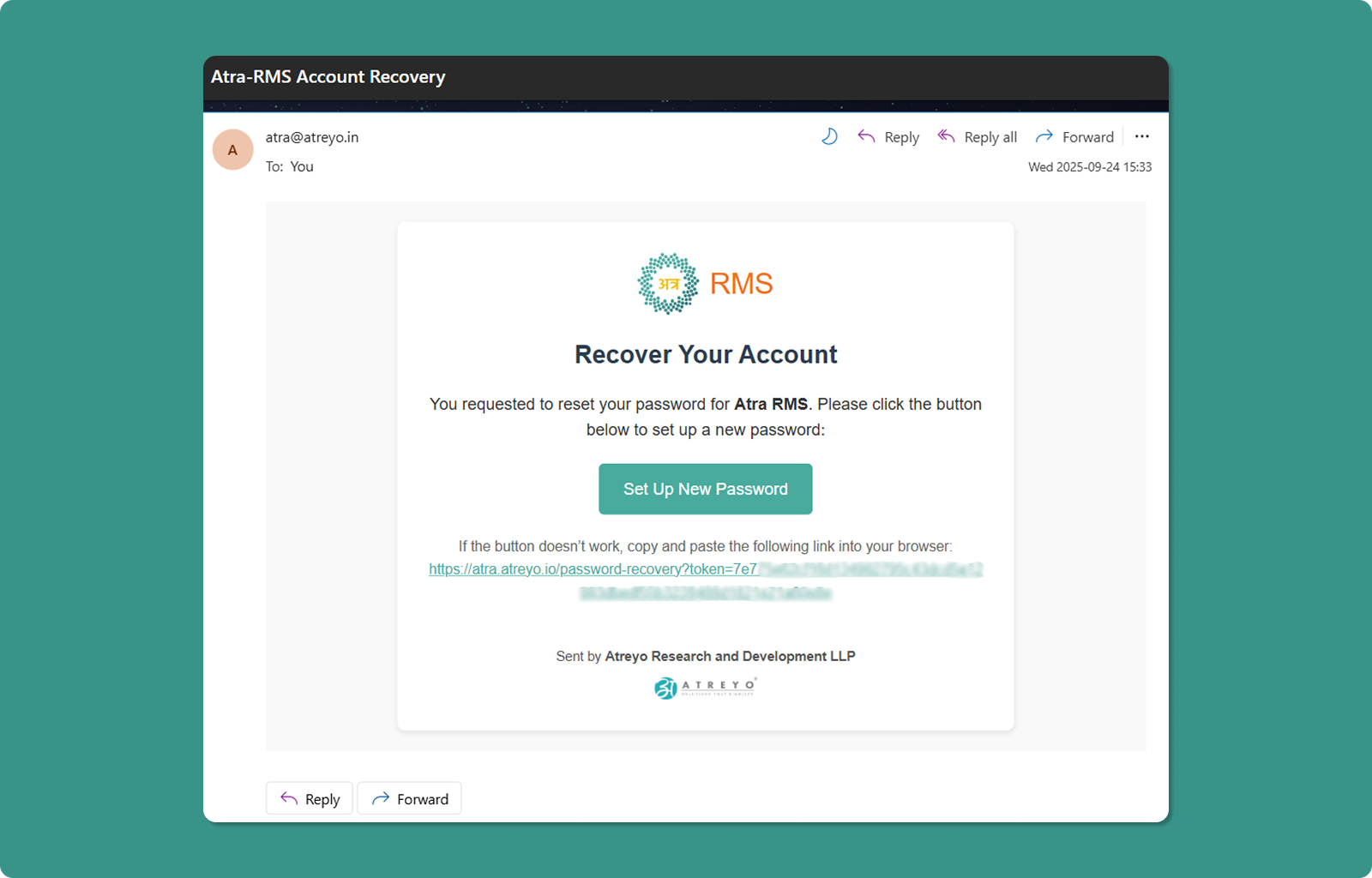
Email Arrives:
-
Subject: "Atra-RMS Account Recovery"
-
Delivery Time: Usually within 1-5 minutes
-
Check Spam: If not in inbox, check junk/spam folder
Email Contents:
-
Recovery confirmation message
-
"Set Up New Password" button (teal)
-
Backup recovery URL below button
Step 4: Click Recovery Link
Method A: Click Button
-
Open recovery email
-
Click "Set Up New Password" button
-
Browser opens password reset page
Method B: Copy/Paste URL
-
Locate full URL in email (below button)
-
Copy entire URL
-
Paste into browser address bar
-
Press Enter
Step 5: Setup New Password Page
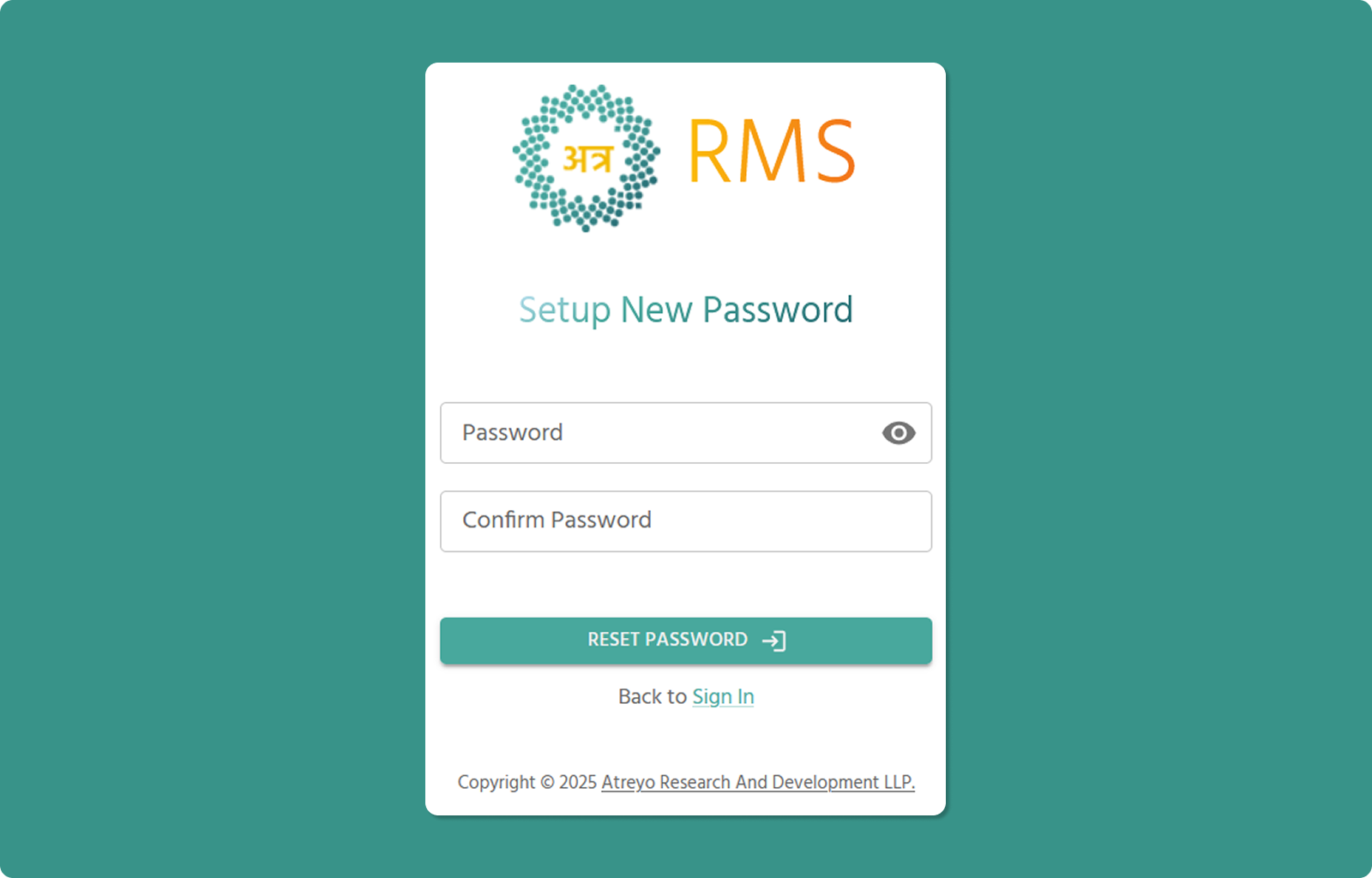
The password reset page allows you to create a new password.
Step 6: Enter New Password
[INSERT SCREENSHOT: New_Password_Input.png]
Password Requirements:
-
Minimum 8 characters
-
At least one lowercase letter (a-z)
-
At least one uppercase letter (A-Z)
-
At least one number (0-9)
-
At least one special character (!@#$%^&*)
-
Cannot start with hyphen (-)
-
Cannot contain parentheses ( )
Steps:
-
Enter new password in "Password" field
-
Click eye icon (👁️) to toggle visibility if needed
-
Re-enter same password in "Confirm Password" field
-
Verify both fields match
Step 7: Reset Password
-
Verify all requirements met
-
Confirm passwords match
-
Click "RESET PASSWORD →" button
System Processes:
-
Validates password meets requirements
-
Updates password
-
Expires recovery link
-
Sends confirmation email
Password Recovery Success
After successful password reset:
Message:
"Your account has been successfully recovered"
Next Steps:
-
Click "Sign In" link
-
Go to login page
-
Use your email and new password to log in
Password Recovery Success Email
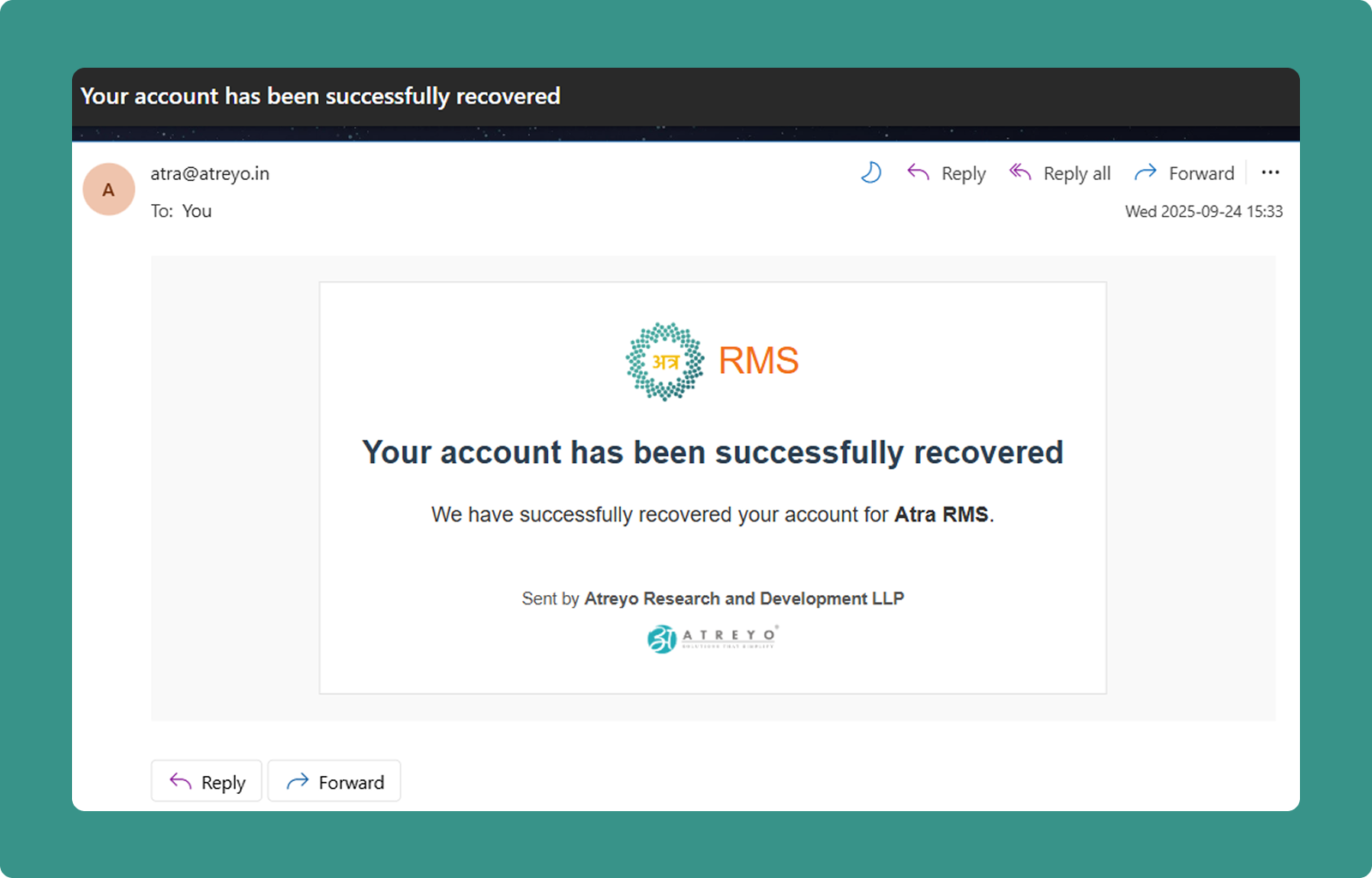
Confirmation email sent after successful password reset.
Email Contents:
-
Subject: "Atra RMS Account Recovery Successful"
-
Confirmation message
Purpose:
-
Confirms password was changed
-
Security notification
Important Validity Information
⏰ 24-Hour Validity:
Recovery links are valid for 24 hours from email receipt.
After 24 Hours:
-
Link expires automatically
-
"Recovery link has expired" page displays
-
Must restart recovery process from beginning
✅ Post-Recovery Expiration:
After successful password reset:
-
Recovery link expires immediately
-
Prevents reuse of recovery link
-
Security measure
Multiple Requests:
-
If you request recovery multiple times, only the latest link works
-
Previous recovery links are automatically invalidated
-
Use the most recent email received
Other Actions on Recovery Pages
Back to Sign In:
-
Click "Sign In" link
-
Returns to main login page
-
Use if you remember your password
Contact Us:
-
Click "Contact Us" link
-
Opens atreyo.in contact us form
-
Get help with recovery issues