
Account Profile
Account Menu & Profile Options
Access user-specific settings and account information through the account menu.
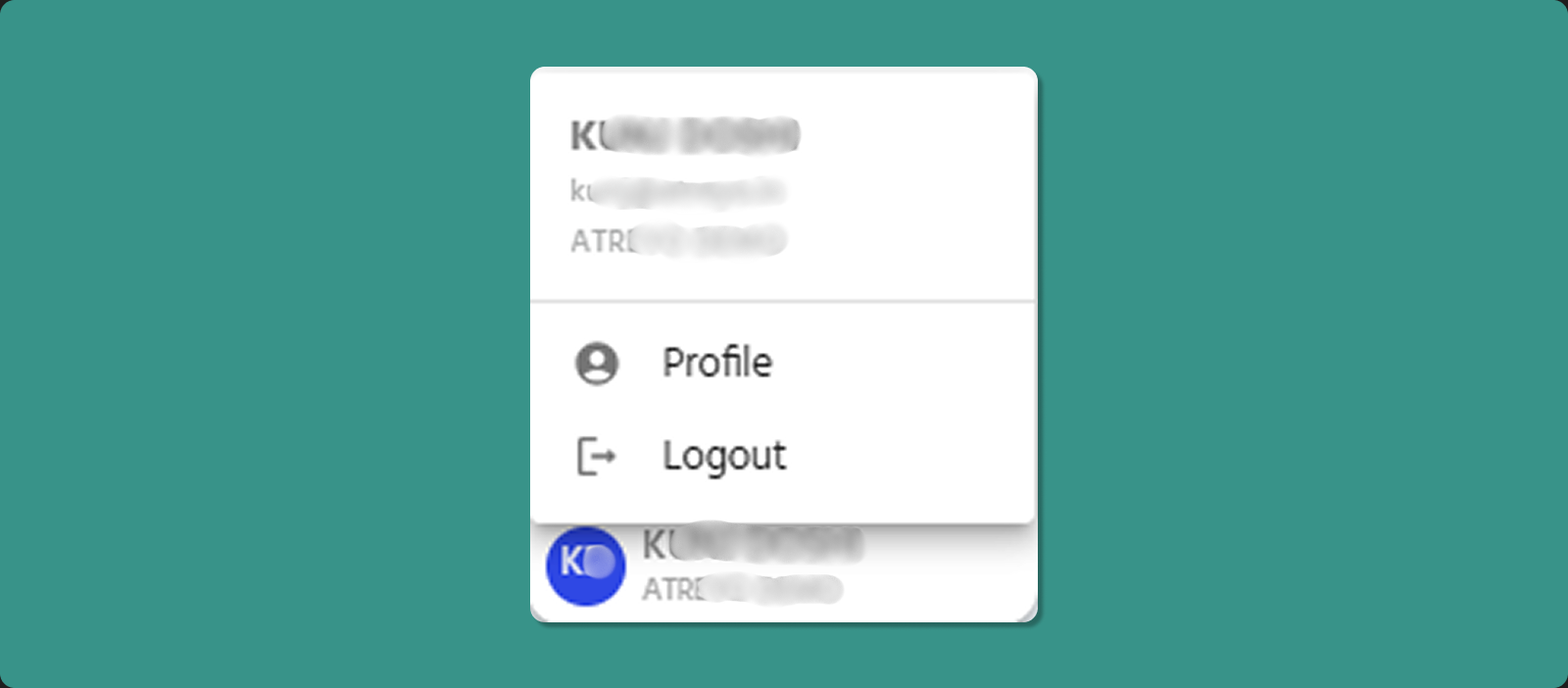
Accessing Account Menu
Location: Bottom-left corner of sidebar
Steps:
-
Look for your name at bottom of left sidebar
-
Click on your name
-
Pop-up menu appears
User Information Display
The top section of the menu displays your account details:
Information Shown:
-
Name: Your full name
-
Email: Your registered email address
-
Organization: Your assigned organization
Purpose:
-
Quick reference to confirm logged-in account
-
Verify organization context
-
Check account details without navigating away
Available Actions
Profile (Person Icon 👤)
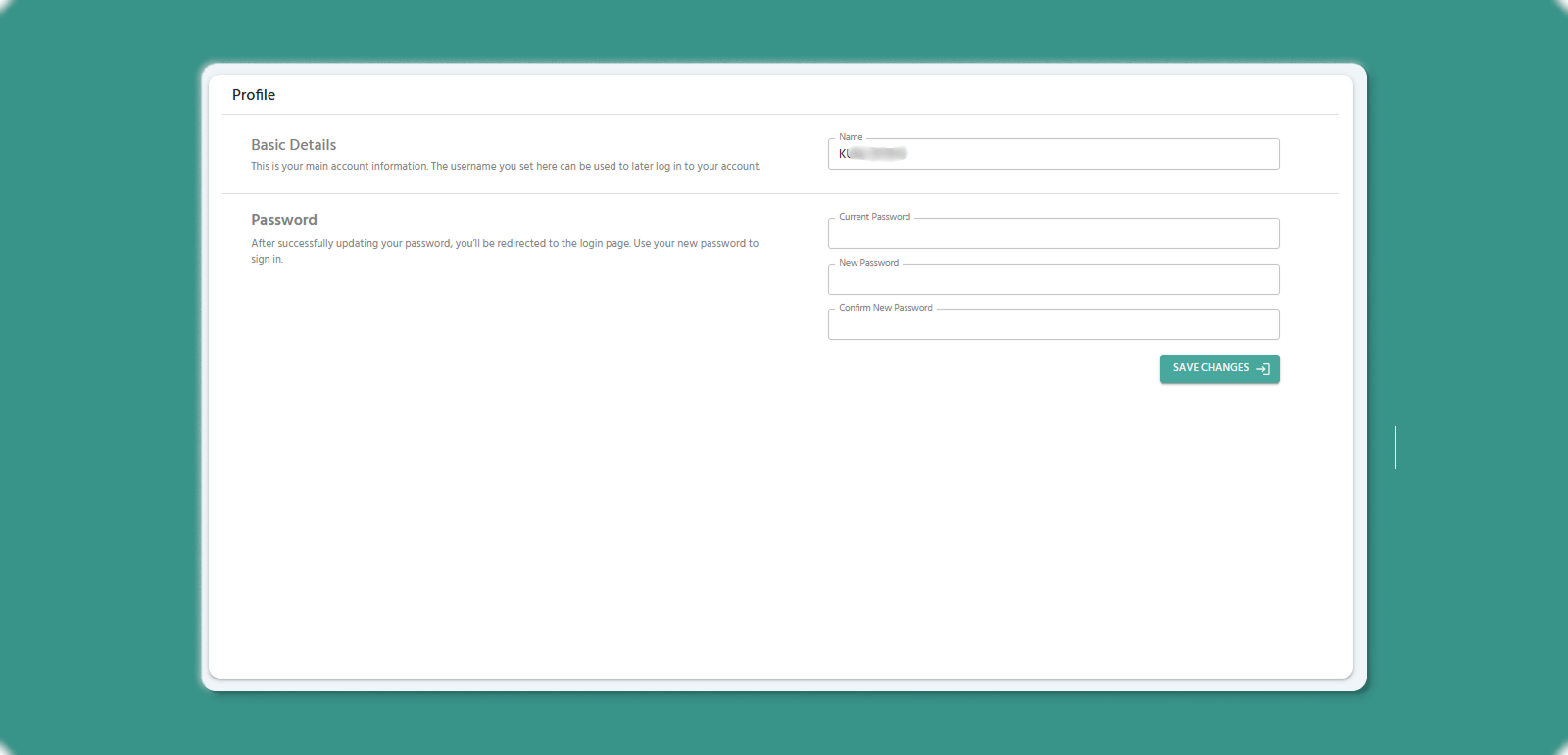
Action: Click Profile option
Result:
Password Change Fields:
-
Current Password
-
New Password
-
Confirm New Password
Conditions:
-
The current password must be correct.
-
The new password and the confirm password must match.
-
Password input rules are the same as the account setup and recovery password rules.
Results:
-
The password is successfully changed.
-
The user is redirected to the login page.
-
The user must log in using the new password.
Use Cases:
-
Verify account information
-
Change password.
Logout (Exit Icon 🚪)
Action: Click Logout option
Result:
-
Immediately logs you out of Atra RMS
-
Session terminated securely
-
Redirected to login page
-
Must re-enter credentials to access again