
Troubleshooting Common Atra VPN App Issues
Installation Issues
Problem 1: Windows Protection Screen
Symptom: Blue screen: "Windows protected your PC"
Solution:
-
Click "More info" link
-
Click "Run anyway" button
-
Click "Yes" on UAC prompt (grant administrator permission)
Why: Standard Windows security for BETA apps. Safe to proceed.
Problem 2: App Not Launching After Install
Symptoms:
-
Double-click desktop icon, nothing happens
-
No application window appears
-
No error message
Solutions:
Check Task Manager:
-
Press Ctrl+Shift+Esc (open Task Manager)
-
Look for "AtraVPNClient.exe" in Processes tab
-
If found, right-click → End Task
-
Try launching again
Run as Administrator:
-
Right-click desktop icon
-
Select "Run as administrator"
-
Click "Yes" on UAC prompt
Reinstall:
-
Uninstall via Control Panel → Programs and Features
-
Delete remaining files from C:\Program Files\Atra VPN Client
-
Download fresh installer from Atra RMS
-
Reinstall following steps above
Login Issues
Problem 3: Invalid Credentials Error
Symptom: "Invalid email or password" message
Solutions:
Verify Credentials:
-
Confirm email is correct (check for typos)
-
Verify password is correct
-
Check Caps Lock is OFF
-
Try copying/pasting password from secure location
Reset Password:
-
Go to Atra RMS web platform
-
Use "Forgot Password?" link
-
Reset password
-
Use new password in VPN client
Check Account Status:
-
Verify account setup was completed
-
Confirm account hasn't been disabled
-
Contact administrator if needed
Problem 4: Auto-Login Not Working
Symptom: App asks for login every time despite successful previous login
Solutions:
Manual Logout Clears Auto-Login:
-
If you clicked Logout last time, auto-login disabled
-
Simply log in once to re-enable
Clear and Re-Login:
-
Log out if currently logged in
-
Close application completely
-
Reopen application
-
Log in manually
-
Auto-login should work on next launch
VPN Connection Issues
Problem 5: Cannot Connect to Tunnel
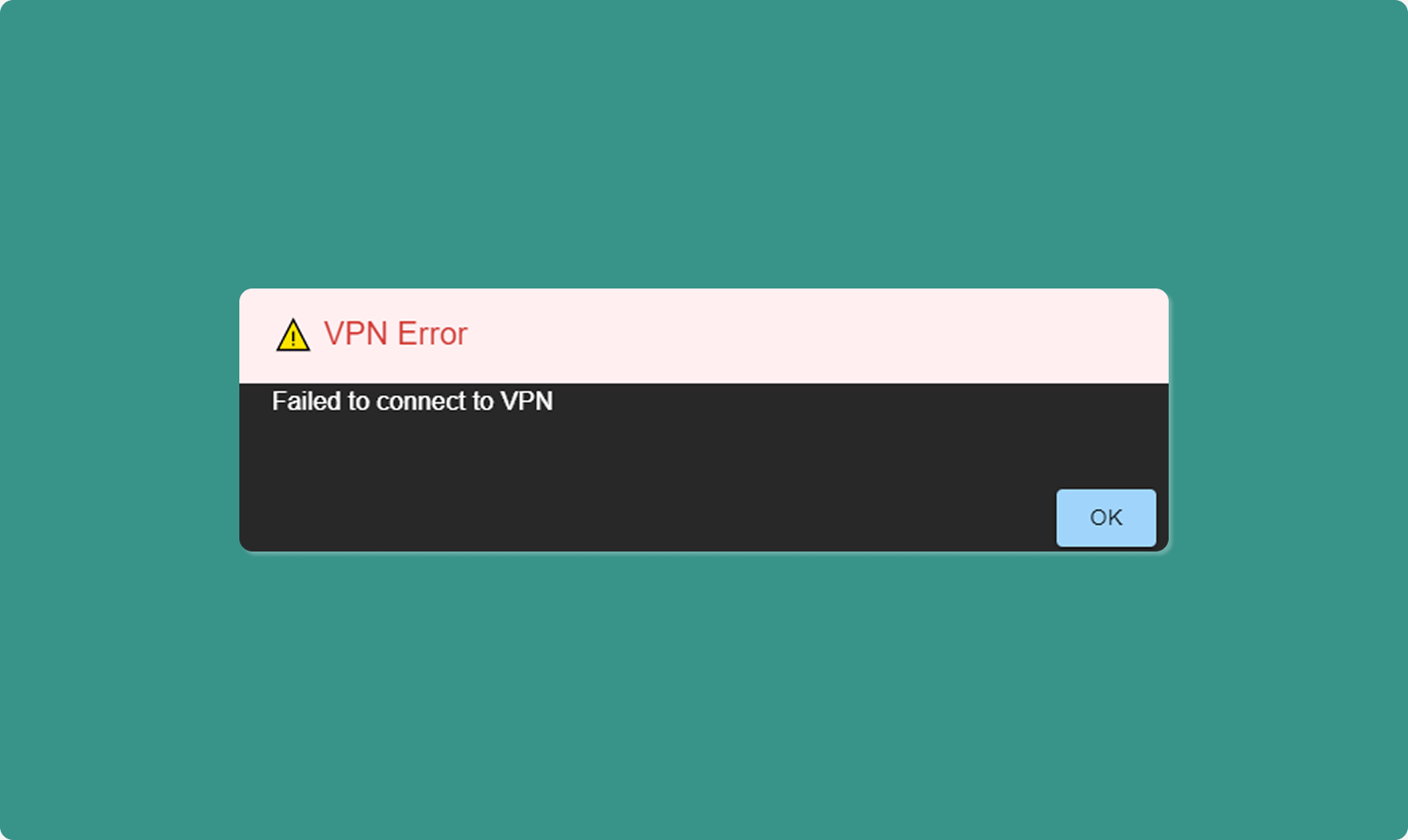
Symptom: Click "Connect" but connection fails
Solutions:
Verify Tunnel State:
-
Check Process Status = "Running" (not "Exited")
-
Check Tunnel Status = "Enabled" (not "Disabled")
-
If Exited: Contact administrator to start tunnel
-
If Disabled: Contact administrator to enable tunnel
Check Current Connection:
-
Verify you're not already connected to another tunnel
-
If connected elsewhere, disconnect first
-
Then try connecting to desired tunnel
Check Internet Connection:
-
Verify your computer has active internet
-
Try opening website in browser
-
Check Wi-Fi/Ethernet connection
-
Restart router if necessary
Contact Administrator:
-
Verify you're added to the tunnel
-
Confirm you haven't been removed
-
Check tunnel hasn't been deleted
Problem 6: Connection Drops Frequently
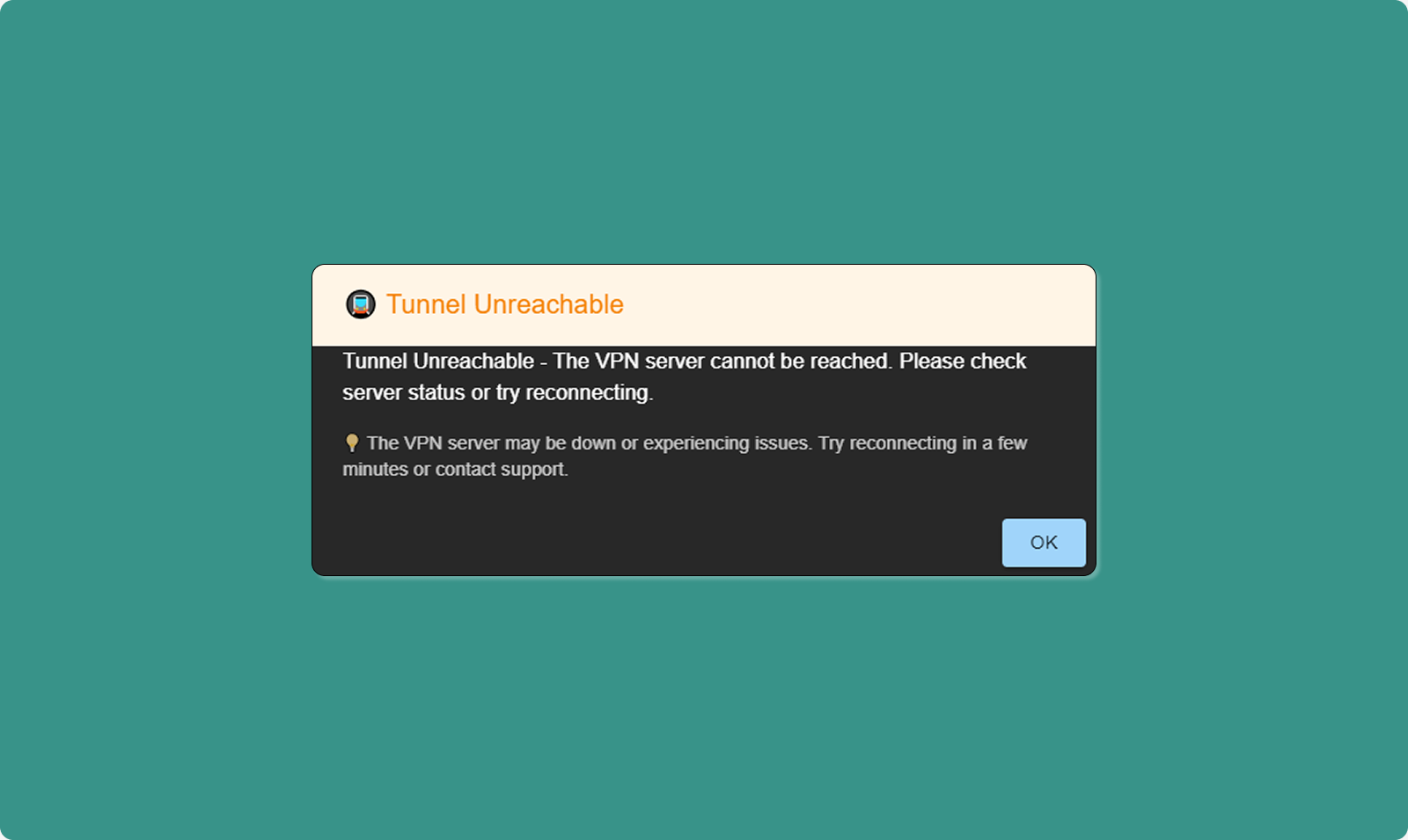
Symptom: Connection established but drops after few minutes
Solutions:
Check Internet Stability:
-
Test internet connection quality
-
Run speed test (speedtest.net)
-
Check for packet loss (ping test)
-
Switch to wired connection if using Wi-Fi
Check Firewall/Antivirus:
-
Temporarily disable firewall
-
Test VPN connection
-
If works, add VPN client to firewall whitelist
-
Re-enable firewall
Router Configuration:
-
Ensure UDP port 1194 is open (OpenVPN default)
-
Check router isn't blocking VPN traffic
-
Update router firmware if outdated
Network Congestion:
-
Close bandwidth-heavy applications
-
Pause downloads/uploads
-
Disconnect other devices from network temporarily
-
Test connection during low-usage period
Problem 7: Device Not Showing in Sidebar
Symptom: Open Details sidebar but expected device missing
Solutions:
Verify Device Added:
-
Check Atra RMS web interface
-
Navigate to tunnel Overview page
-
Check Devices tab
-
Confirm device is in the list
-
If missing, administrator must add it
Refresh Application:
-
Click Refresh icon (top of VPN client)
-
Wait for data to update
-
Check Details sidebar again
General Issues
Problem 8: App Stuck or Frozen
Symptom: Application unresponsive, cannot click anything
Solutions:
Force Close:
-
Press Ctrl+Alt+Delete
-
Select Task Manager
-
Find "AtraVPNClient.exe"
-
Right-click → End Task
-
Relaunch application
System Restart:
-
Close all applications
-
Restart computer
-
Launch VPN client after restart
Problem 9: Still Not Resolved
Contact Atreyo Support:
Email: support@atreyo.io
Information to Include:
-
Your name and email
-
Organization name
-
App version number (from top-left of dashboard)
-
Operating System (Windows 10/11, build number)
-
Detailed description of issue
-
Steps to reproduce the problem
-
Screenshots of error messages
-
Log files (if accessible)